Back
9
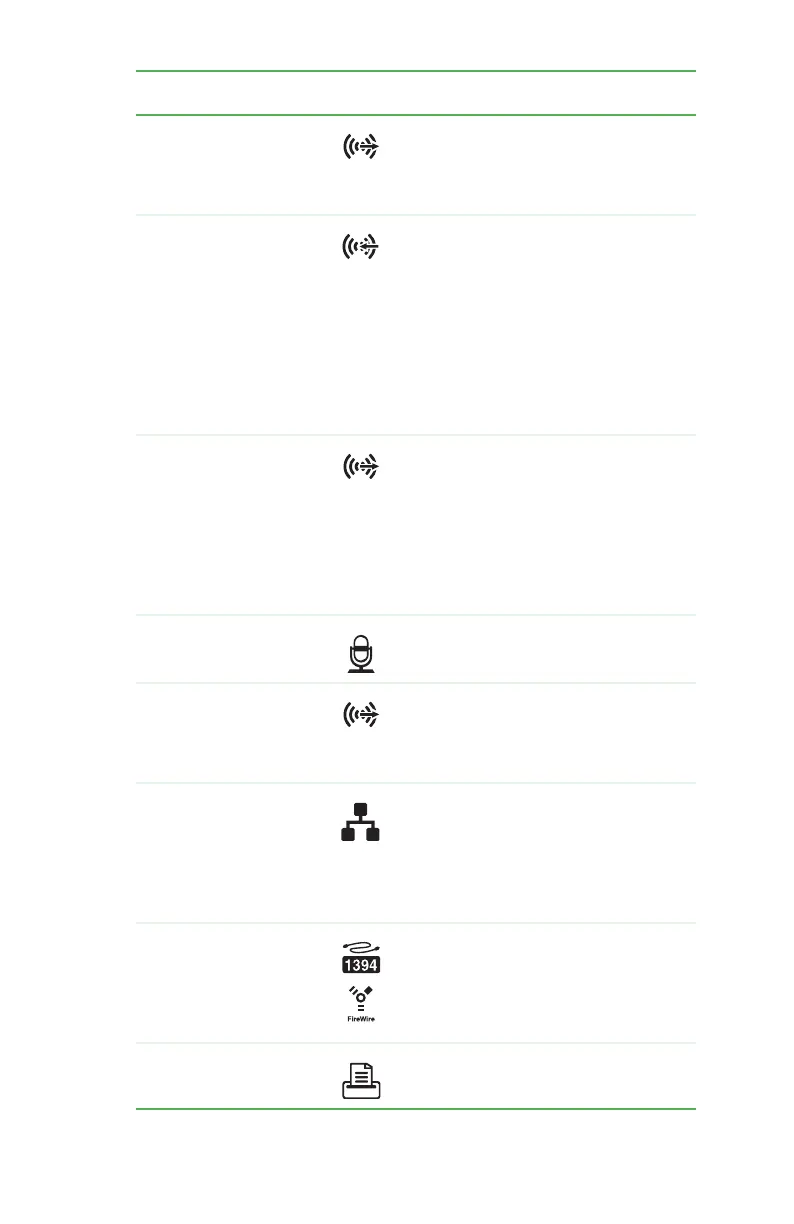
Rear speaker jack
(black plug)
Plug your rear right and left speakers into
this jack.
For more information, see “Configuring the
audio jacks” on page 26.
Audio input (Line in) jack
(blue plug)
-OR-
Side speaker jack
This jack is user configurable for one of the
following:
Stereo in: Plug an external audio input
source (such as a stereo) into this jack so you
can record sound on your computer
(Default).
Stereo out: Plug your side left and right
speakers into this jack.
For more information, see “Configuring the
audio jacks” on page 26.
Headphone/analog
speakers jack (green
plug)
-OR-
Front speakers jack
This jack is user configurable for one of the
following:
Headphone: Plug headphones or
amplified speakers into this jack (Default).
Stereo out: Plug your front left and right
speakers into this jack.
For more information, see “Configuring the
audio jacks” on page 26.
Microphone jack (pink
plug)
Plug a microphone into this jack.
Center/subwoofer jack
(orange plug)(optional)
Plug your center speaker and subwoofer
into this jack.
For more information, see “Configuring the
audio jacks” on page 26.
Ethernet (network) jack Plug an Ethernet network cable or a device
(such as a DSL or cable modem for a
broadband Internet connection) into this
jack. For more information, see “Learning
about the Internet” in your online User
Guide.
IEEE 1394 port Plug IEEE 1394 (also known as Firewire
®
)
devices (such as a digital camcorder) into
this 6-pin IEEE 1394 port. For more
information, see “Installing a printer,
scanner, or other device” on page 29.
Parallel port Plug a parallel device (such as a printer) into
this port.
Component Icon Description
8511781.book Page 9 Tuesday, October 10, 2006 4:41 PM



 To Next Page