■ Software Compatibility
• Adobe Illustrator MAC version CS2/CS3/CS4
Tip
When you are working with cutting production, we suggest that you use
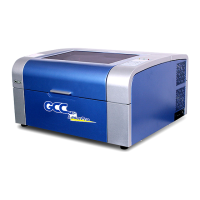
AutoCAD to work with the LaserPro C180 to have better output performance.
4.2.2 Installation of the LaserPro USB Driver
This section is only required for users that use USB connectivity. If you use the Parallel Printer Port
connectivity, then you can skip this section.
NOTE
• Do NOT connect the USB cable to the PC before you have completed both the
LaserPro USB driver and LaserPro print driver installation.
• Install the LaserPro USB driver BEFORE installing the LaserPro C180 print driver.
• This set of USB drivers are not the same as the native USB drivers for Microsoft
Windows.
1) Turn on your computer and insert the LaserPro CD.
2) From the auto run menu, select C180
→
USB Driver to start the LaserPro USB Driver
installation.
3) The LaserPro USB Driver installation program will update your Windows USB driver. When
the notication pops up, select Yes to continue the installation.
4) Click “Start” to continue with the installation
NOTE
Window Vista USB Driver installation: The main purpose is to install USB Driver
correctly under Window Vista.
OS Vista
USB Driver Version USB Setup1.12_01
Firmware Version 1.22_AAS


 To Next Page