CorelDRAW Example (Page Setup and Orientation)
The following is an example of how to set the Page Setup and Orientation in the graphics software.
CorelDRAW is the designated graphics software used for this example. For other graphics software, you
will need to access the corresponding Page Setup page.
3) From the primary menu, click LAYOUT
→
PAGE SETUP.
4) From the navigation bar on the left, click DOCUMENT
→
PAGE
→
SIZE.
5) Ensure that NORMAL PAPER and LANDSCAPE are selected.
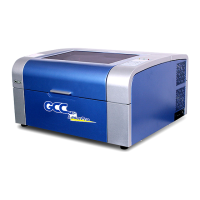
6) Ensure the Paper Width and Height dimensions match the LaserPro C180’s work table dimensions
of 458 mm (18 inches) and 309 mm (12 inches).
7) Click OK to complete the paper size adjustment.
Tip
Instead of manually selecting the Landscape and setting the Paper Width and
Height, you can simply click the Set From Printer function and CorelDRAW
will automatically set the proper orientation and dimensions based on LaserPro
C180’s work table. (You MUST have the LaserPro C180 set as the default printer
prior to doing this.)


 To Next Page