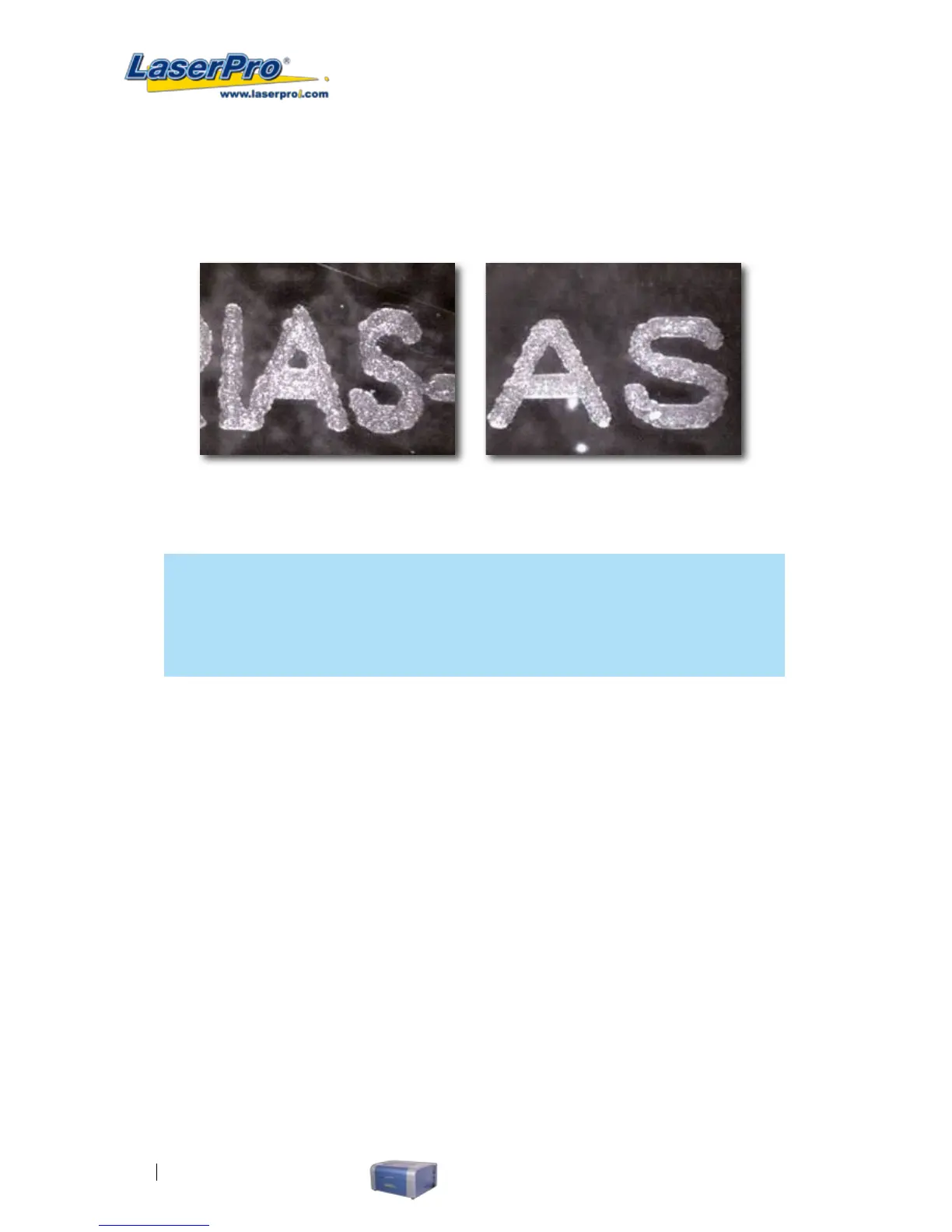
The following is an example of how having the proper image tuning is important when engraving ne,
small, intricate text. The following two pictures show engraved text magnied with no image tuning (left
picture) and image tuning enabled (right picture).
Rotary Fixture (Paper Page) [DEFAULT SETTING: Unselected]
NOTE
This option is only to be used with the Rotary Attachment optional accessory properly
set up. For instructions on how to set up the Rotary Attachment, please refer to Chapter
VII of this manual.
You will need to select the option when processing a job with the optional rotary attachment system to
engrave on rounded or cylindrical objects. When you have your material and rotary attachment
properly set up:
1) Check the Rotary Fixture function and notice the change in the Paper Size elds. Under Paper
Size, the X value represents the length of your work piece. Enter the length of your work piece in
this eld.
2) Under Paper Size, the Diameter value represents the diameter of your working piece (at the
position you wish to engrave). Enter the diameter of your work piece in this eld. Again, remember
the proper diameter value would be the diameter location, at the point of engraving on your work
piece.
3) Under Rotary Parameter, the Offset value represents distance from the open end of your work
piece to the base of the padded rubber wheel. This value will be displayed on the C180’s LCD
panel. Enter the proper offset value in this eld.
Uninstall Driver (Paper Page)
Select this to uninstall the C180 print driver. You will then need to restart your computer to complete
the process.


 To Next Page