6 Software setting
6.1 Install driver
Two printing choices for A20M: SD card printing and USB printing.
SD card printing: After leveling, insert the SD card into the slot, and choose a .gcode file to start
printing.
USB printing: Connect the printer and computer with a USB cable to control the printer with
slicing software such as Repetier-Host, Cura, Simplify3D, Slic3r, etc. Because of some unstable
factors such as signal interference, the USB printing prone to fail. So we suggest choosing SD card
printing.
The details of USB printing are as follows:
Firstly, turn on the printer, and connect the printer to computer with a USB cable. Normally, the
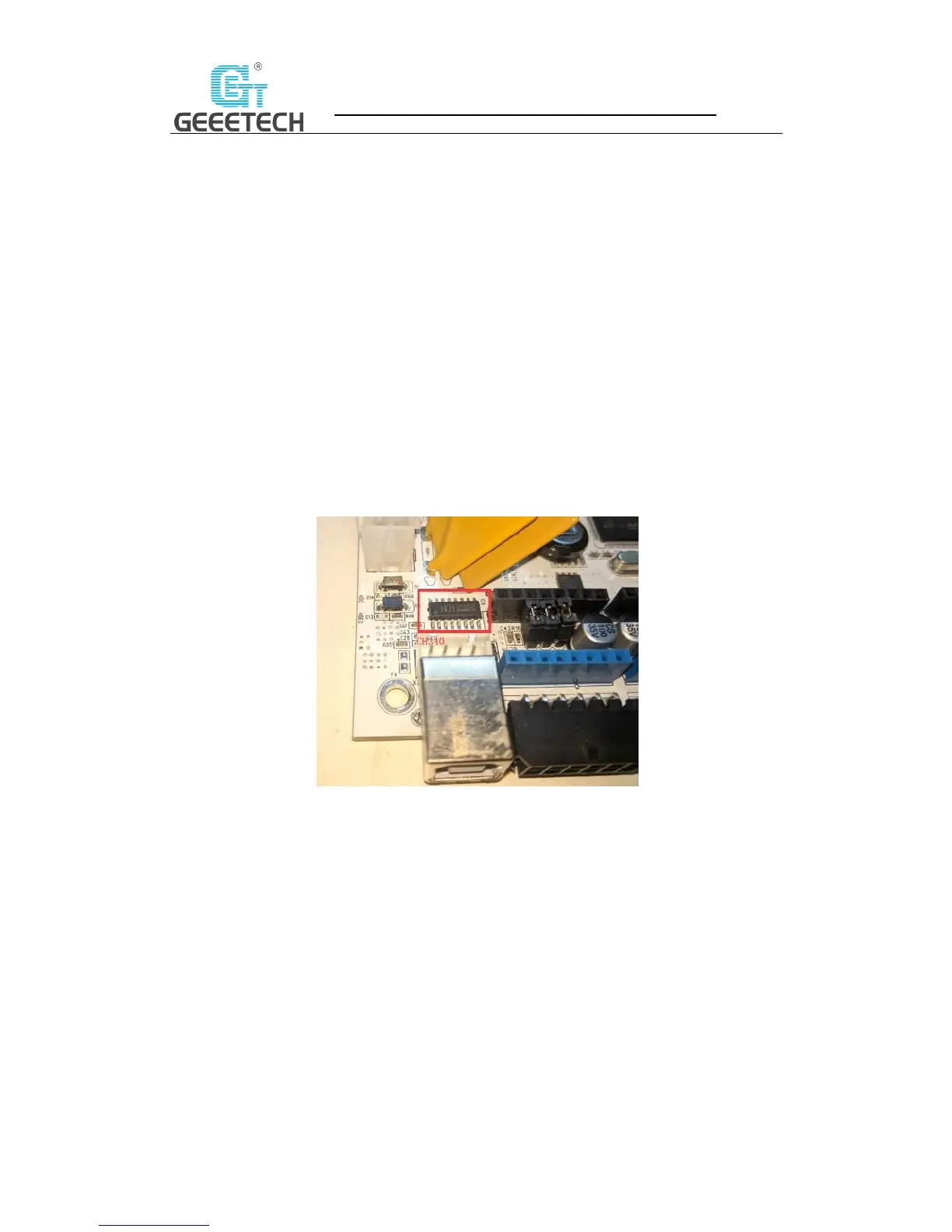
computer will automatically search the install driver. The newest communication chip of A20M is
CH340. See picture (6-1).
(Picture 6-1)
If it fails to automatically install the driver in computer, then check whether the driver is installed
successfully or not. Click to choose “My computer>Property>Device manager”.
If it shows the exclamation mark as picture below (6-2), then you need manually install the driver.


 To Next Page