Connecting to a Network With a VPN Server
A VPN connection helps you to securely connect to servers, such as a corporate network, through the
Internet. Before you can make a VPN connection, you will need the following items from your network
administrator:
• User name
• Password
• Domain name
• TCP/IP settings
• Host name or IP address of the VPN server
To create a VPN server connection to work
1 Tap Start > Settings > Connections.
2 Under My Work Network, tap Add a new VPN server connection.
3 In the Name field, enter a name for the connection, such as your company name.
4 In the Host name / IP field, enter the VPN server name or IP address.
5 Select the VPN type of authentication to use with your RP1100. If you are not sure which option to
choose, check with your network administrator.
6 Tap Next.
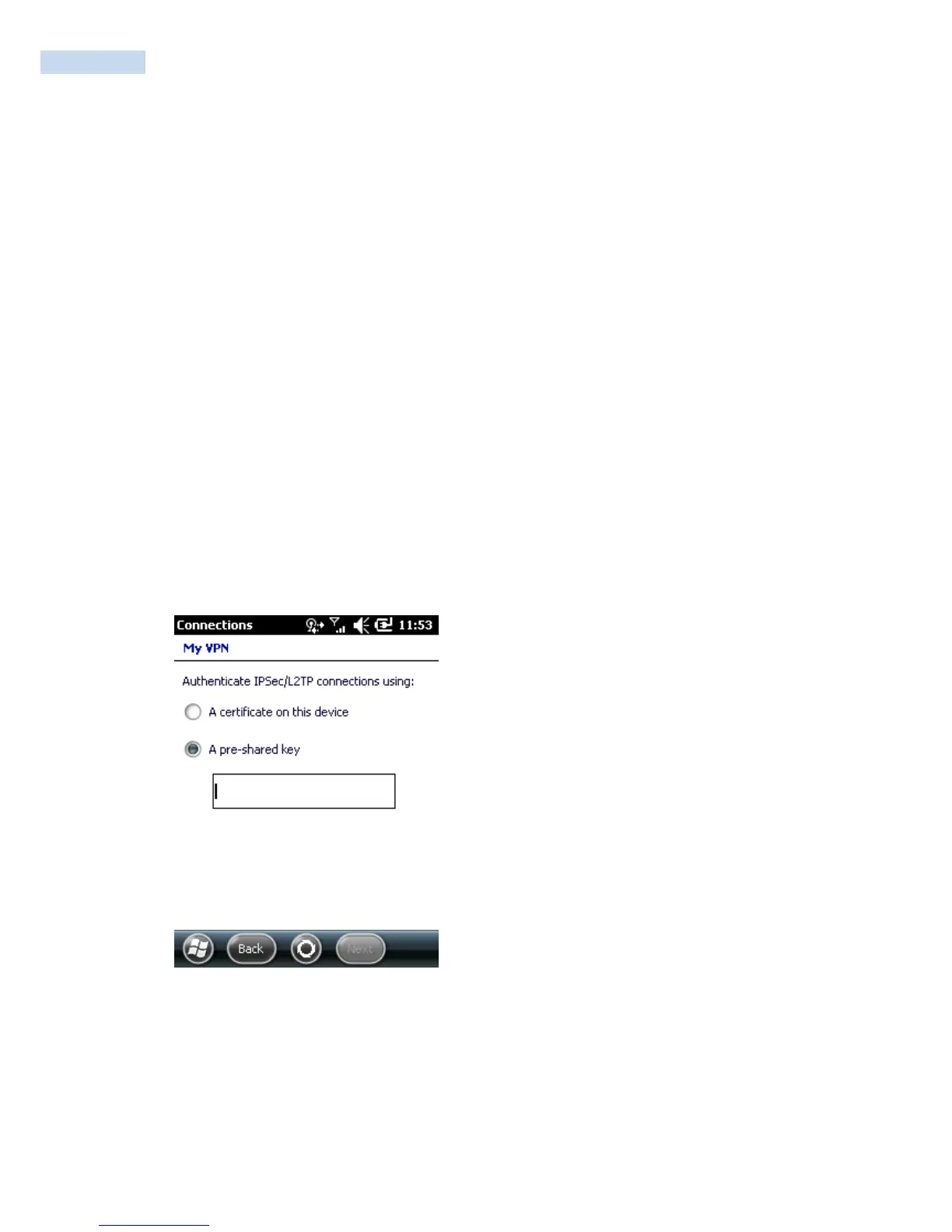
7 Select a way for the RP1100 to authenticate the connection. If you select A pre-shared key, enter the
key provided by your network administrator.
8 Click Next.
9 Enter the User name, Password, and Domain (if provided by an ISP or your network administrator).
10 Tap Finish.



 To Next Page