RP1100 Settings
Use the Phone Settings window to customize settings, such as the ring type and ring tone for incoming
calls, security options, and other options depending on the type of service.
Phone Tab
Use the Phone tab to customize ring type, ring tone, keypad tone, and security options.
Tap Start
>
Settings
>
Personal tab
>
Phone icon > Phone tab
or
Start
>
Phone
>
Menu
>
Options > Phone tab.
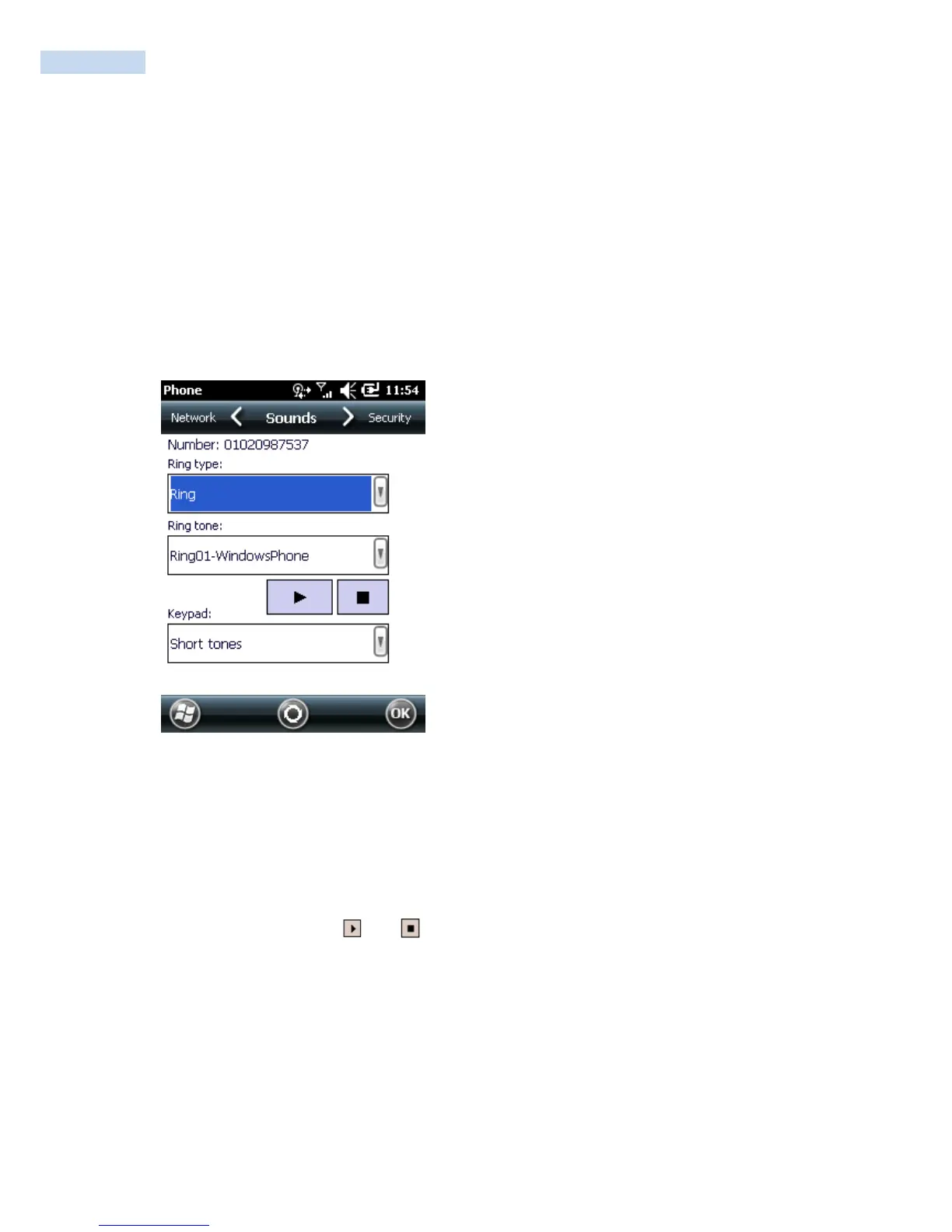
Phone Window - Phone Tab
Sounds
1. Phone Number automatically displays on the Phone tab when a live SIM card is installed.
2. Select a ring type from the Ring type: drop-down list. The ring type changes the way the RP1100
rings when you receive an incoming call. Regardless of the ring type selected, a dialog box appears
on the RP1100‟s display for incoming calls.
3. Select a ring tone for incoming calls from the Ring tone: drop-down list. To hear a sample of the
selected ring tone, tap . Tap to end the ring tone.
4. Select a keypad tone from the Keypad: drop-down list. This selection determines the tone that
sounds when entering a phone number on the keypad.
Select Short tones or Long tones to specify the duration of the sound when you press a number
on the keypad. Select Off to disable tones.
NOTE Turning off sounds saves power and prolongs battery life.



 To Next Page