Installing Applications Using Microsoft ActiveSync
You can send applications from your PC to your RP1100 using Microsoft ActiveSync. To download ActiveSync
or the Windows Mobility Center, go to www.windowsmobile.com/getstarted.
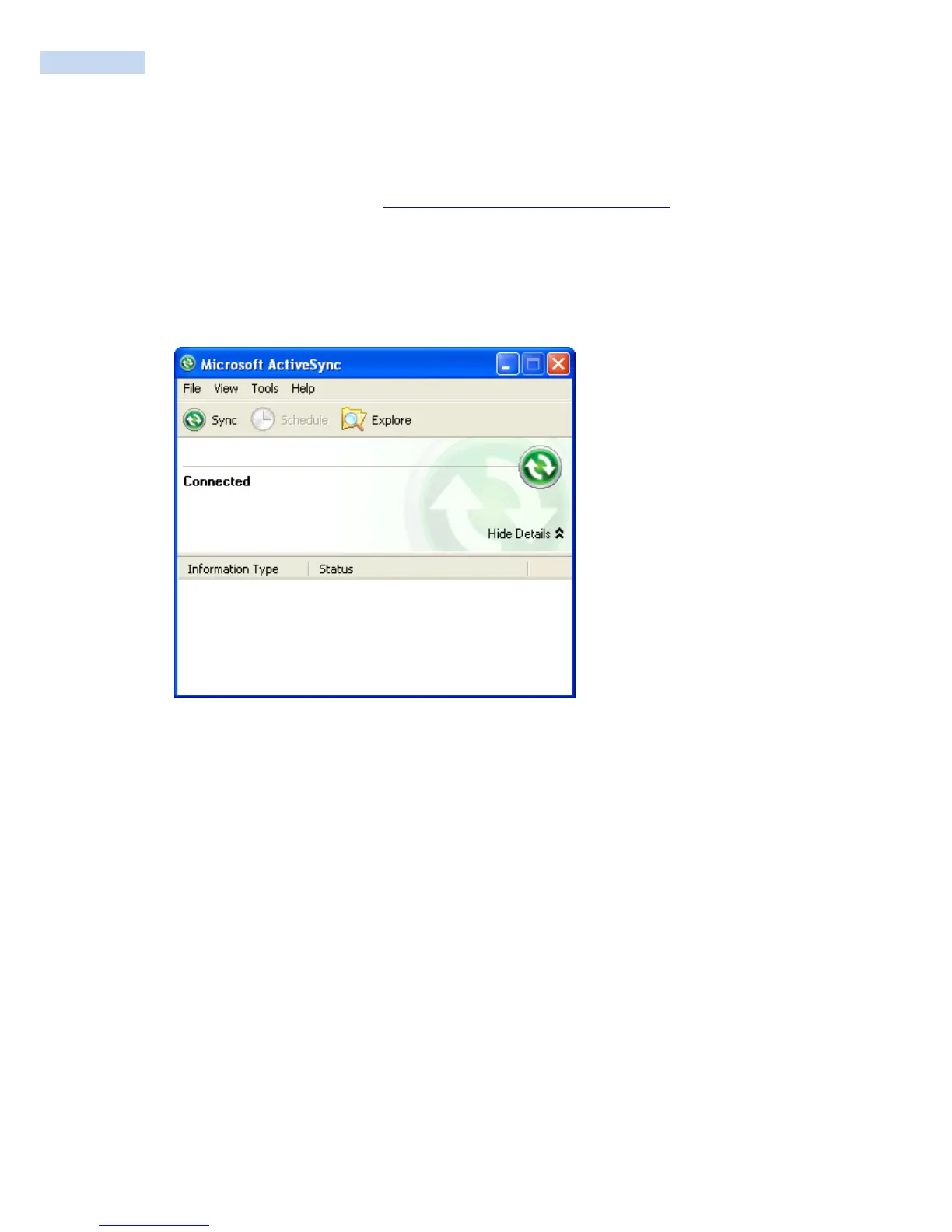
To install an application using Microsoft ActiveSync
1 On your PC, copy the .cab file you want to download to your RP1100.
2 Create an ActiveSync connection between your PC and RP1100. For help, see “Connecting the
RP1100 to a PC”.
3 Click Explore. The Mobile Device window opens.
4 Double-click My Windows Mobile-Based Device.
5 Navigate to the folder you want to copy the .cab file to, and paste the .cab file in the folder.
6 On your RP1100, tap Start > Programs > File Explorer and navigate to the location of the .cab file.
7 Tap the .cab file to install it.



 To Next Page