3 (Optional) If you want your RP1100 to be visible to other Bluetooth devices, tap Make this device
visible to other devices.
4 Tap ok.
The Bluetooth radio maintains its current state through a reset or hard reset and maintains virtual COM
ports. If you clean boot your RP1100, you need to recreate pairings to devices.
Configuring the Phone
The RP1100 supports two types of mobile wireless phone technology:
HSDPA
UMTS
With the radio module installed in the RP1100, you can send and receive telephone calls as well as transmit
data through wide-area (WAN) cellular networks.
The RP1100 provides a phone speaker, microphone, and speakerphone. It also supports the use of a
Bluetooth headset or hands-free kit. The factory default setting for the phone is disabled.
After you have turned on the phone and activated with the wireless carrier of your choice, you can
customize the features of the phone and network settings.
Turning On the Phone Using the Wireless Manager
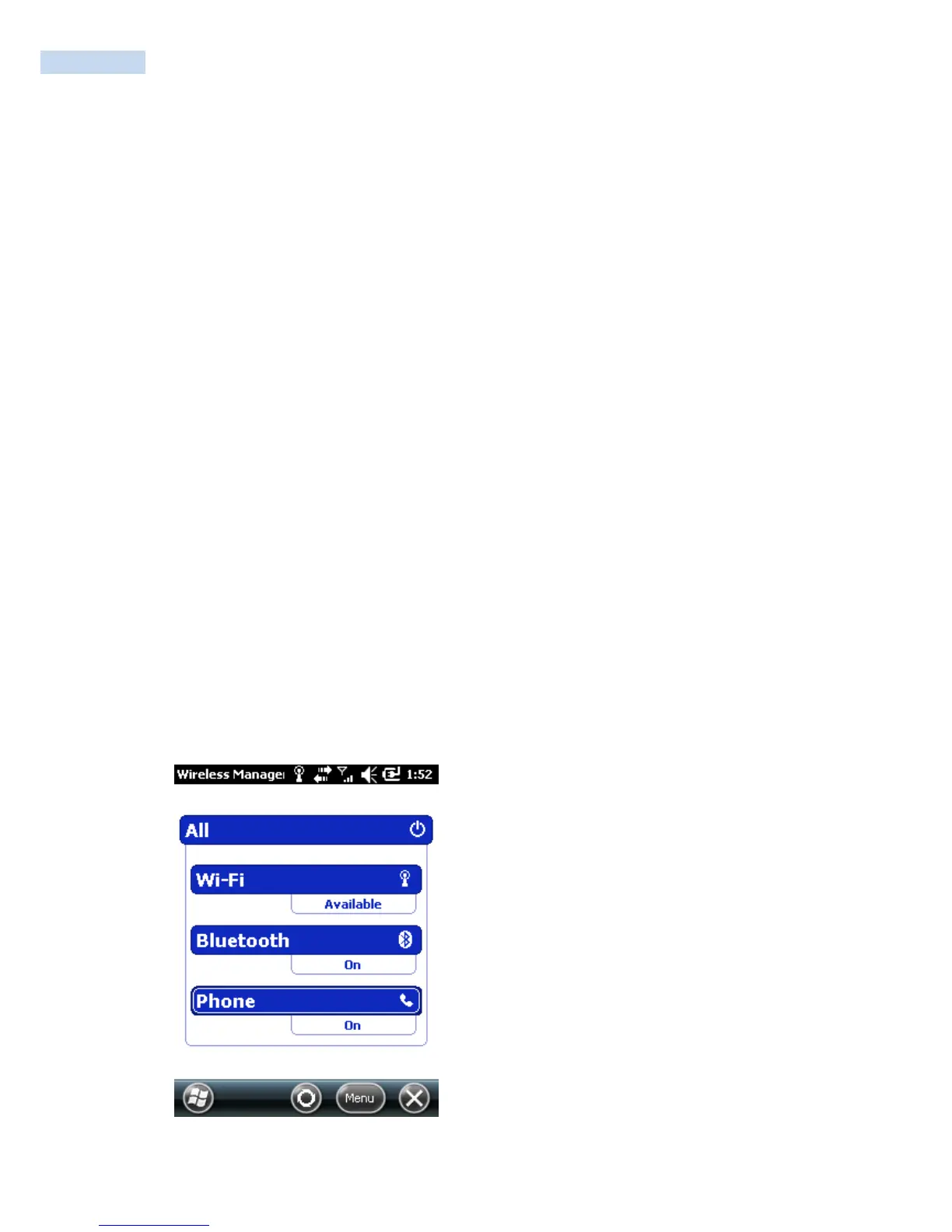
You can use the Wireless Manager to enable and disable Bluetooth, Wi-Fi, and the phone on your RP1100.
To turn on the phone using the wireless manager
1 Tap Start > Settings > Connections > Wireless Manager.



 To Next Page