Using the Touch Screen
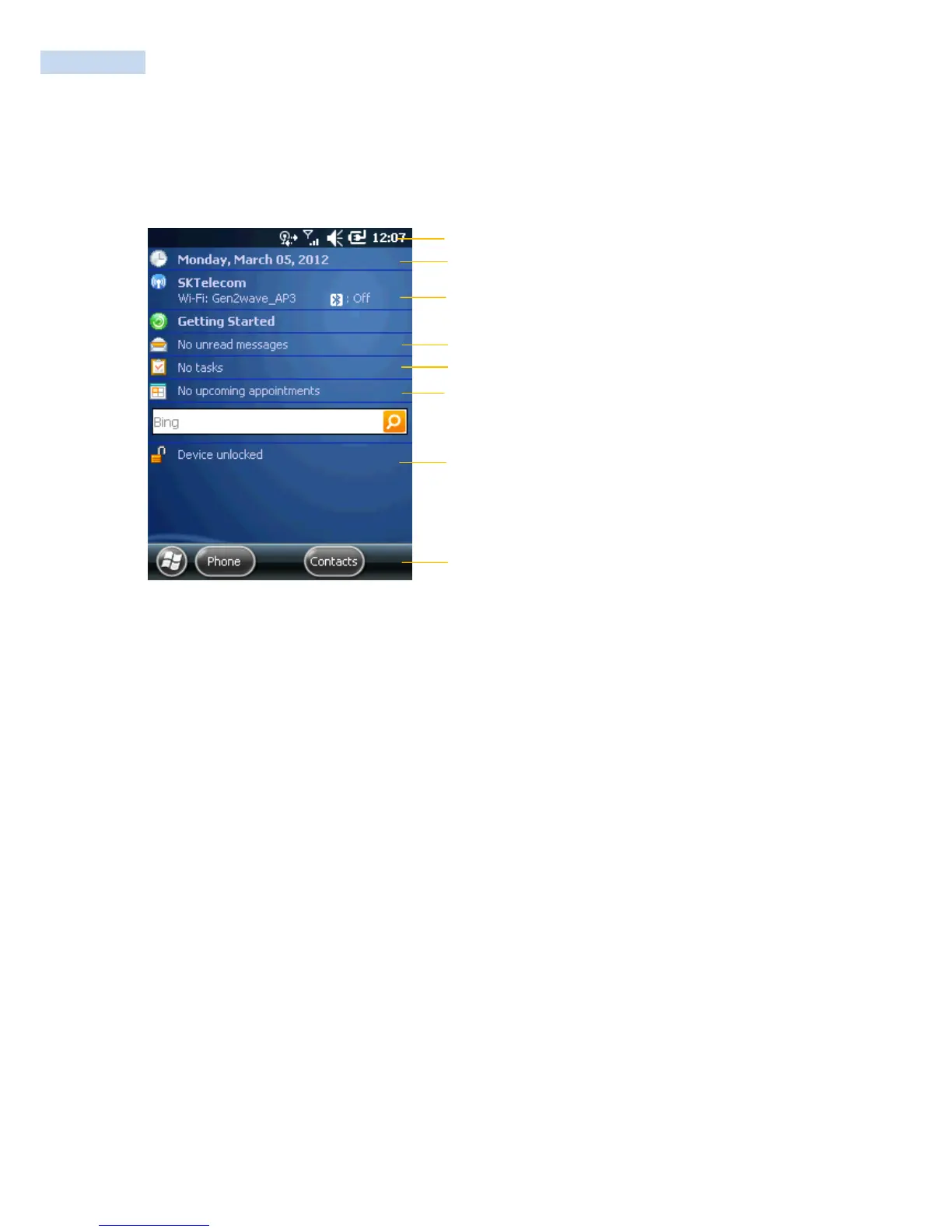
The RP1100 has a 240 x 320 pixel color touch screen display. Main Screen is set below
Windows Mobile 6.5 Start Screen
To turn the screen LCD on and off
• For the keypad, press power key
Configuring the Backlight Settings
By default, the RP1100 goes into Screen Off mode when there is no activity on the computer. Screen Off
mode turns off the backlight and display. Press a key or tap the screen to resume activity.
To configure the backlight
1 Tap Start > Settings > System > the Backlight icon > the Battery Power tab.
2 With Turn off backlight if device is not used for checked, select the timeout value (30 seconds, or 1 to 5
minutes).



 To Next Page