EasyManua.ls Logo

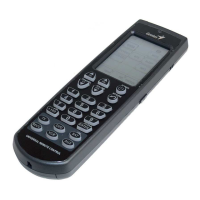
Genius REMOTE 600 - User Manual

Genius REMOTE 600
33 pages
Print Icon
To Next Page IconTo Next Page
Loading...
i
Table of Contents
Chapter 1 Introducing the Remote 600 1
Remote 600 Features............................................ 2
Unpacking the Remote 600................................. 2
About the Remote 600 ......................................... 3
Chapter 2 Quick start 4
Installing batteries.................................................. 4
About the controls ................................................ 6
Touch screen precautions ........................... 6
Selecting devices and pages ..................... 7
Loading preset codes using auto search.. 8
Chapter 3 Setting up the Remote 600 10
Entering setup ...................................................... 10
Changing the LCD layout.................................. 11
Using preset codes.............................................. 12
Manually setting preset codes.................. 13
Checking the code number ..................... 14
Learning codes.................................................... 15
Deleting codes .................................................... 17
Deleting codes one button at a time...... 18
Deleting codes one device at a time ..... 18

Questions and Answers

  • A
    Amy BoothAug 16, 2025
    What to do if my Genius REMOTE 600 Remote Control 600 does not operate a device?
    • A
      Anthony BlanchardAug 16, 2025
      If your Remote 600 isn't operating a device, ensure the correct device is selected on the remote. Also, verify you're within the effective transmission distance (8 ~ 10 m). If these steps don't work, the batteries may be discharged, so replace them. Check that the button is programmed correctly or re-program the button. You can also visit Genius’s website, www.geniusnet.com.tw and download the most up to date code list.
  • M
    Michael SuttonAug 19, 2025
    Why does my Genius REMOTE 600 Remote Control touch screen turn off?
    • J
      Jacob JonesAug 19, 2025
      The touch screen turns off because the Remote 600 has a power-saving feature that automatically switches it off after 90 seconds of inactivity. To switch it back on, simply move the Remote 600. Also, the batteries may be discharged, so replace them with new ones.
  • H
    Holly ShortAug 22, 2025
    What to do if my Genius REMOTE 600 Remote Control 600 cannot operate a device after learning a function?
    • M
      Michael MillsAug 22, 2025
      If the Remote 600 doesn't operate a device after learning a function, verify that the remote learned the function correctly. Try deleting the code and teaching the Remote 600 again. Ensure you used the correct remote to teach the Remote 600. Keep in mind that the Remote 600 cannot learn all codes, as some remote frequencies might be out of its learning range.
  • Q
    qgonzalezAug 25, 2025
    What to do if my Genius REMOTE 600 learning does not work?
    • C
      Cynthia RogersAug 26, 2025
      If learning isn't working, start by replacing the batteries, as they may be discharged. Make sure the target device’s remote is correctly aimed at the Remote 600’s learning eye, keeping a distance of about 5~10 cm between the remotes. Ensure you hold the target remote’s button until the LED lights up, confirming the function is learned. Avoid teaching the Remote 600 near candescent lights.
  • J
    jamesnorrisAug 28, 2025
    What to do if my Genius VCR, Hard disk recorder, or DVD will not record with Remote Control?
    • L
      Laura RothAug 28, 2025
      If your VCR, hard disk recorder, or DVD won't record, remember that the record button has a safety feature to prevent accidental operation. Press and hold the record button for two seconds.
  • M
    Mrs. Kim Price DVMAug 31, 2025
    Why does the LED not light up when I press a button on my Genius Remote Control?
    • J
      jbensonAug 31, 2025
      The LED might not light up when you press a button because the button doesn’t have a function assigned to it. Please input IR codes initially. Also, verify that the button you pressed has been programmed with a code.
  • K
    Kathy CarrSep 2, 2025
    What to do if Genius Remote Control macro does not work?
    • D
      dmatthewsSep 3, 2025
      If the macro function isn't working, first check that the correct device is selected on the Remote 600. Ensure you are within the effective transmission distance (8 ~ 10 m). Weak batteries can also cause this issue, so replace them. Finally, verify the macro is programmed correctly; re-program it if necessary.
  • A
    Ann KingSep 5, 2025
    Why does my Genius REMOTE 600 600 emit three beeps when learning a function?
    • S
      Sheila PenaSep 5, 2025
      If the Remote 600 emits three beeps during learning, ensure the remote is correctly aimed at the Remote 600’s learning eye and that you hold the remote’s button until the function is learned. Also, check that the remote’s IR transmitter is 5 ~ 10 cm from the Remote 600’s learning eye.
  • J
    jacobandersonSep 8, 2025
    How to fix Genius REMOTE 600 Remote Control touch screen if it does not display anything when touched?
    • K
      Katherine MillerSep 9, 2025
      If the touch screen isn't displaying anything when touched, check that the batteries are installed correctly. The batteries may also be discharged, so replace them.
  • E
    elizabeth11Sep 12, 2025
    What to do if a button on my existing remote performs two or more functions with Genius Remote Control?
    • C
      cherylkennedySep 12, 2025
      If a button on your existing remote performs multiple functions, it's because some remotes issue multiple codes when a single button is pressed. Teach separate buttons on the Remote 600 for these different codes.

Summary

Introducing the Remote 600

Remote 600 Features Overview

Overview of the Remote 600's capabilities and functionalities.

Unpacking the Remote 600

Instructions for unpacking the remote control and checking included items.

Quick Start Guide

Installing Batteries

Step-by-step guide for inserting batteries into the remote control.

Remote Controls and Usage

Selecting Devices and Pages

Loading Preset Codes via Auto Search

Setting Up the Remote 600

Entering Setup Mode

Steps to access the remote's setup menu for configuration and programming.

Customizing the LCD Layout

Using Preset Codes

Manually Setting Preset Codes

Learning Codes

Creating Macros

Resetting Factory Defaults

Using the Remote 600

Button Protection

Explanation of the feature that prevents accidental operation of buttons and touch screen.

Remote Control Features

Troubleshooting Guide

Touch Screen Issues

Solutions for when the touch screen does not display anything when touched.

Advanced Troubleshooting

Button and Functionality Issues

Advanced Troubleshooting and Macros

Genius REMOTE 600 Specifications

General IconGeneral
Device TypeRemote Control
Wireless Range10 meters
ConnectionUSB Receiver
ButtonsMultimedia, Shortcut
Power Source2 x AAA Batteries

Related product manuals