TECHNICAL SUPPORT: 1.800.283.5936 (USA) OR 1.801.974.3760
G-WARE SOFTWARE • FROM EXPANSION BUS LABELING
47
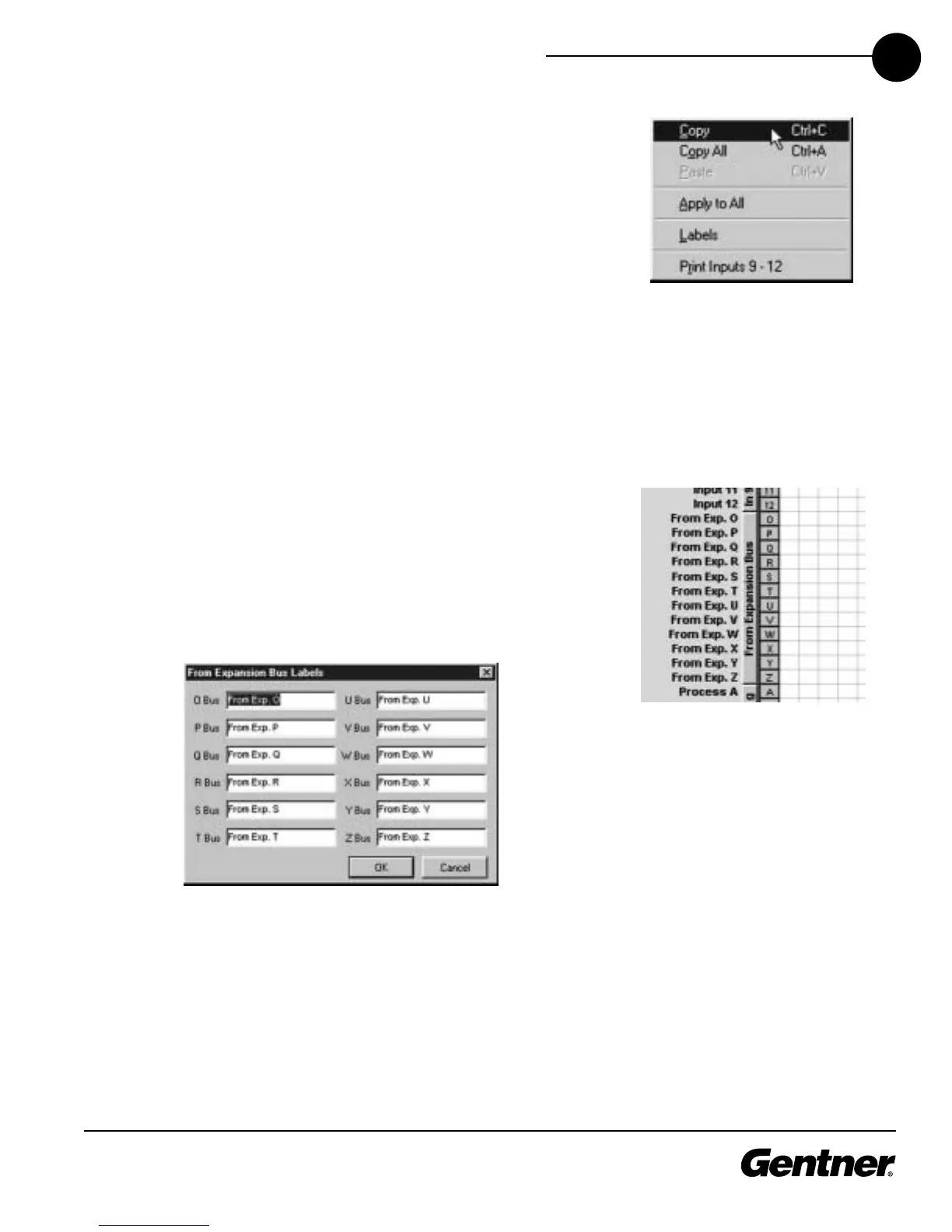
Right-clicking anywhere in the window opens the Copy menu, which
allows you to copy and paste all of the Input 9 settings, for example, to
other inputs. To do so, click Copy, then select the input you wish to
apply the settings to. Then right-click and select Paste. If you wish to
copy all settings of an input to the rest of the inputs, select Apply to All.
When you finish configuring Inputs 9-12, click Close to exit the Input 9-
12 configuration window.
From Expansion Bus Labels Button, G-Ware
Configuration Matrix Window
From Expansion Bus Labeling
Click the From Expansion Bus button in the G-Ware Configuration
matrix window. This opens the From Expansion Bus Labels window.
From Expansion Bus Labels Window
Enter the names you wish to use for each Expansion Bus, then click OK
to save the information and return to the G-Ware Configuration matrix
window.
Copy Menu



 To Next Page