23
Using the Touchscreen (Optional)
NOTE: You can press Fn+F8 to toggle the touchscreen function on or off.
CAUTION: Do not use a sharp object such as a ballpoint pen or pencil on the
touchscreen. Doing so may damage the touchscreen surface. Use your finger
or the included stylus.
Select models have a capacitive touchscreen. This type of touchscreen
responds to objects that have conductive properties, such as fingertips and a
capacitive-tipped stylus. You can navigate on the screen without using a
keyboard, touchpad, or mouse.
You can change the touchscreen sensitivity settings to suit your scenario.
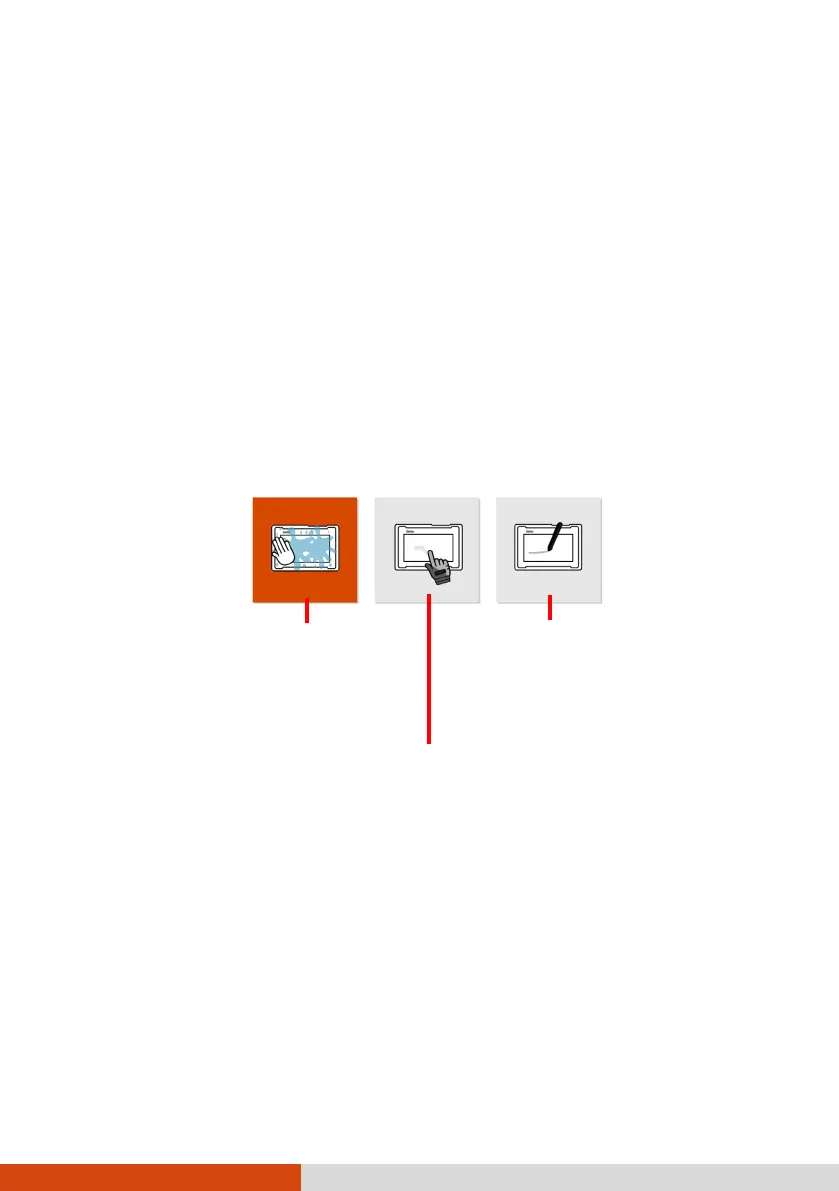
Double-tap the Touch Screen Mode shortcut on Windows desktop to open
the settings menu and select one of the options (as shown below).
NOTE:
In high temperatures (above 60
o
C / 140 °F), set the mode to Finger instead
of Glove or Stylus mode.
If liquid is spilled on the touchscreen causing a wet area, the area will stop
responding to any inputs. For the area to function again, you must dry it.
Enables simultaneous use
with Getac stylus or finger
touch.
(You must use the
supplied with your
.)
Has a higher sensitivity to allow use
with g
loves (referring to warm
not referring
-capable gloves).
Select this mode when liquids,
such as raindrops, are falling
on the screen and should be
rejected as input. Works best
with fingertips.


 To Next Page