11
Preparing to use the handset
S1_SL1 / englisch / A31008-X150-B103-1-7619 / starting.fm / 02.10.2003
Operating the handset – menu guidance
Special keys
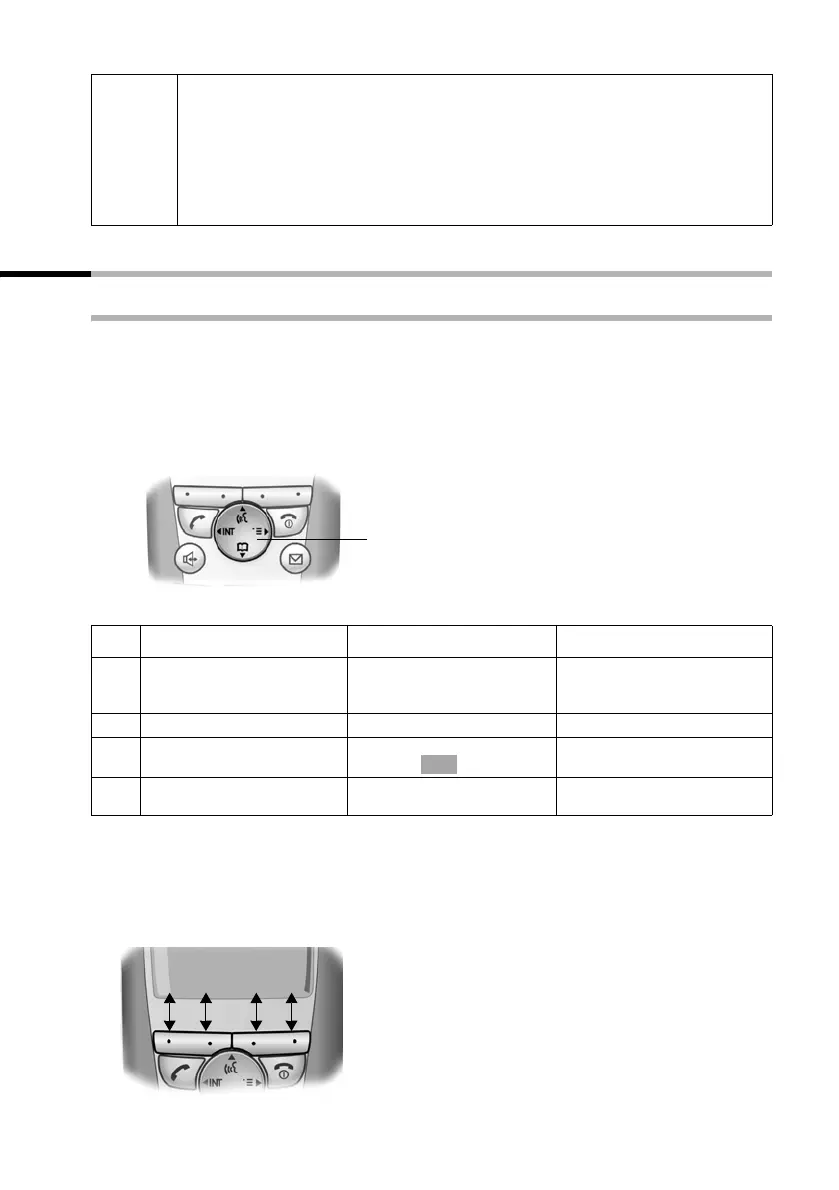
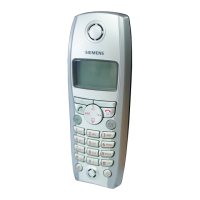
Control key
The control key is the central operating element. It has four black arrows and the corre-
sponding icons. Pressing the various icons (up, down, right, or left) opens a different
function. The side you have to press is shown by a black triangle in the
operating instructions, e.g.:
v key for right = open menu.
Example:
Different functions of the control key:
Display keys
The display keys are the horizontal rocker keys just below the display. Their function
changes depending on the particular operating situation. The current function is shown
in the display directly above the key to which it relates.
Example:
i
◆ The key lock switches itself off automatically if you receive a call. It re-
activates when the call is finished.
◆ When the keypad lock is active, you cannot even call emergency num-
bers.
◆ The keypad lock is still indicated if you have installed a logo as display
graphic (page 69).
Control key
In the idle status In lists and menus In an input field
t
Initiate voice-activated dial-
ling
(long press)
Scroll up Move the cursor up a line
s
Open directory Scroll down Move the cursor down a line
v
Open the menu Confirm the selected option
(same as )
Move the cursor to the right
u
Open list of handsets Go back one menu level, or
cancel
Move the cursor to the left
OK
yx
”Í
Display keys
Display key functions
(depending on the operating situation)


 To Next Page