-33-
3.7 RigiScan Settings Window
Clicking the Settings button on the RigiScan Plus Home Screen opens the RigiScan Settings Window.
Click-able tabs along the left side of the window allow the user to navigate to different sections of the
Settings Window to customize the RigiScan Plus application for their particular needs.
Clicking the button in the upper right corner of the Settings Window brings the user back to the
RigiScan Plus Home Screen.
Below you will nd a description of each tab available from the Settings Window:
General Tab
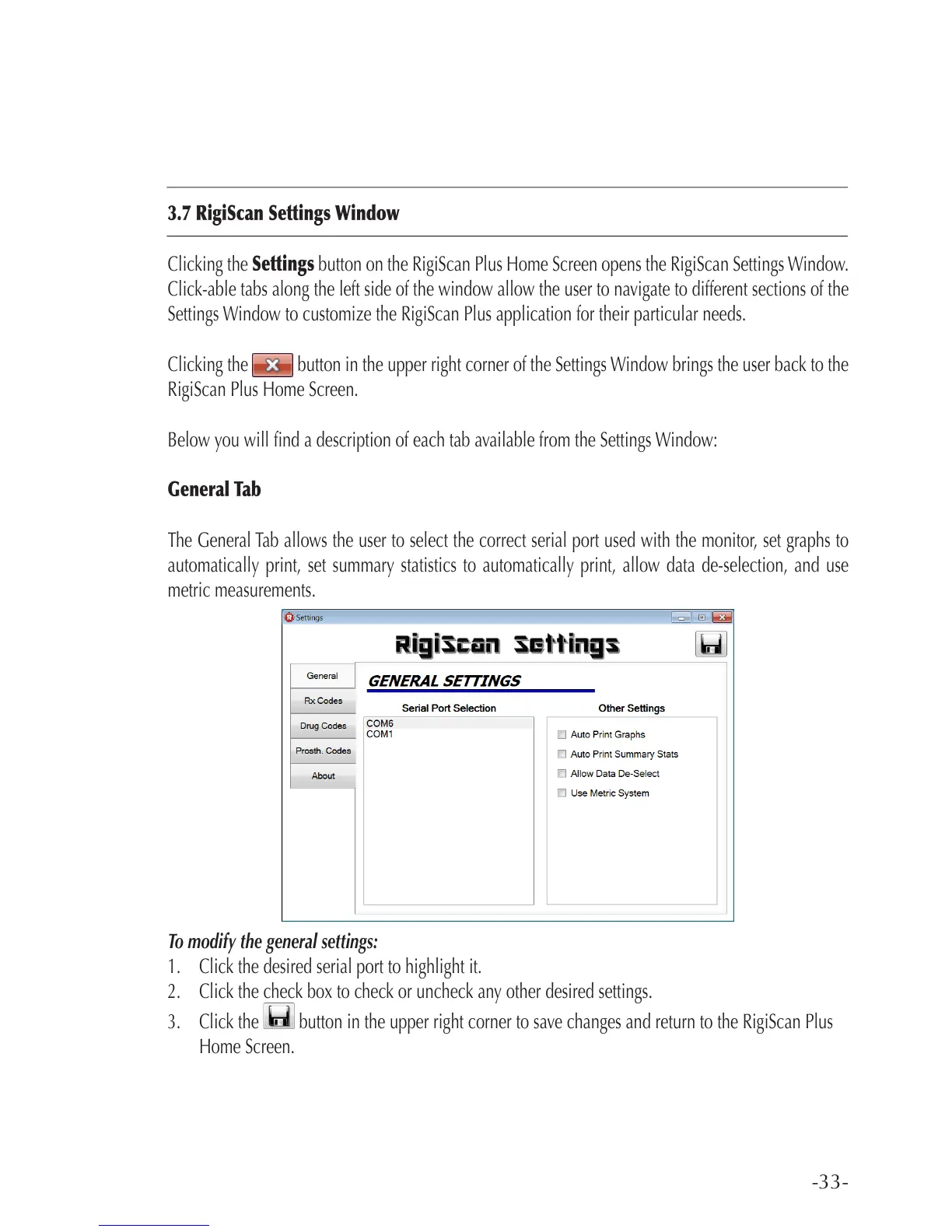
The General Tab allows the user to select the correct serial port used with the monitor, set graphs to
automatically print, set summary statistics to automatically print, allow data de-selection, and use
metric measurements.
To modify the general settings:
1. Click the desired serial port to highlight it.
2. Click the check box to check or uncheck any other desired settings.
3. Click the button in the upper right corner to save changes and return to the RigiScan Plus
Home Screen.



 To Next Page