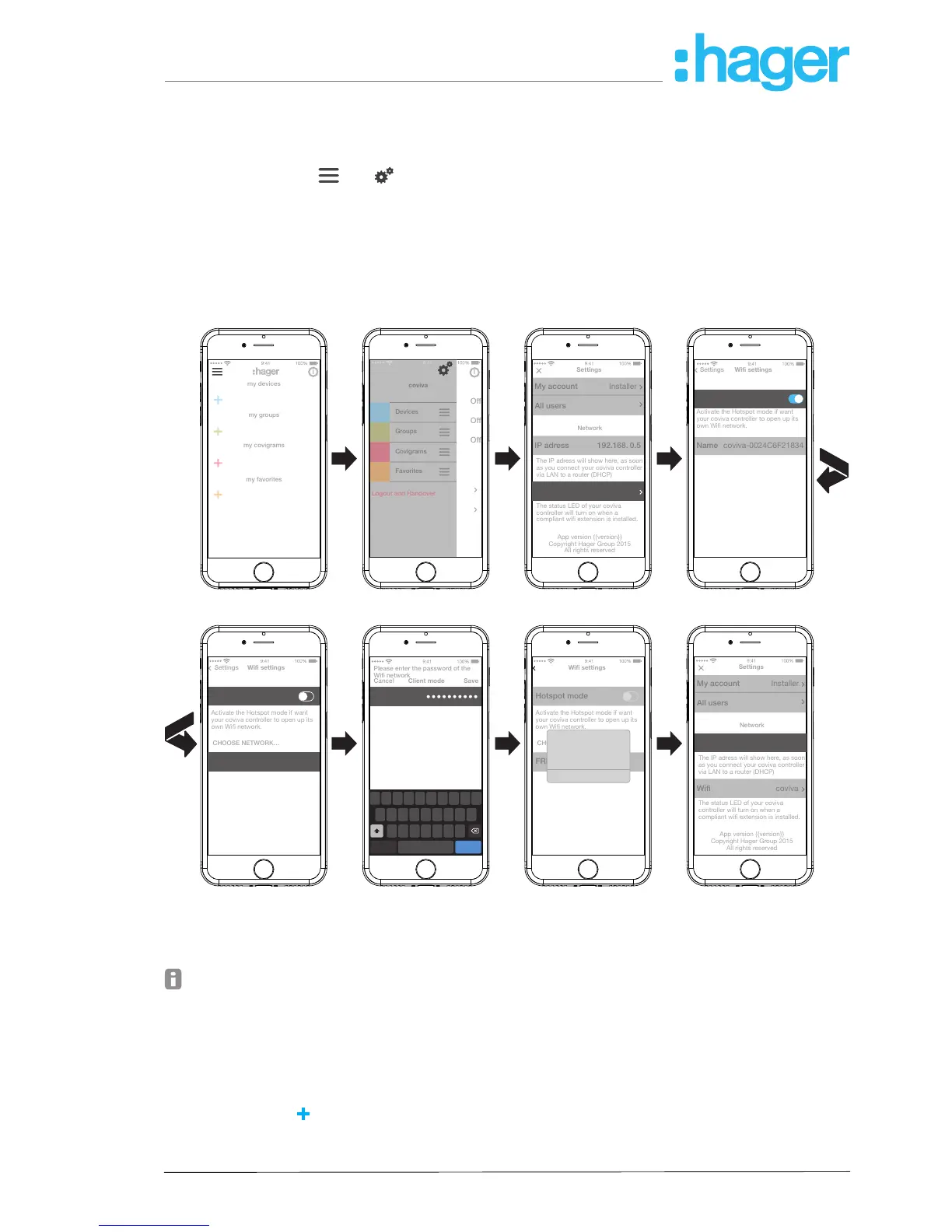
Congure WLAN integration of the device (Figure 14)
The WLAN stick is inserted in the smartbox and the WLAN display (7) lights up white perma-
nently (see Connect device wirelessly to WLAN).
Select Wi under
and and deactivate the Hotspot mode.
The WLAN networks available within range are displayed.
Select the WLAN network of the customer and enter the WLAN network key.
Finish the entry with Save.
The app reports the successful saving of the WLAN settings. The WLAN stick has had a
new IP address assigned under Settings. This is now from the address range of the custom-
er's home network router.
The IP adress will show here, as soon
as you connect your coviva controller
via LAN to a router (DHCP)
The status LED of your coviva
controller will turn on when a
compliant wifi extension is installed.
App version {{version}}
Copyright Hager Group 2015
All rights reserved
Activate the Hotspot mode if want
your coviva controller to open up its
own Wifi network.
The IP adress will show here, as soon
as you connect your coviva controller
via LAN to a router (DHCP)
The status LED of your coviva
controller will turn on when a
compliant wifi extension is installed.
App version {{version}}
Copyright Hager Group 2015
All rights reserved
Activate the Hotspot mode if want
your coviva controller to open up its
own Wifi network.
Q
W E R T Y U I O
A S D F G H
Z X C V B N M
J K L
P
space return.?123
Login
Please enter the password of the
Wifi network
Activate the Hotspot mode if want
your coviva controller to open up its
own Wifi network.
Wifi settings succesfully
changed
Wifi
OK
Figure 14: WLAN settings
A connection to the smartbox can now be established with a mobile end device via the WLAN
network.
The rst connection to the smartbox must be established locally at the place of installation
and cannot be carried out by remote access.
Add device to the project
The device types to be integrated into a project are displayed in Figure 3 as an overview. The
devices are categorised according to their technology. Each device must be integrated individu-
ally.
Press the blue
button.
The context menu for selecting the device category for the product to be integrated opens.


 To Next Page