EasyManua.ls Logo

Haier HLTD7 - User Manual

Haier HLTD7
32 pages
Print Icon
To Next Page IconTo Next Page
Loading...
Instruction Manual
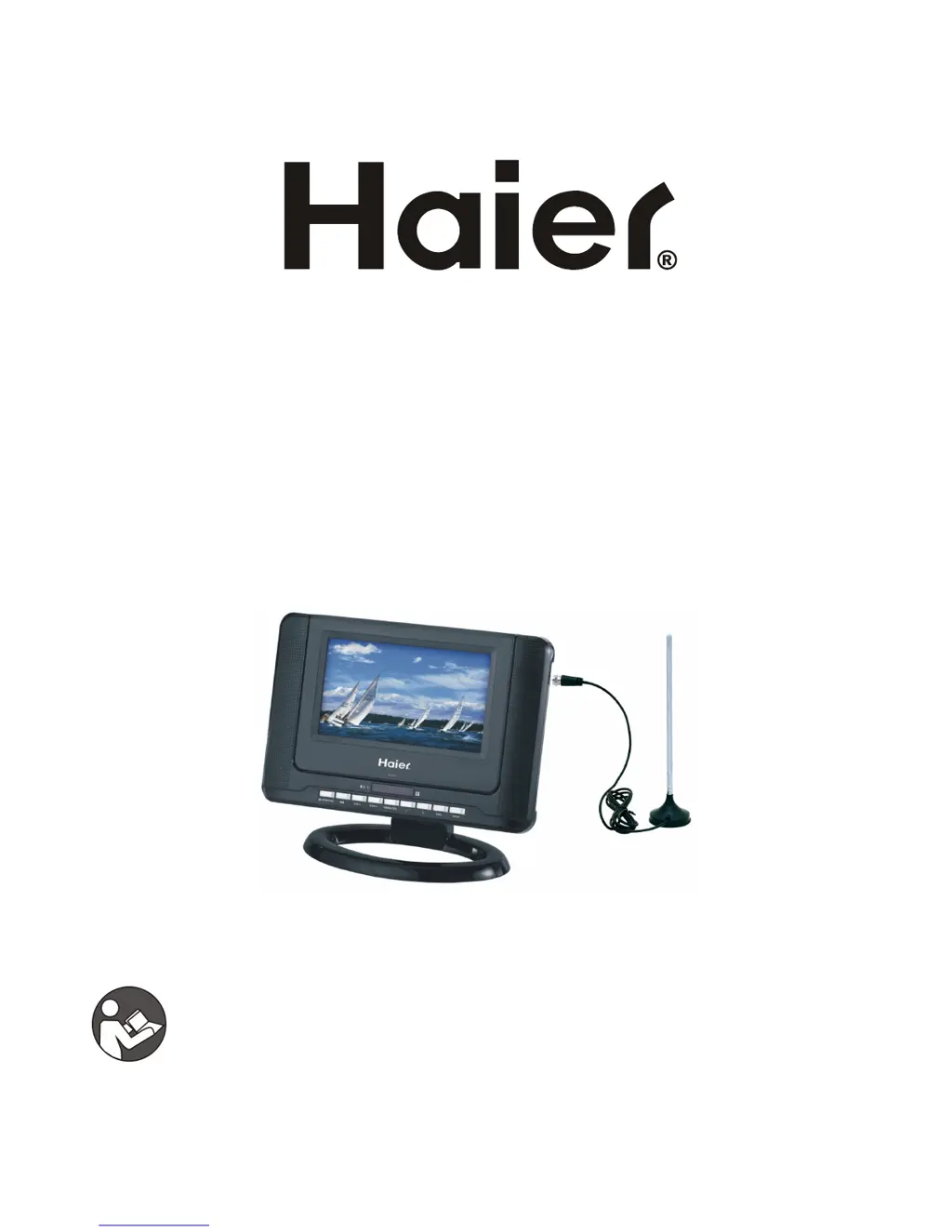
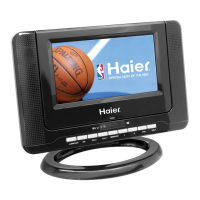
7怞LCD TV & DVD PLAYER COMBO
MODEL NO.: HLTD7
BEFORE USING THIS PRODUCT, READ, UNDERSTAND,
AND FOLLOW THESE INSTRUCTIONS.
Save this booklet for future reference.

Questions and Answers

  • A
    Andrew JonesAug 21, 2025
    What to do if the Haier HLTD7 TV DVD Combo remote control is not working?
    • K
      Kevin MartinAug 21, 2025
      To resolve a situation where no operations can be performed with the remote control unit of your Haier TV DVD Combo, try the following: * Ensure the batteries are installed with the correct polarities. * Replace the batteries with new ones if they are exhausted. * Point the remote control at the remote control sensor and operate. * Operate the remote control unit at a distance of no more than 6 meters from the remote control sensor. * Remove any obstacles between the remote control and the remote control sensor.
  • B
    Billy AnthonySep 4, 2025
    How to stop picture from moving up and down on Haier HLTD7?
    • J
      Joshua SparksSep 4, 2025
      If the picture on your Haier TV DVD Combo moves up and down, blurs, or folds over, try adjusting the TV antenna. The issue might stem from the TV antenna not being correctly adjusted, a weak signal reception, or signal reflection from nearby buildings or mountains.
  • D
    David DaughertySep 2, 2025
    What causes unclear or unstable picture on Haier HLTD7 TV DVD Combo, and how to fix it?
    • A
      ayaladanielleSep 2, 2025
      If the picture on your Haier TV DVD Combo is unclear or unstable, try adjusting the TV antenna. The issue may be due to the TV antenna not being properly adjusted or being in an area with too weak signal reception.
  • R
    Rachel ChristianSep 1, 2025
    How to fix dark or blurred picture on Haier HLTD7?
    • P
      pcummingsSep 1, 2025
      To resolve a dark or blurred picture on your Haier TV DVD Combo, increase the brightness and contrast settings. This issue may be caused by brightness and contrast settings being too low or low battery voltage.
  • J
    Justin SmithAug 30, 2025
    How to improve poor reception on Haier HLTD7?
    • A
      Adam JenkinsAug 30, 2025
      If you experience poor reception on your Haier TV DVD Combo, adjust the TV antenna and check the TV channel. The issue may be caused by the TV antenna not being correctly adjusted or the TV channel not being properly set.
  • C
    Carlos Wilkins Jr.Aug 29, 2025
    How to fix a Haier TV DVD Combo that has no power?
    • T
      Travis ReedAug 29, 2025
      If your Haier TV DVD Combo is not turning on, ensure that the AC adapter is securely inserted into the power outlet.
  • R
    Randy WardAug 27, 2025
    How to troubleshoot no sound or distorted sound on Haier TV DVD Combo?
    • K
      Kayla JohnsonAug 27, 2025
      If your Haier TV DVD Combo has no sound or the sound is distorted, ensure that the equipment is connected properly. Also, make sure that the input settings for the TV and stereo system are correct. Adjust the master volume to a suitable level using the VOL-/VOL+ buttons.
  • S
    Susan MathisAug 26, 2025
    What to do if my Haier HLTD7 has no picture?
    • J
      Jared GomezAug 27, 2025
      If your Haier TV DVD Combo displays no picture, try resetting the unit. Also, relocate the TV set to a place where the reception is better, as the issue may be due to an inadequate TV reception channel.
  • S
    Sara LeeAug 25, 2025
    Why is there no sound on my Haier TV DVD Combo?
    • K
      Kelly PhelpsAug 25, 2025
      If your Haier TV DVD Combo is not producing any sound, first adjust the volume and check if the mute function is enabled. Also, ensure that headphones are not plugged in. A weak signal can also cause this issue.
  • J
    Jasmine MillerAug 23, 2025
    How to fix Haier HLTD7 with no picture and sound?
    • C
      Catherine EvansAug 23, 2025
      If your Haier TV DVD Combo shows no picture and no sound, begin by checking the AC adapter connection and ensure the battery power is sufficient. An improper connection of the AC adapter or insufficient battery power can cause this issue.

Summary

Safety Instructions

General Safety Warnings

General safety guidelines, cautions, and warnings for electric shock and product usage.

Laser Safety Information

Details on the Class-1 laser product and safe operation practices.

Product Features and Precautions

Usage Precautions

Guidelines on product usage intervals, power cord care, power source, and battery handling.

Key Features Overview

Highlights the 7" TFT display, TV scanning, built-in battery, input support, and tilt stand.

Advanced Functions and Accessories

Media Playback and Functions

Details on USB/card reader, slide show, multi-language audio/subtitles, and parental lock.

Included Accessories List

Lists all accessories supplied with the player, such as remote, adapter, and cables.

Main Unit Controls and Ports

Component Identification

Identifies and describes buttons, ports, and indicators on the main unit's views.

Remote Control and Basic Connections

Remote Control Functions

Details the functions of each button on the remote control for operating the device.

Connecting to AC Power Source

Step-by-step guide for connecting the unit to an AC power source using the adapter.

Advanced Connections

Connecting External Antenna

Instructions for installing an external antenna for optimal TV picture quality.

Connecting to TV and Audio Equipment

Guides for connecting the player to a TV set and audio equipment using video/audio cables.

Battery Use and Additional Connections

Rechargeable Battery Usage

Information on charging, using, and maintaining the built-in rechargeable battery.

Connecting Signal Sources and Headphones

Steps for connecting external signal sources and headphones to the player.

Remote Control Preparation

Battery Installation and Operation

Guide for installing the remote control battery and its optimal operating distance and angle.

DVD Operations - Basic Playback

Basic Disc Playback

Instructions for opening the disc cover, inserting a disc, and starting playback.

Stopping and Resuming Playback

How to stop playback and utilize the resume function for DVD discs.

DVD Operations - Navigation and File Types

Skipping Tracks, Rapid Advance, and Pause

Methods for skipping, rapid advance/reverse, pausing, and resuming playback.

MP3 and MPEG4 File Playback Basics

Initial steps for playing MP3 and MPEG4 files from discs, including folder selection.

DVD Operations - Media File Details

Detailed MP3 File Playback

Steps for playing MP3 files from discs, including folder selection and repeat modes.

Detailed MPEG4 File Playback

Instructions for playing MPEG4 files from discs, including folder and file selection.

DVD Operations - Picture Handling

JPEG Picture Playback and Navigation

Guide for playing JPEG picture files from discs, including navigation and display options.

Picture Zoom and Effects

Using ZOOM button for picture scaling and PROGRAM button for slide show effects.

DVD Operations - USB and Card Playback

USB Playback Guide

Instructions for playing music, pictures, or movies from a USB device.

Card Playback (SD;MMC;MS)

Steps for playing files from SD, MMC, or MS cards.

DVD Operations - Program and Display Info

Program Play and Repeat Modes

Setting up program play order and different repeat modes for discs.

On-Screen Display Information

How to use the OSD button to display playing information for DVD and CD discs.

DVD Operations - Advanced Playback Control

Program Play and Repeat Options

Setting up program play order and different repeat modes for discs.

A-B Repeat and Go To Function

Using A-B repeat for specific sections and the GO TO function for direct playback.

DVD Operations - Language and Settings

Subtitle and Audio Language Settings

Changing subtitle and audio soundtrack languages for DVD playback.

Zoom Play and Initial Settings Access

Using zoom function and accessing initial setup menus for various configurations.

System and Language Setup

System Setup Options

Configuring TV system, screen saver, TV type, password, rating, and default settings.

Language Setup Options

Setting OSD, Audio, Subtitle, and Menu languages for the player.

Video and Audio Setup

Video Setup Adjustments

Adjusting brightness, contrast, hue, and saturation for the display.

Audio Setup Options

Configuring audio balance and language settings for playback.

TV Operations and Basic Settings

TV Signal Scanning and Tuning

Process for scanning and tuning TV channels for reception.

Basic TV Program Selection and Control

Selecting programs, controlling volume, and using mute function.

TV Information and Program Guides

Program Information Display

Using the INFO button to view current program details like channel, audio, and time.

Closed Captioning and EPG

Setting closed caption modes and accessing electronic program guides.

Main Menu Setup - Picture

Main Menu Navigation

General procedure for navigating and selecting options within the main menu.

Picture Setup and Modes

Adjusting picture settings like mode, contrast, brightness, sharpness, tint, and color.

Main Menu Setup - Audio and Time

Audio Setup Options

Configuring audio balance and preferred audio language for playback.

Time Setup Options

Setting OSD duration, sleep timer, time zone, and clock display.

Main Menu Setup - Options

Option Setup Settings

Adjusting menu language, color mode, zoom mode, and closed caption settings.

Restore Default Settings

Resetting the player to its original factory settings.

Main Menu Setup - Channel Configuration

Channel Setup Options

Configuring antenna type, auto scan, channel show/hide, favorites, and channel labels.

Channel Management Features

Favorite Channels and Labeling

Setting favorite channels and custom labels for channels.

Channel Swapping

Swapping current channel numbers with previous or next channels.

Product Specifications

Technical Specifications List

Detailed technical specifications of the player, including output, power, dimensions, and weight.

Connection Terminals List

Lists all available connection terminals on the player.

Maintenance and Troubleshooting

Maintenance and Cleaning Guide

Instructions for cleaning and maintaining the player with dry and soft cloths.

General Troubleshooting Steps

Solutions for common issues like no picture/sound, poor reception, and distorted images.

Troubleshooting Specific Issues

Common Symptom Remedies

Solutions for common problems like no power, playback failures, and distorted sound.

DVD Playback Troubleshooting

Remedies for DVD-specific issues like playback errors, language selection, and subtitles.

Region Code Setting

DVD Region Code Information

Explanation of the player's region code and compliance with DVD patent requirements.

Haier HLTD7 Specifications

General IconGeneral
BrandHaier
ModelHLTD7
CategoryTV DVD Combo
LanguageEnglish

Related product manuals