20
9. Music player (UPNP, USB)
This operating mode enables the playback of MP3, WMA
or FlAC les that are saved on a PC, data storage medium
or the local network.
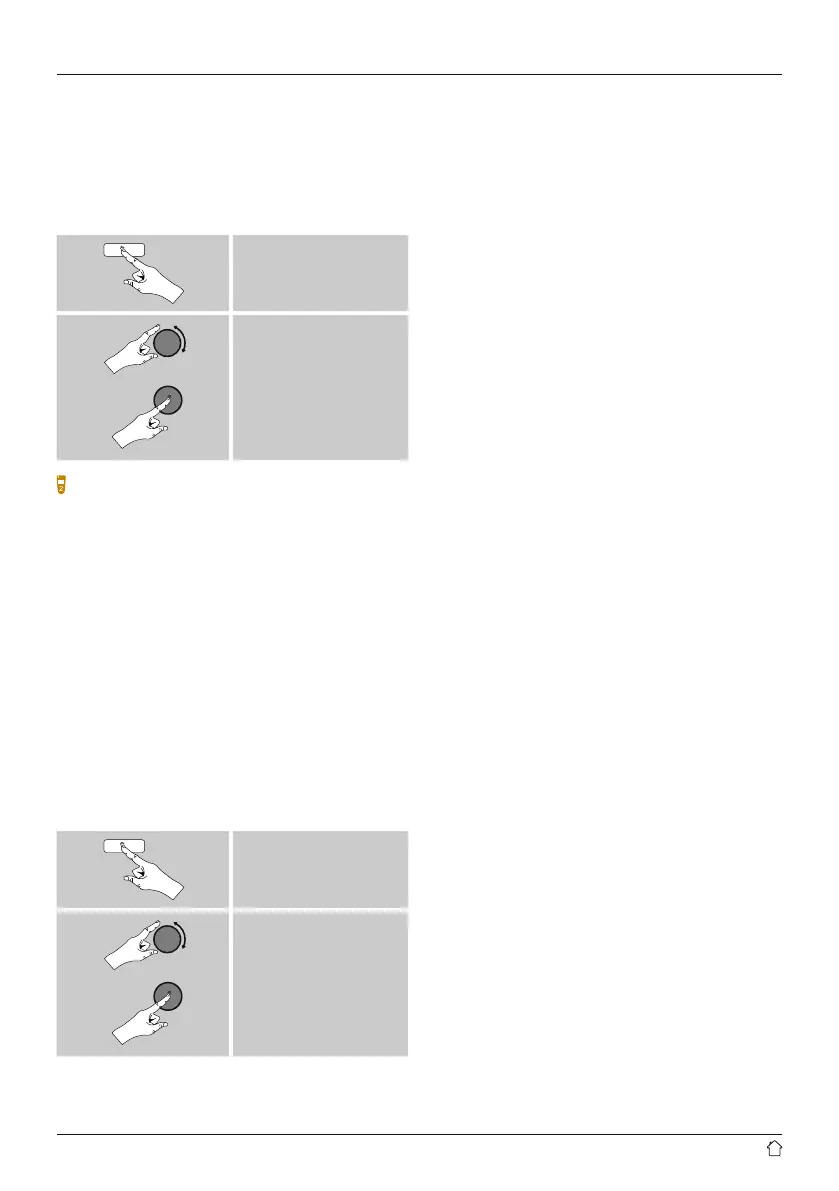
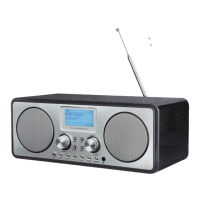
From the main menu or after pressing [mode] repeatedly,
activate Music player mode.
[menu]
Main menu
Music player
Alternatively, press [MEDIA] on the remote control to
switch directly to this operating mode.
9.1 Playback from external storage media (USB)
• Insert a storage device (such as a USB stick) into the USB
port of the radio.
• The storage medium should be formatted as a FAT16 or
FAT32 volume.
• The radio recognises the storage medium automatically.
• When the radio asks whether to open the connected
storage device, conrm by selecting YES.
• The les and folders saved on the storage medium are
displayed. Use [tuning] to choose the desired le and
begin playback
Alternatively, if the storage medium is already connected,
choose the desired le for playback as follows:
[menu]
Music player
USB playback
9.2 Playback from a computer (streaming)
You can manage the radio and stream music to it from your
computer.
The following explanation assumes your computer’s
operating system is Windows 8. If you use a different
operating system and require assistance, or if you have
any other questions, please contact our customer support
team.
Requirements:
• The radio and the computer must be on the same
network.
• The radio must be authorised as a playback device on the
computer.
Proceed as follows:
Control Panel Network and Internet View
network computers and devices
The radio should be shown here.
• Right-click on the icon or designation of the radio and
choose Allow streaming to this device
• Right-click again on the icon or designation of the radio
and choose Show device website to change the
friendly name of the device.
• A new browser window opens. You can make the desired
changes here.
Use:
• The radio can now access shared directories on the
computer, and you can stream audio les to the device
for playback.
• The music directory of your music library is enabled as
standard.
• Create and manage shared folders using Explorer or
Windows Media Player.
• Right-click on the desired music le, choose Play To,
and then select the designation of the radio.
• The radio begins playback of the music le.


 To Next Page