37
16. Hama Smart Radio (Android / iOS)
The Hama Smart Radio app allows you to access and
control many features of the radio from your tablet
computer or smartphone, without using the remote
control.
The current version of the app can be found here:
For iPhone and iPad
http://www.hama.com/hama-smart-radio-apple-itunes
For Android smartphones and tablets
http://www.hama.com/hama-smart-radio-google-play
Once installation is complete, tap this icon on your
smartphone or tablet to launch the app.
16.1 Preparation
Make sure that your radio and your smartphone are both
connected to the same network. Company networks and
networks with strict security measures in place can often
cause problems with the connection between the radio
and the app.
The radio should be congured to uphold the network
connection even when internet radio stations are played
and to not switch into standby mode. Otherwise the
connection cannot be established.
16.2 First startup
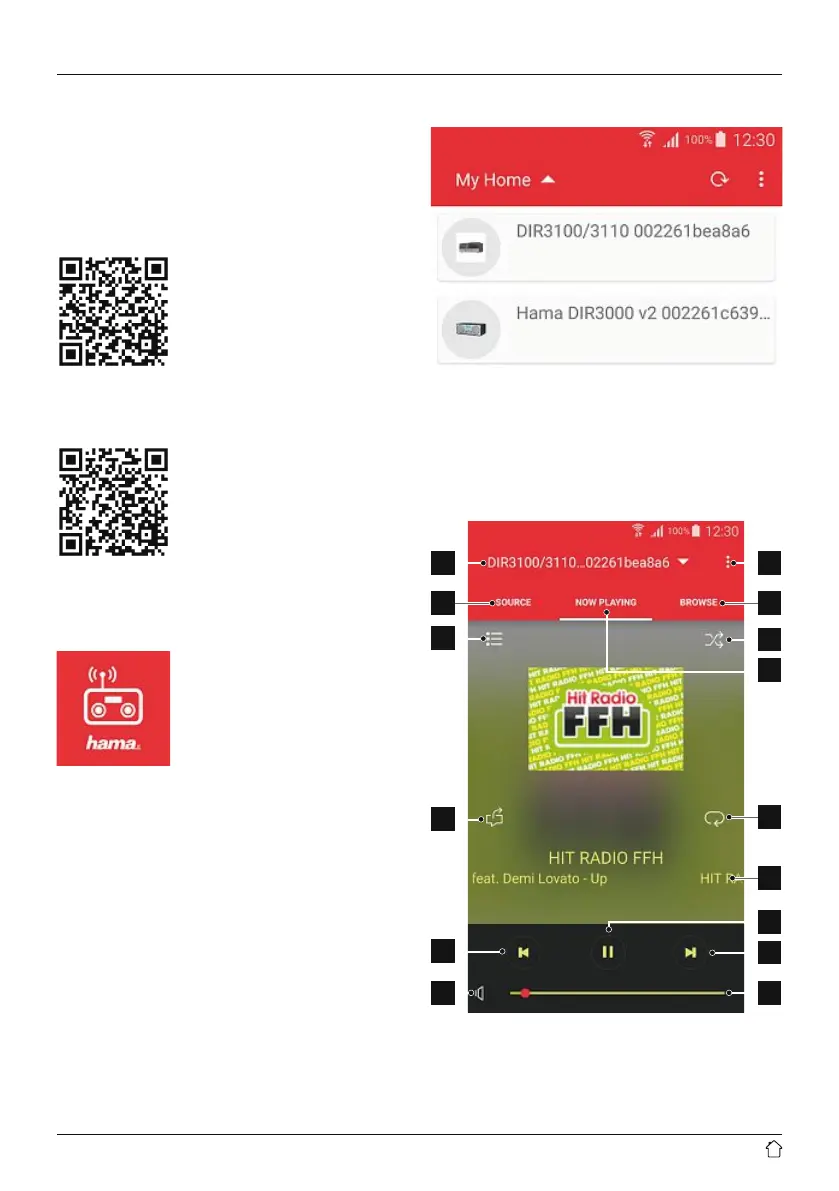
When the app is started up for the rst time, it looks for
compatible radios on the network. The radio is represented
by a small preview picture and its designation (friendly
name and MAC address). Choose the radio you wish to
connect to, and the app establishes the connection.
16.3 Interface of the app
8
14
11
6
1
3
9
10
15
13
7
2
5
12
4


 To Next Page