27
11.4.2 Access favourites
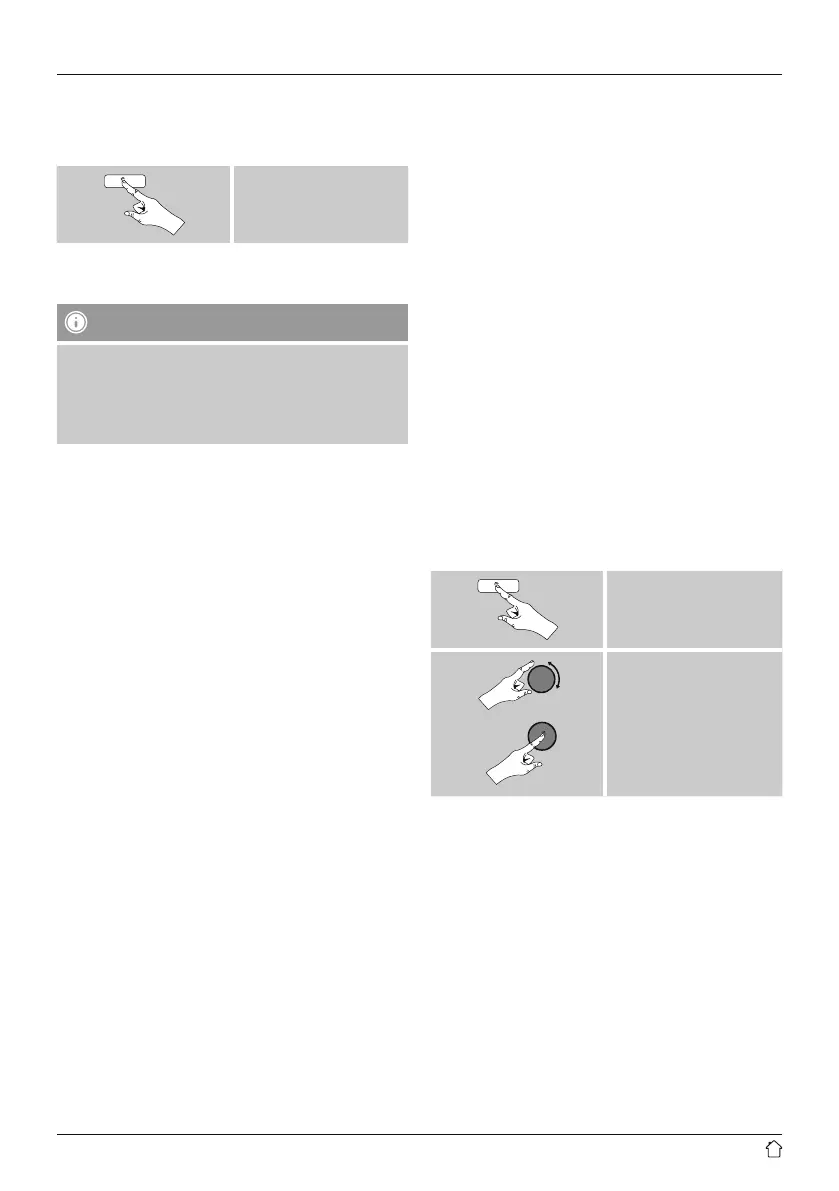
Press [preset] to open the overview window with the list
of saved stations.
[preset]
Use [preset] and [tuning] to select one of your favourites.
Note
Favourites cannot be deleted.
If all 30 station memory slots are lled and you wish to
save a new station, choose one of the occupied slots.
The station in this slot will be overwritten with the new
station.
11.4.3 Management of favourites with
the remote control
Favourites 1-10
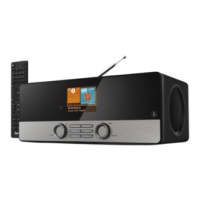
The remote control enclosed has number keys 1-0
(0
≙
10). A favourite can be assigned to each of these
number key.
• To save a favourite, press and hold the corresponding
number key on the remote control (approx. 3 seconds).
• The radio conrms that the favourite has been saved by
displaying Preset stored.
• To call up a favourite, briey press the corresponding
number key on the remote control.
Favourites 1-30 (alternative to number keys)
• Press and hold [FAVORITES] approx. 3 seconds to save
a station on one of the 1-30 favourite station presets.
An overview window with the station presets should
open after approx. 2 seconds.
• You can switch between the station presets (1 to 30)
by pressing the favourite keys [+] / [-] (by turning
[preset]).
• Press [OK] ([tuning]) to save the station on the desired
station preset.
• To call up a favourite, briey press [FAVORITES], select
the desired station preset by pressing the favourite keys
[+] / [-] (by turning [preset]) and conrm the selection
by pressing [OK] ([tuning]).
•
11.5 Audio setting
For some stations with a weak signal, quality can be
slightly improved by playing them in mono quality. You
can enable this function in the menu, and the radio will
automatically switch to mono reception when signal
quality is poor.
To change the audio setting, proceed as follows:
[menu]
Audio
setting


 To Next Page