35
15.5 Factory Reset
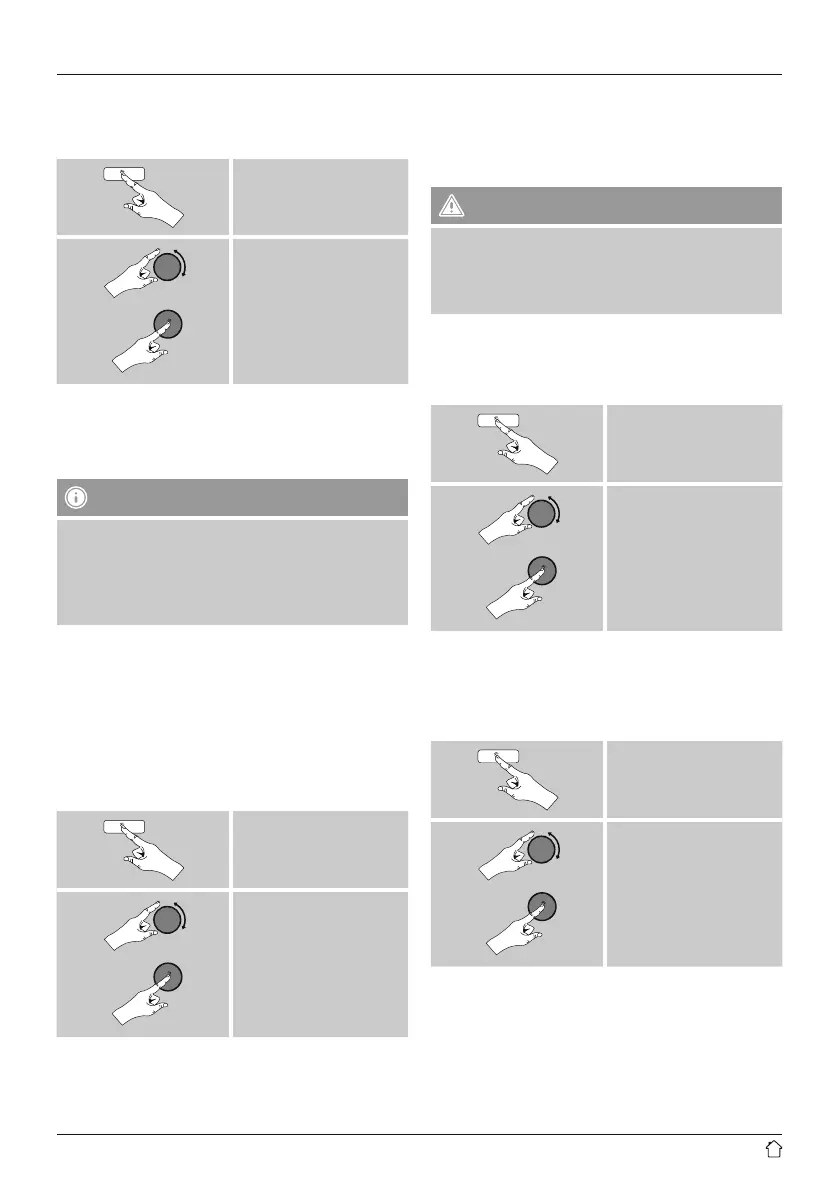
To reset the radio to the factory default settings, proceed
as follows:
[menu]
System settings
Factory Reset
Conrm the following prompt with YES to reset the radio
to the factory default settings.
All settings made previously are deleted.
Note
• Resetting to the factory default settings can solve
some problems and malfunctions.
• However, all settings made previously, such as custom
equaliser presets, favorites, and network proles, are
permanently deleted.
15.6 Software update
We are constantly developing new software features
and improvements for our radios to x problems, add
functionality, etc.
We recommend that you keep your radio’s software up to
date.
• Proceed as follows:
[menu]
System settings
Software update
• Set Auto-check setting to YES to have the radio
automatically check for new software updates at regular
intervals. (Recommendation)
• Choose Check now to manually start a check for
software updates.
Warning
• Make sure that the radio has a stable power supply
before you start a software update.
• Power supply failure during a software update can
cause irreparable damage to the radio.
15.7 Setup wizard
You can restart the setup wizard (5.4.1. Setup wizard) at
any time by proceeding as follows:
[menu]
System settings
Setup wizard
15.8 Info
• To have the radio display current information about
its hardware and software (version numbers, device
designation, radio ID, etc.), proceed as follows:
[menu]
System settings
Info
• If you have already registered your radio on
the online portal of Frontier Silicon
(http://www.wiradio-frontier.com), then
you can nd out the radio ID there, as well.


 To Next Page