46
Shooting with Phocus running
When you are connected to a computer and you want to control
the camera from Phocus, the following rules apply:
• AWinderCWandtheExposureCable503(supplied)mustbe
attached.
• Thedestinationmediumandlocationarecontrolledfrom
Phocus.
• ThescreenandmenusystemontheCFVaredisabled.
• TheCFVwilltakepowerviatheFireWirecableifitisavailable
(not all computers supply power, notably PC laptops. See under
‘General Information’ for details).
When using a 503CWD or 503CW+CFV and initiating a shot from
Phocus, the computer sends a signal to the CFV, which triggers
the Winder CW which in turn triggers the shutter and flash/strobe
lights (if any). The CFV then sends the image back over the FireWire
connection to the computer, where it is displayed on the computer
screen and saved as a 16-bit-per-color 3FR file in the currently selected
folder of the computer hard disk.
Disconnecting from a computer
To remove the camera from a computer, disconnect the FireWire
cable when all image loading activity has finished.
Connecting to a computer
To connect to a computer, simply attach a FireWire cable from the
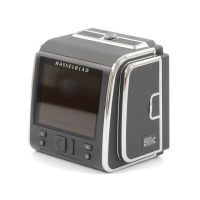
FireWire port on your computer to the port on the side of the CFV.
The port is protected behind a sliding cover.
Tethered to a computer
Even if you never shoot while connected, you will probably connect
the camera to your computer each time you want to download your
images, though you might instead use a compact-flash card reader.
4
5
Tip
Each time you get a new compact-flash
card, it is recommended that you format
it using the CFV as described below, even
if the CFV is already able to read it. This
will enable the CFV to use the card more
efficiently.
Note
The CFV is capable of formatting any type
of medium connected to it, including com-
pact flash cards. When you do this, you
will erase all data contained on the target
medium.
Tip
You can also use the format command
for the purpose of deleting all images
on a disk. This is sometimes faster than
using the delete function, but it is not as
flexible because all data from all batches
will always be erased.
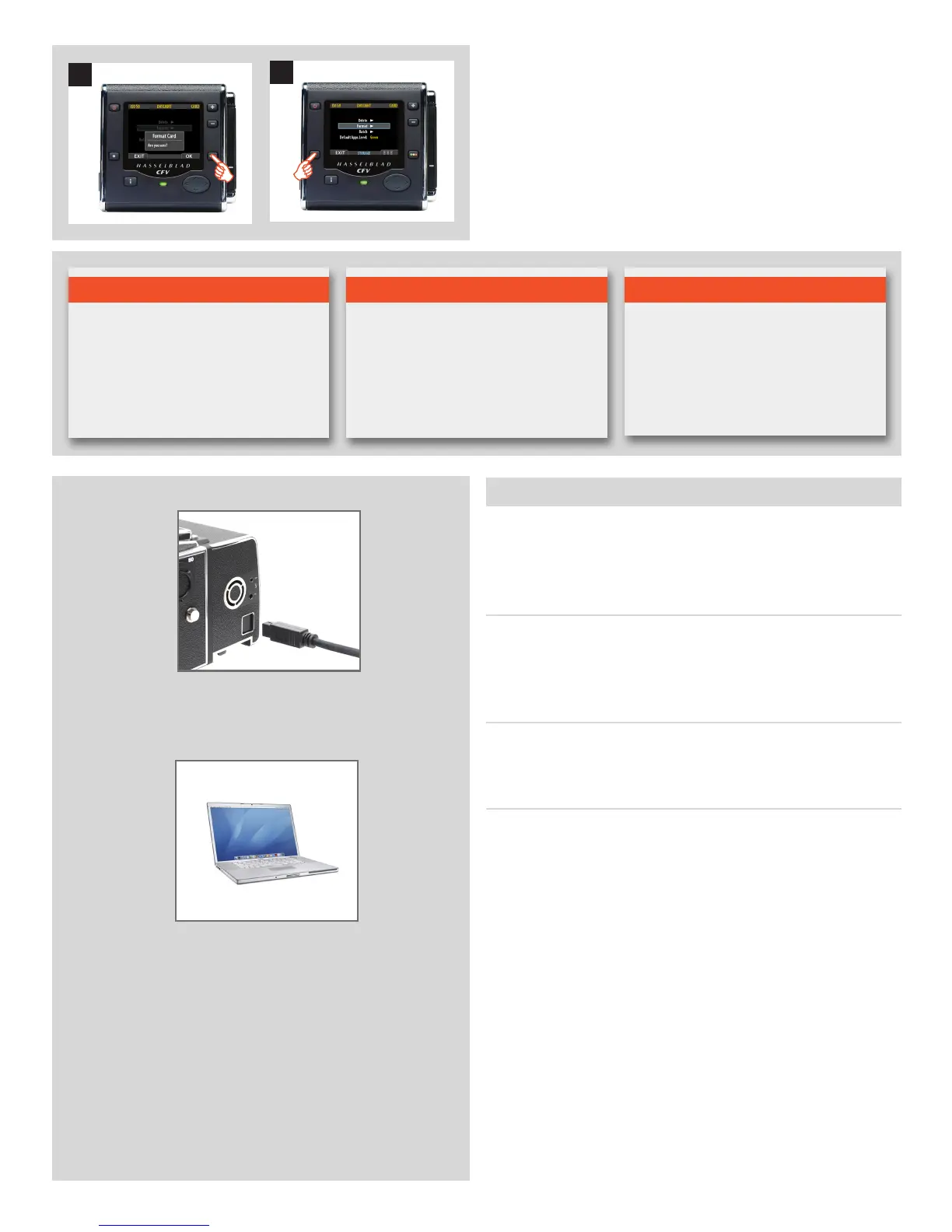
5. You now return to the STORAGE menu. Either move on to
another setting by using the navigator button or press the
menu (EXIT) button to exit the menu system.





 To Next Page