23
USER’S MANUAL /
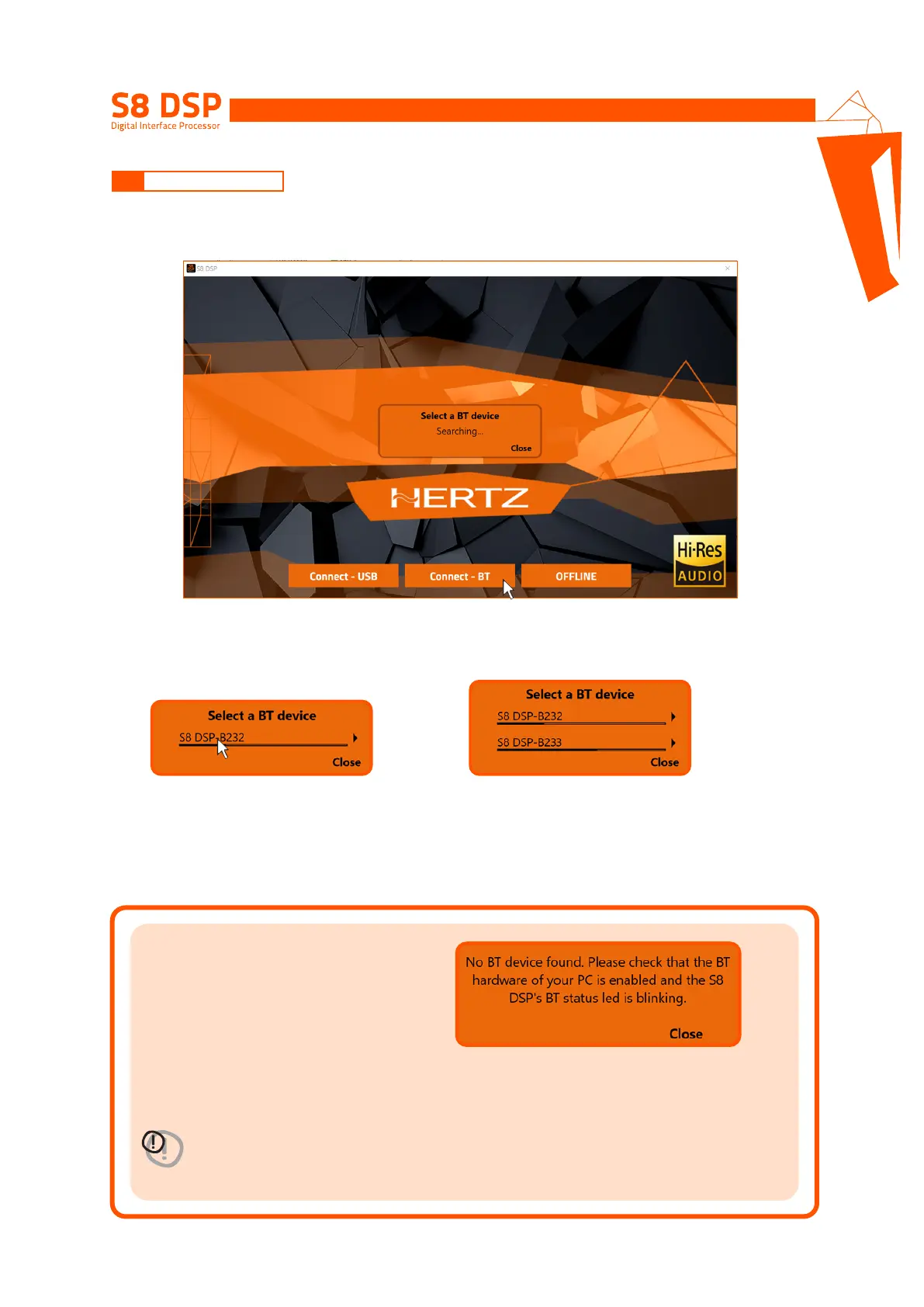
1. Start S8 DSP (green led status, blue BT led flashing).
2. Enable the Bluetooth function on the PC/MAC.
3. Press Connect - BT to open the pop up Select a BT device, and start the search for the S8 DSP processor.
- press Close to stop the search.
- press on the name ie. S8 DSP-XXXX to select the processor.
Remark: in the case of multiple processors available, it will be possible later with the Identify function to check if
the selected S8 DSP is the one desired.
- press Close to stop the operation.
4. Select a BT device: at the end of the search one or more S8 DSP will be detected,“ie.S8 DSP-XXXX”
(XXXX is the identification number of the S8 DSP)
7.3 CONNECT BT MODE
Important remark
In case no processor is detected
at the end of the scan:
- check that the bluetooth interface is enabled on the PC/MAC
- check that the S8 DSP is on and not connected to the PC/MAC via USB
(green led status, BT led flashing)
WARNING: the USB connection to the PC/MAC excludes the possibility
of using the bluetooth connection.
- press Close to stop the operation.
7


 To Next Page