5
USER’S MANUAL /
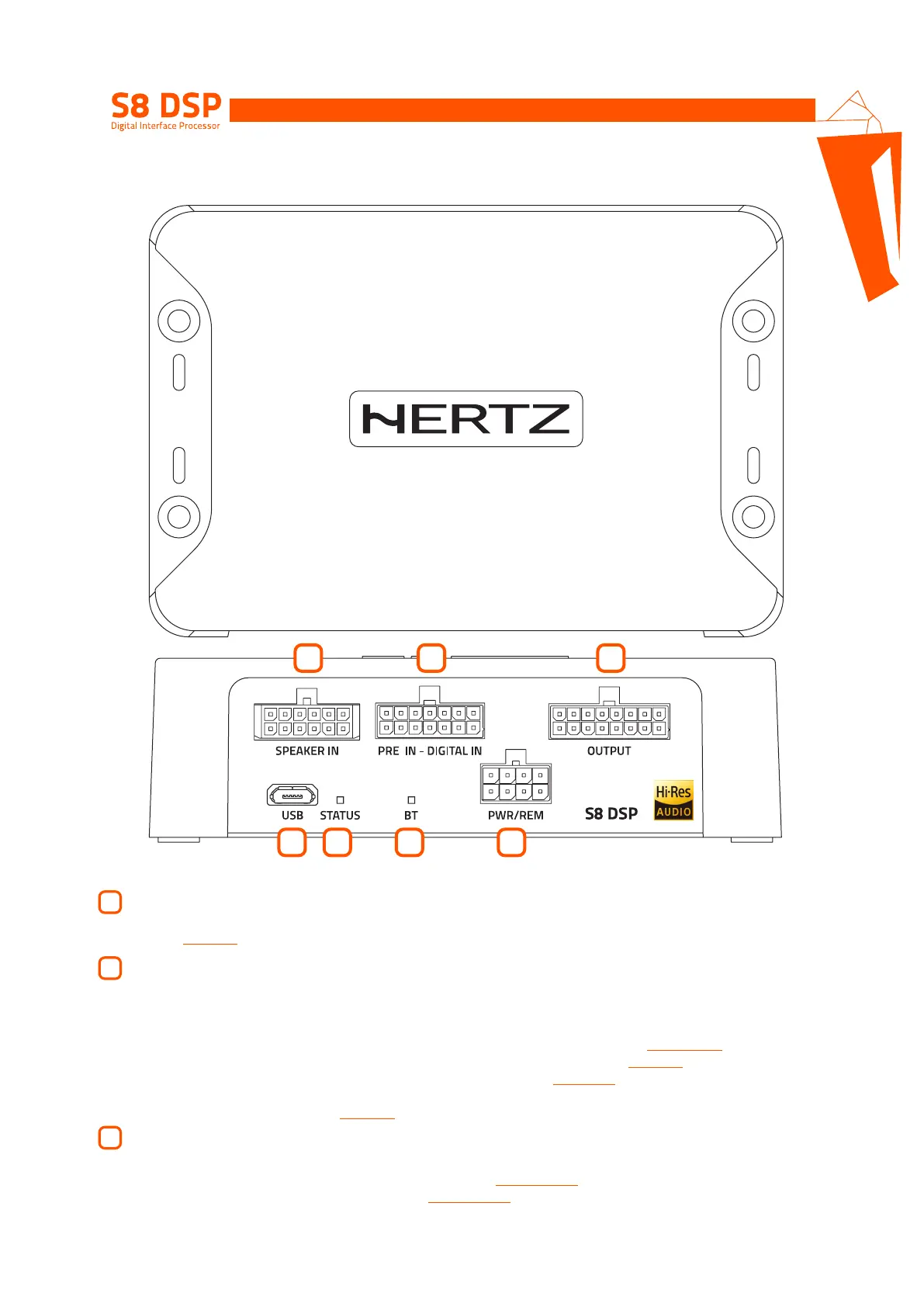
4. CONNECTIONS PANEL - DESCRIPTION
1
2
3
31
7
4
5
2
6
USB
Connection socket (Micro USB female) to connect the processor to a PC/MAC and manage the functions via the S8 DSP
software
(see sect. 5.4)
. The connection standard is compatible with USB 1.1/ 2.0/3.0.
LED STATUS:
Through the LED lighting it is possible to identify the status of the processor:
Green: S8 DSP is on and functioning normally.
Light green (BT LED TURNED OFF): S8 DSP is connected to the PC/MAC via USB.
Green/blue flashing: S8 DSP is communicating data with the control device via software
(see sect. 7.2 - 7.3)
.
Purple: S8 DSP is configured with DIGITAL IN input but is not detecting a digital signal
(see sect. 8.9)
.
Orange: S8 DSP is signalling the presence of clipping on the analog input
(see sect. 7.5.6)
.
Red: S8 DSP is reporting a malfunction or breakdown.
White: S8 DSP is in UPGRADE mode
(see sect. 9.2)
.
LED BT:
Through the LED lighting it is possible to identify the status of the processor’s bluetooth connection,
BLU flashing: S8 DSP is waiting to pair with a Bluetooth device
(see sect. 7.3 - 8.1.6)
.
BLUE: S8 DSP is connected with a Bluetooth device
(see sect. 7.3 - 8.1.6)
.
Turned off: S8 DSP is reporting a malfunction of the Bluetooth module or connected via USB.
4


 To Next Page