44
USER’S MANUAL /
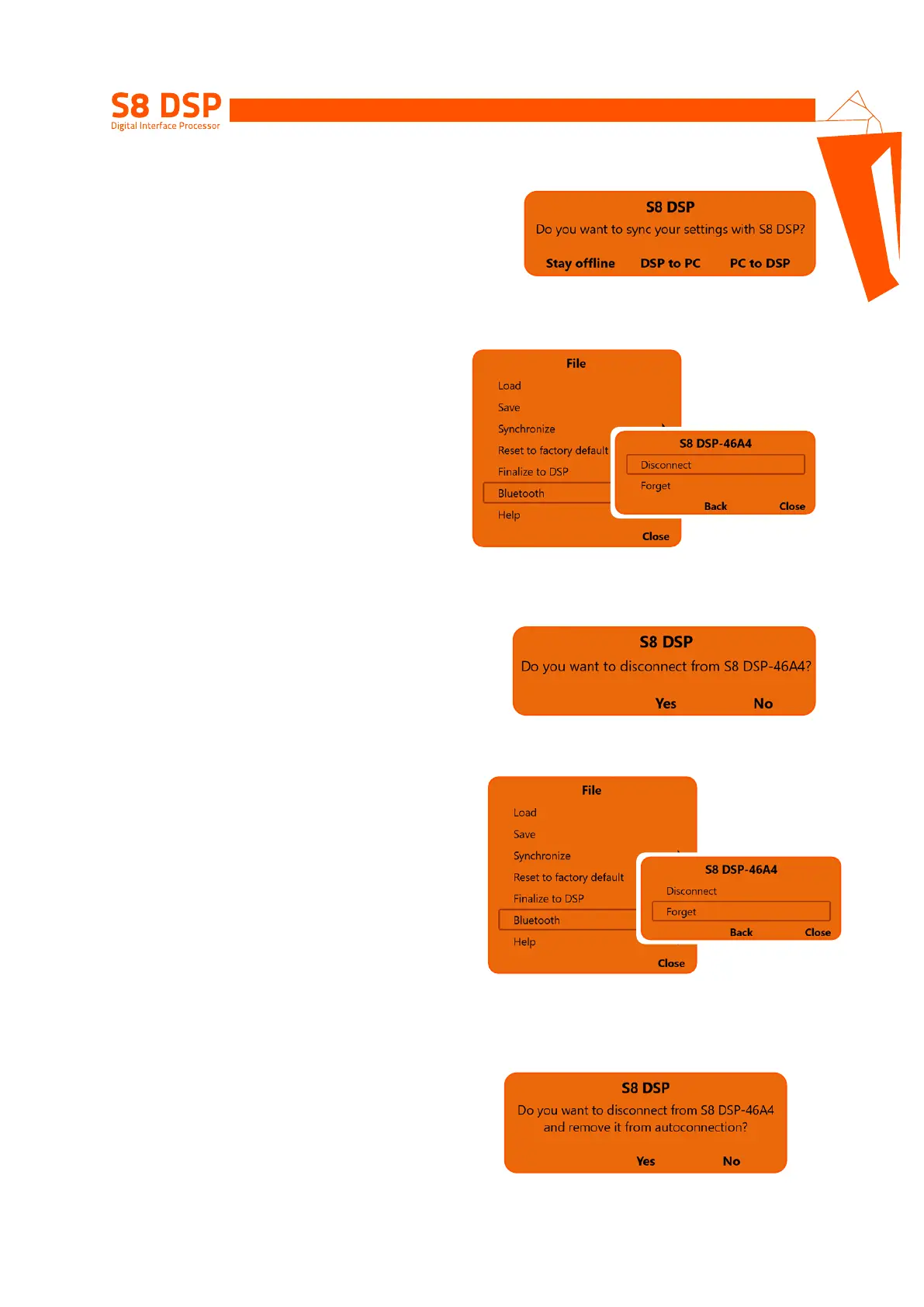
- Press Stay offline to suspend the connection and continue working on the software with the S8 DSP not connected.
- Press DSP to PC/MAC to load the settings stored in the S8 DSP memory onto the software.
- Press PC/MAC to DSP to load the settings made so far on the software into the memory of the S8 DSP
.
If the PIN entered is correct, you will be asked how to connect to the software.
6.2 Disconnect the Bluetooth connection between
S8 DSP and PC/MAC
To disconnect S8 DSP already connected to the
software via Bluetooth connection, while maintaining
the auto connection, use the function
Bluetooth>Disconnect
- press Disconnect to disconnect the S8 DSP.
- press Back to go back to the file menu.
- press Close to cancel the operation and return to the main screen.
- press YES to confirm the disconnection.
- press NO to go back to the previous window.
8
6.3 Disconnect and remove the Bluetooth
auto connection between S8 DSP and PC/MAC
To disconnect and remove the auto connection
of the S8 DSP already connected to the software
via Bluetooth connection, use the function
Bluetooth>Forget
- press Forget to proceed with the disconnection
and removal of the auto connection.
- press Back to go back to the file menu.
- press Close to cancel the operation and return to the main screen.
- press Yes to confirm the disconnection and removal
of the auto connection.
- press NO to go back to the previous window.


 To Next Page