This document is an installation guide for the SSD7000 Series NVMe RAID Solutions on macOS, including SSD7000 series NVMe RAID controllers, the RocketStor 6661A-NVMe Thunderbolt™ 3 NVMe RAID solution, and SSD6540/6540M RAID enclosures. It covers hardware and software requirements, installation and upgrade procedures for the device driver and RAID management software (WebGUI), and troubleshooting tips for common technical issues.
Function Description:
The SSD7000 Series NVMe RAID Solutions are designed to provide high-performance NVMe RAID capabilities for macOS environments. These solutions allow users to combine multiple NVMe SSDs into a RAID array, enhancing storage performance, capacity, and data redundancy. The product line includes various RAID controllers and enclosures that leverage PCIe 3.0 or Thunderbolt™ 3 interfaces to connect to Mac systems. The core functionality revolves around managing NVMe SSDs, creating and managing RAID volumes, and providing a graphical user interface (WebGUI) for easy configuration and monitoring.
Important Technical Specifications (derived from prerequisites and driver information):
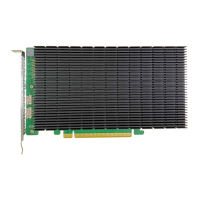
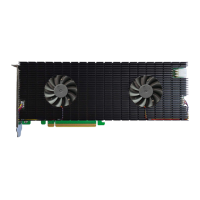
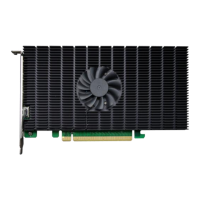
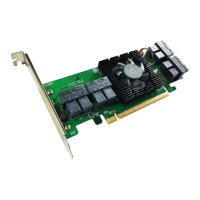
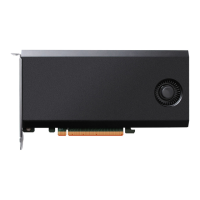
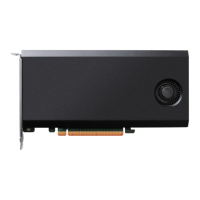
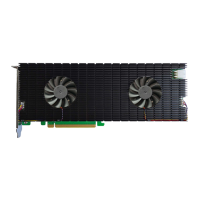
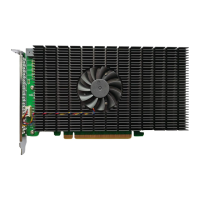
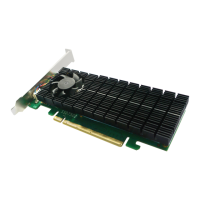
- Supported Products: SSD7101A-1, SSD7103, SSD7104, SSD7104F, SSD7105, SSD7120, SSD7140, SSD7140A, SSD7204, SSD7502, SSD7505, SSD7540 NVMe RAID controllers, RocketStor 6661A-NVMe Thunderbolt™ 3 NVMe RAID solution, and SSD6540/6540M RAID enclosures.
- NVMe SSD Requirement: At least one NVMe SSD must be installed in the HighPoint NVMe controller or enclosure for proper driver installation and functionality.
- PCIe Interface:
- SSD7101A-1/7120/6540/6540M/7103/7104/7140/7505/7502/7540 devices require a PCIe 3.0 x16 slot with dedicated lanes.
- SSD7204 can be installed into a PCIe 3.0 x8 or x16 slot.
- Thunderbolt™ 3 Interface: RocketStor 6661A-NVMe or SSD7000 NVMe RAID controllers used via the RocketStor 6661A adapter require a Thunderbolt™ 3 port connection.
- Operating System Support: macOS 10.13 (High Sierra) or later, including Mojave (10.14), Catalina (10.15), Big Sur (11.x), and Monterey (12.x).
- Driver Version: The document shows examples of driver versions (e.g., 1.1.26 for HighPointNVMe), but emphasizes checking the product's Software Downloads page for the latest updates.
- WebGUI Service: The RAID management software (WebGUI) relies on a service named
raidman-httpsd and typically uses TCP port 7402 for remote connections.
- Security Features Interaction: The system interacts with macOS security features such as Secure Boot (for T2 Systems and Apple M1 Platform) and System Integrity Protection (SIP) (for macOS 10.13x and earlier). These features may need to be disabled or reduced for the drivers to load correctly.
Usage Features:
- Driver Installation and Update: The guide provides a step-by-step process for installing and updating the device driver, which involves downloading a
.pkg installer, entering administrator credentials, and potentially adjusting macOS Security & Privacy settings to allow system extensions from "HighPoint Technologies, Inc." This often requires restarting the system.
- WebGUI Installation and Update: Similar to the driver, the WebGUI (RAID Management Software) is installed via a
.pkg package, requiring administrator authentication. Updates involve uninstalling the old version, rebooting, and then installing the new version.
- RAID Management: Once installed, the WebGUI provides a graphical interface for managing RAID arrays. While the guide doesn't detail specific RAID configurations, it implies capabilities for creating, monitoring, and maintaining RAID volumes.
- System Information Integration: The driver's status and version can be verified through macOS System Information under "Extensions," providing details like bundle ID, notarization status, loaded status, and signing authority.
- Troubleshooting: The guide includes a dedicated section for troubleshooting common issues such as "Connection Failure" with the WebGUI. This involves verifying hardware recognition, driver loading, WebGUI service status, SIP status, Secure Boot status (for T2 systems), and Security Policy (for Apple M1 platforms).
- Diagnostic Log Collection: A "1-Click Self-Diagnostic Solution" is available via the WebGUI's "Diagnostic View" or "Help" menu. This feature collects comprehensive hardware, software, and storage configuration data into a single
.zip file, which can be submitted to HighPoint's support team for assistance.
Maintenance Features:
- Driver Uninstallation: The guide outlines commands for uninstalling the NVMe driver for different macOS versions (10.13/10.14 and 10.15/11.x/12.x) using Terminal commands (
sudo rm -rf /Library/Extensions/HighPointNVMe.kext and sudo kextcache -i /).
- WebGUI Uninstallation: The WebGUI can be uninstalled by running an
uninstall-WEBGUI.command script located in the HPTWEBGUI application folder, which automatically opens a terminal to perform the uninstallation.
- WebGUI Service Restart: If the WebGUI fails to connect, users can manually restart the
raidman-httpsd service via the Terminal using the command sudo hptdaemonctl restart.
- Security Policy Management: For T2-equipped Macs, Secure Boot must be disabled (set to "No Security") via the Startup Security Utility (accessed by Command-R during boot). For Apple M1 platforms, the Security Policy must be reduced (set to "Reduced Security") via the Startup Options (accessed by holding the Power Button during shutdown).
- System Integrity Protection (SIP) Management: For macOS 10.13x and earlier, SIP may need to be disabled using the
csrutil disable command in Terminal while in Recovery Mode. The csrutil status command can be used to check its current state.
- Firewall Configuration: For remote WebGUI access, TCP port 7402 must not be blocked by any firewall on the target system.
- Software Updates: The guide repeatedly stresses the importance of downloading the latest driver and WebGUI updates from the product's Software Downloads webpage to ensure compatibility and optimal performance.
- Support Portal Integration: The diagnostic log collection feature is designed to facilitate efficient support by providing HighPoint's FAE Team with necessary system information when a support ticket is submitted via their Online Support Portal.

 Need help?
 General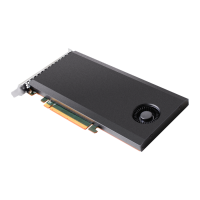


 To Next Page
