FIREWALL
Version 2.0, February 2012. Copyright 2012 Hitron Technologies
62
Version 2.0, February 2012. Copyright 2012 Hitron Technologies
62
HITRON CGN USER’S GUIDE
5.3.1 ADDING OR EDITING AN IP FILTERING RULE
To add a new IP filtering rule, click Add in the Firewall > Filter Setting screen’s
IP Filtering Options section.
To edit an existing IP filtering rule, select the rule’s radio button ( ) in the
Firewall > Filter Setting screen’s IP Filtering Options section and click the
Edit button.
NOTE: Ensure that the Disabled checkbox is deselected in order to add or edit IP
filtering rules.
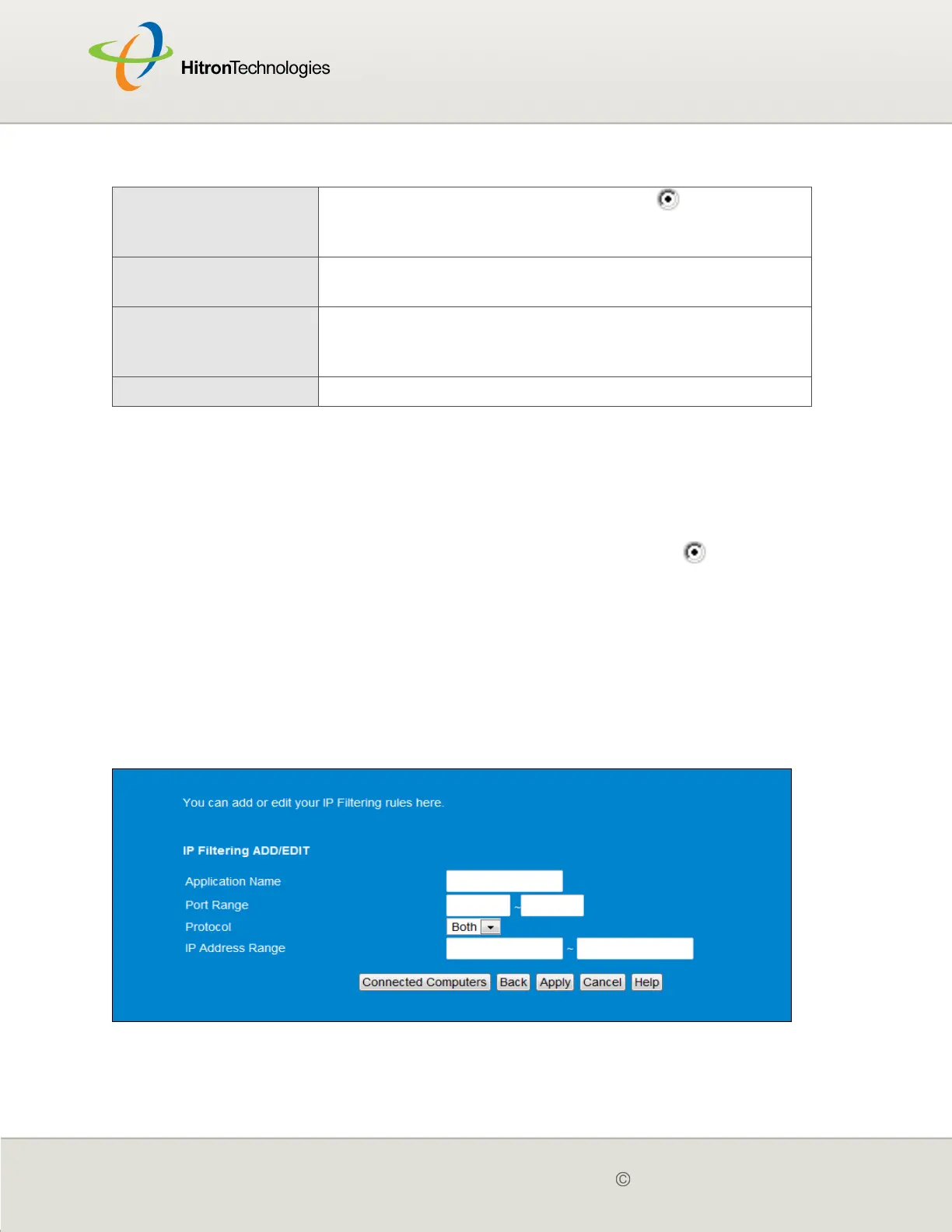
The following screen displays.
Figure 19: The Firewall > Filter Settings > Add/Edit Screen
Delete Select an IP filtering rule’s radio button ( ) and click this
to remove the rule. The deleted rule’s information cannot
be retrieved.
Apply Click this to save your changes to the fields in the IP
Filtering Options section.
Cancel Click this to return the fields in the IP Filtering Options
section to their last-saved values without saving your
changes.
Help Click this to see information about the fields in this screen.
Table 16: The Firewall > Filter Setting Screen (continued)



 To Next Page