45
HITRON CGNV2 USER’S GUIDE
WAN/LAN
3.4 THE BACKUP SCREEN
Use this screen to back up your CGNV2’s settings to your computer, to load settings
from a backup you created earlier, to reboot your CGNV2, or to return it to its factory
default settings.
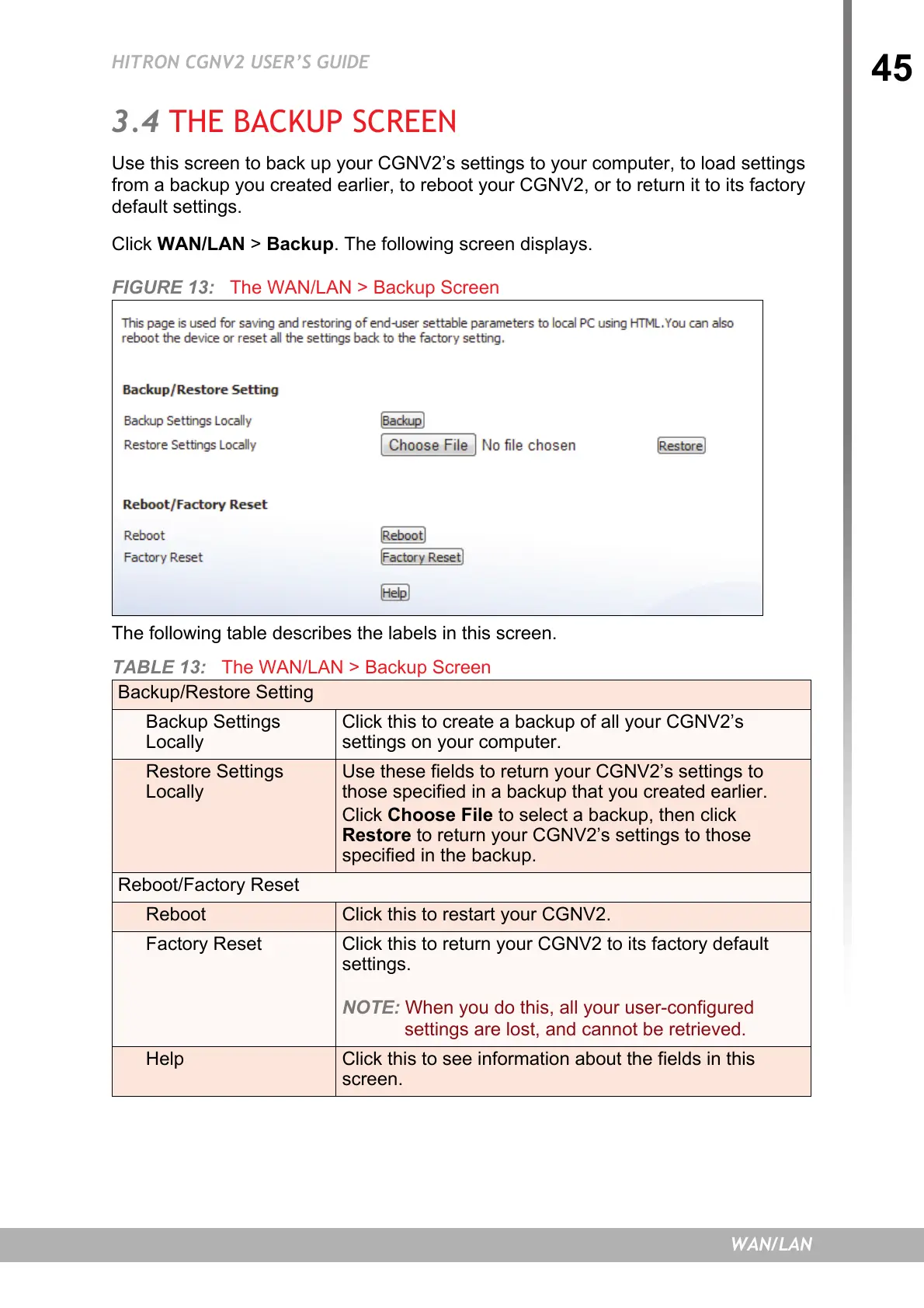
Click WAN/LAN > Backup. The following screen displays.
FIGURE 13: The WAN/LAN > Backup Screen
The following table describes the labels in this screen.
TABLE 13: The WAN/LAN > Backup Screen
Backup/Restore Setting
Backup Settings
Locally
Click this to create a backup of all your CGNV2’s
settings on your computer.
Restore Settings
Locally
Use these fields to return your CGNV2’s settings to
those specified in a backup that you created earlier.
Click Choose File to select a backup, then click
Restore to return your CGNV2’s settings to those
specified in the backup.
Reboot/Factory Reset
Reboot Click this to restart your CGNV2.
Factory Reset Click this to return your CGNV2 to its factory default
settings.
NOTE: When you do this, all your user-configured
settings are lost, and cannot be retrieved.
Help Click this to see information about the fields in this
screen.


 To Next Page