Discovery QDR Series Technical Manual
3-24
Note: Enter this information into the Radiation Measurement Report (see example on
page 3-70).
3.3.2.2 Measure Isolation Transformer Secondary Voltage
After plugging in the instrument and switching on the main breaker and instrument power
on the Control Panel, measure the voltage at the power strip located at the rear of the
Operator’s Console with a digital voltmeter set to measure AC volts.
Note: The voltage should be between 110 VAC and 130 VAC. If the voltage is out of this
range, recheck the voltage at the wall outlet, and the strapping of the isolation
transformer as shown in Figure 3-21.
3.3.3 Install Computer
Follow the procedure below to install the computer:
1. Set up the computer cart using the enclosed instructions. Place the computer,
keyboard, monitor, and printer on the cart.
2. Install computer system and power cables.
3. Turn on the computer and confirm that all options shipped with the instrument or
listed on the sales order have been installed.
3.3.4 Start QDR Software in Service Mode
Follow the procedure below to cable the system:
1. Log on to Windows XP as Field Service using the last 6 digits of the RTX Run-
time serial number as the password. (If this is the first time the computer is being
powered on, the password will be password.)
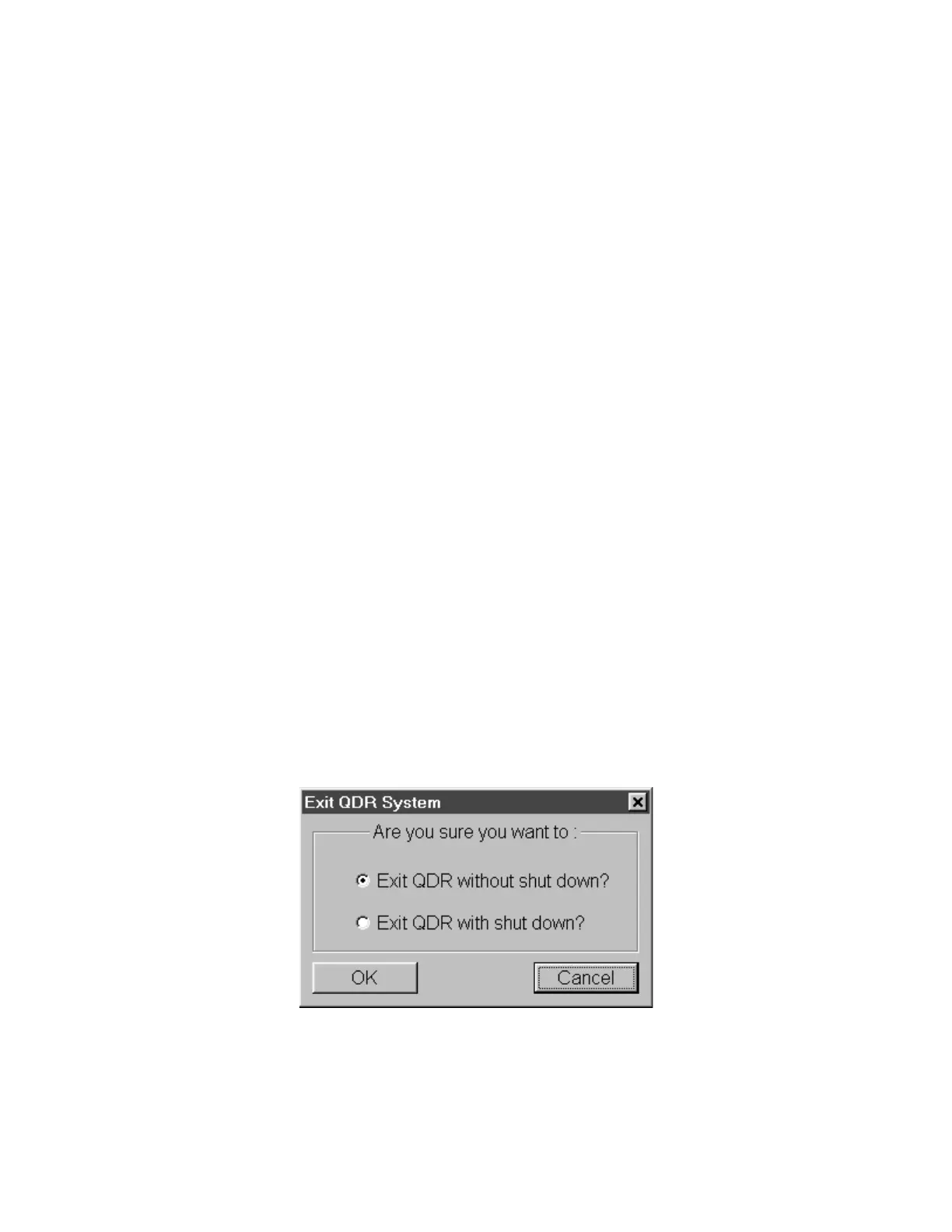
2. Exit the Discovery software by clicking the Exit button and selecting the Exit
QDR without shut down? option and then clicking the OK button.
3. Click the Start button on the desktop and then select Search For Files or Fold-
ers...
4. In the Search Results window, select All files and folders, type service in the
All or part of the file name: edit box, and then click on the Search button.











 To Next Page