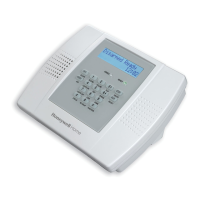
INTELLIGUARD 9000™
23 74-3047—1
CONNECT THE TRANSFORMER
The I9000 S
stem operates from a 120 Vac, 60 Hz or 230
Vac, 50 Hz source. Use a Class II
current limitin
transformer that meets the electrical ratin
s in 74-3035,
Intelli
uard 9000 Specification Data. In the U.S. use a Silent
Kni
ht Model 4165 enclosure with a Model 9220 transformer
or listed e
uivalent. Connect one transformer to the ISP
power suppl
located in the I9000 CU and one per RIPS.
Refer to Fi
. 17 and follow all local re
ulations.
Cold Start
If the technician code is disabled, a cold start is necessar
:
1.
Remove power from the I9000 transformer.
2.
Open the housin
containin
the CU and disconnect the
batter
ies
.
3.
On the ICP board, press and hold the
S1
button
see
Fi
. 17 for location
.
4.
While still pressin
the
S1
button, reappl
power to the
I9000 transformer.
This returns the I9000 to its default settin
s
technician ID =
00 and code = 9999
.
To chan
e software versions:
1.
Upload the s
stem parameters from the I9000 to a PC
usin
PRO 9000 software with a baud rate that matches
the I9000
see followin
note
. Make sure all of the
Tables to Read
items are marked with a
X
in the
pa
N
el/
R
ead
menu.
2.
Remove power, AC and batter
ies
, and replace the
I9000 firmware
UVPROM
on the ICP II
8003-331
location XA3. Respect the orientation of the UVPROM.
3.
Perform a cold start. See Cold Start section
start with
step 3
.
4.
Set the I9000 baud rate to match the PRO 9000 soft-
ware baud rate
see followin
note
.
5.
Download the s
stem parameters from the PC to the
I9000 usin
PRO 9000 software. Make sure all of the
Tables to Write
items are marked with an
X
in the
pa
N
el/
W
rite
menu.
NOTES:
— For I9000 s
stems usin
I9000 EBI Orbix firm-
ware
8950-109
onl
the baud rate must be set.
The s
stem automaticall
enters into Remote
Pro
rammin
when polled b
the PRO 9000 soft-
ware. See the baud rate tables in the EBI RS-485
multi-drop wirin
dia
rams
Fi
. 21 or 22
for sup-
ported baud rates.
— For I9000 s
stems usin
I9000 SMP Protocol
firmware
8950-100
, use the CC2 to set 0 = SMP
1 = RPROG in the MODE/5-CONFIG/5-SYSTEM
menu to 1
remote pro
rammin
before attempt-
in
to upload/download usin
the PRO 9000 soft-
ware. See the baud rate tables in the EBI RS-485
multi-drop wirin
dia
rams
Fi
. 21 or 22
for sup-
ported baud rates.
— Exit from the CC2 CONFIGURATION menu for
baud rate chan
es to become effective.
— Refer to 74-3046, Intelli
uard 9000 Pro
rammer’s
Guide for more information on remote pro
ram-
min
usin
the PRO 9000 software.
SYSTEM CHECKOUT
Run a final test of all electronics before pro
rammin
the
s
stem.
1.
When the entire s
stem is installed, use a voltmeter to
make sure each device receives power. The meter
should read 12.9 Vdc ±/- 4%
12.4V - 13.4V
across ter-
minals 1 and 2 of each device
ISP terminal numbers
differ
.
2.
If an
device does not receive power, use a continuit
tester to make sure there are no opens and shorts in the
wire connectin
it to the power suppl
. The power sup-
pl
ma
have shut down if the current drawn exceeded
the rated current of the power suppl
too man
devices
connected to its power output terminals
or if there is a
short on the line. When the situation is corrected, the
power suppl
recovers automaticall
.
3.
If there is continuit
but the volta
e is low, check the dis-
tance between the device and its power suppl
. It ma
be necessar
to add a power suppl
closer to the device
or increase the wire
au
e to reduce losses. See the
Additional Intelli
ent Power Supplies section.
4.
If the device is receivin
sufficient suppl
volta
e, but
does not function, replace the device and install a new
device as described in these instructions.
NOTE: Power down the whole s
stem
all ISPs, CUs and
RIPS
before replacin
a device.
5.
Learn each device.
NOTES:
— A device is
learned
when the CU records its
address or serial number.
— Learnin
ma
be replaced b
usin
the PRO 9000
software. See the Commission section, steps 1a.
throu
h 1c. for more information.
6.
Check the communication status for each device
refer
to the Commission section for more information
.
— F = COM fail.
— M = Mar
inal
Latched status, clear with Reset
Lo
command
.
7.
Disarm each area.
8.
Pro
ram the tables.
NOTE: Table pro
rammin
ma
be replaced b
usin
the
PRO 9000 software. See the Commission section for
more information.
9.
If the device receives sufficient volta
e but does not
respond while learnin
, refer to steps a. throu
h d. and
check the COM wirin
volta
e.
a. Measure the volta
e between ne
ative
TB1-1
except for ISPs
and TxRx- of each COM. For TxRx-
the volta
e should fluctuate between 0.8 and 1.3
Vdc at the CU and at the device. The differences are
due to the data transmitted.
b. Measure the volta
e between ne
ative
TB1-1
except for ISPs
and TxRx+ of each COM. The volt-
a
e should fluctuate between 2 and 4 Vdc at the CU
and at the device. The differences are due to the
data transmitted.
c. If the device has address switches, verif
that the
proper address has been set and that the
corre-
spond with those pro
rammed usin
PRO 9000.


 To Next Page
 Loading...