16 PM45 and PM45c User Guide
4. Follow the steps on the touch screen to complete the startup wizard.
Note: During the startup process, you are requested to select Menu Access method. By
default all menus are available from the Main Menu the first time you turn on your
printer. You can select Enable by PIN to restrict access to menus or disable access to
all menus. For more information, see
Restrict Access to the Main Menu.
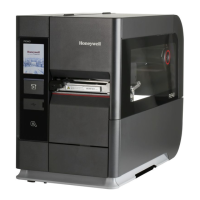
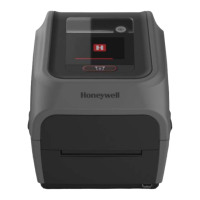
Calibrate the Touchscreen
You can calibrate the touchscreen using the printer website followed by
performing touch sequence on the touch panel of the printer.
You can also calibrate the touchscreen from the touch panel on the printer.
To calibrate the touchscreen:
To access the website, make sure your printer is connected to the same network as
your computer.
1. Open your browser and type https:// followed by the printer IP address into
the web address bar.
2. In the menu section, click on Services > Screen Calibration. If you are
prompted to login, the temporary username is admin and the password is
pass.
Note: Once you are logged in, you have option to change the username and password.
3. Click on the blue Screen Calibration button, this will engage the touch panel
on the printer to start screen calibration.
(or)
On the touch panel of the printer, tap on the Main Menu icon > Wizards >
Calibration > Screen. Tap Yes to start screen calibration.
• When the small square appears on the front touch panel of the printer, touch
the square and continue to touch the square until the printer beeps.
4. Once calibration is complete, your touch screen will automatically return to the
Ready screen.
Note: Typical screen calibration consists of five touches (one in each corner and one in the
middle of the screen).



 To Next Page
 Loading...