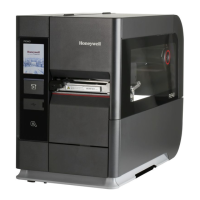
36 PM45 and PM45c User Guide
Connect the Printer via Cellular Modem
The printer supports cellular network communication when the optional Cellular
modem is installed.
You can configure cellular communication:
• From the printer web page
• From the touchscreen printer Main Menu
Configure Cellular Modem from the Web Page
Use this procedure to configure cellular network communication form the printer
web page.
Note: The printer must be turned on and connected to your cellular network to configure
the printer from the web page.
1. Open a web browser on your PC.
2. In the address bar, type https:// followed by the printer IP address and press
Enter. The printer web page appears.
3. Click Login.
4. Type your Username and Password and then click Login. The default value for
Username is itadmin and the default value for Password is pass.
5. Click Configure. The Configuration Summary page appears.
6. Click Communications > Cellular Modem. The Cellular Modem settings page
appears.
7. Change cellular network settings as needed. You can also click Default
Settings to restore all default Cellular Network settings.
8. Click Save when you are finished.
Configure Cellular Modem from the Main Menu
Use this procedure to configure cellular modem settings from the Main Menu. You
may need to configure these settings if you want to connect to a cellular network.
1. Press the Main Menu button.
2. Select Settings > Communications > Cellular Modem.
3. Change settings as needed for your cellular connection.
4. Tap Save when you are finished.
Note: To view the Cellular network connection information like, Cellular Signal, Cellular IP,
and Operator, select the communications icon from the Ready Screen.



 To Next Page
 Loading...