58 PM45 and PM45c User Guide
4. Tap the right arrow and, when prompted, tap Yes to restore default settings
and reboot. A confirmation message appears.
5. To return to the Main Menu without restoring the default settings, select No. To
return to the Restore Defaults list without restoring any defaults, select
Cancel.
Restore Defaults with a Hardware-Based Reset
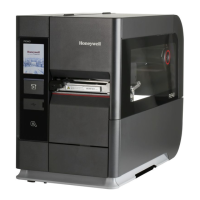
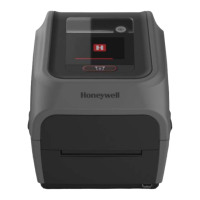
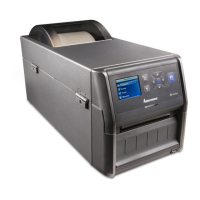
You can restore the printer defaults on a full touch or icon printer by performing a
hardware-based reset.
Note: Although this procedure restores all defaults on the touchscreen printer, it only
restores settings on the icon printer. You need to use PrintSet or another method to
restore all defaults on an icon printer.
1. Turn the printer off and open the media cover.
2. Turn the printhead lift lever counterclockwise to raise the printhead.
3. Turn the printer on while pressing and holding the Feed button.
4. Release the Feed button when the status bar is nearly full (on the touchscreen
printer) or when the last two LEDs remain lit (on the icon printer).
5. All the settings are restored on the printer.
6. Turn the printhead lift lever clockwise to lower the printhead.



 To Next Page
 Loading...