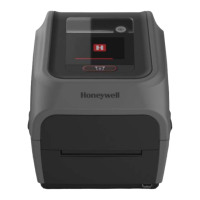
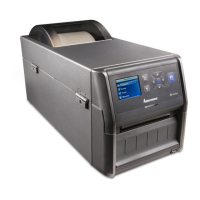
PM45 and PM45c User Guide 33
6. For a non-DHCP network:
• For a touchscreen printer, from the Main Menu select Settings >
Communications > Ethernet > IPv4 or IPv6 and change the settings as
needed.
• For an icon printer, configure the Ethernet settings through PrintSet.
Configure the Printer via Bluetooth Communication
The printer supports Bluetooth communication when the optional Wi-Fi+Bluetooth
module is installed.
You can configure Bluetooth communication:
• From the printer web page.
• From the printer Main Menu.
Configure Bluetooth Communications from the Web Page
The printer must be connected to an Ethernet or wireless network and you must
know the printer IP address.
1. Open a web browser on your PC. In the address bar, type https:// followed by
your printer IP address and press Enter. The printer Web Page appears.
2. Type your Username and Password and click Login. The default value for
Username is admin and the default value for Password is pass.
3. Click Configure. The Configuration Summary page appears.
4. Click Communications > Bluetooth. The Bluetooth settings page appears.
5. Change Bluetooth settings as needed. You can also click Default Settings to
restore all default Bluetooth settings.
6. Click Save.
Setting Default
(IPv4) IP Assignment Method DHCP
(IPv4) IP Address 0.0.0.0
Subnet Mask 0.0.0.0
Default Router 0.0.0.0
DHCP Response Broadcast
(IPv6) IP Assignment Method Automatic
(IPv6) IP Address Automatic



 To Next Page
 Loading...