HP D300 Digital Dispenser
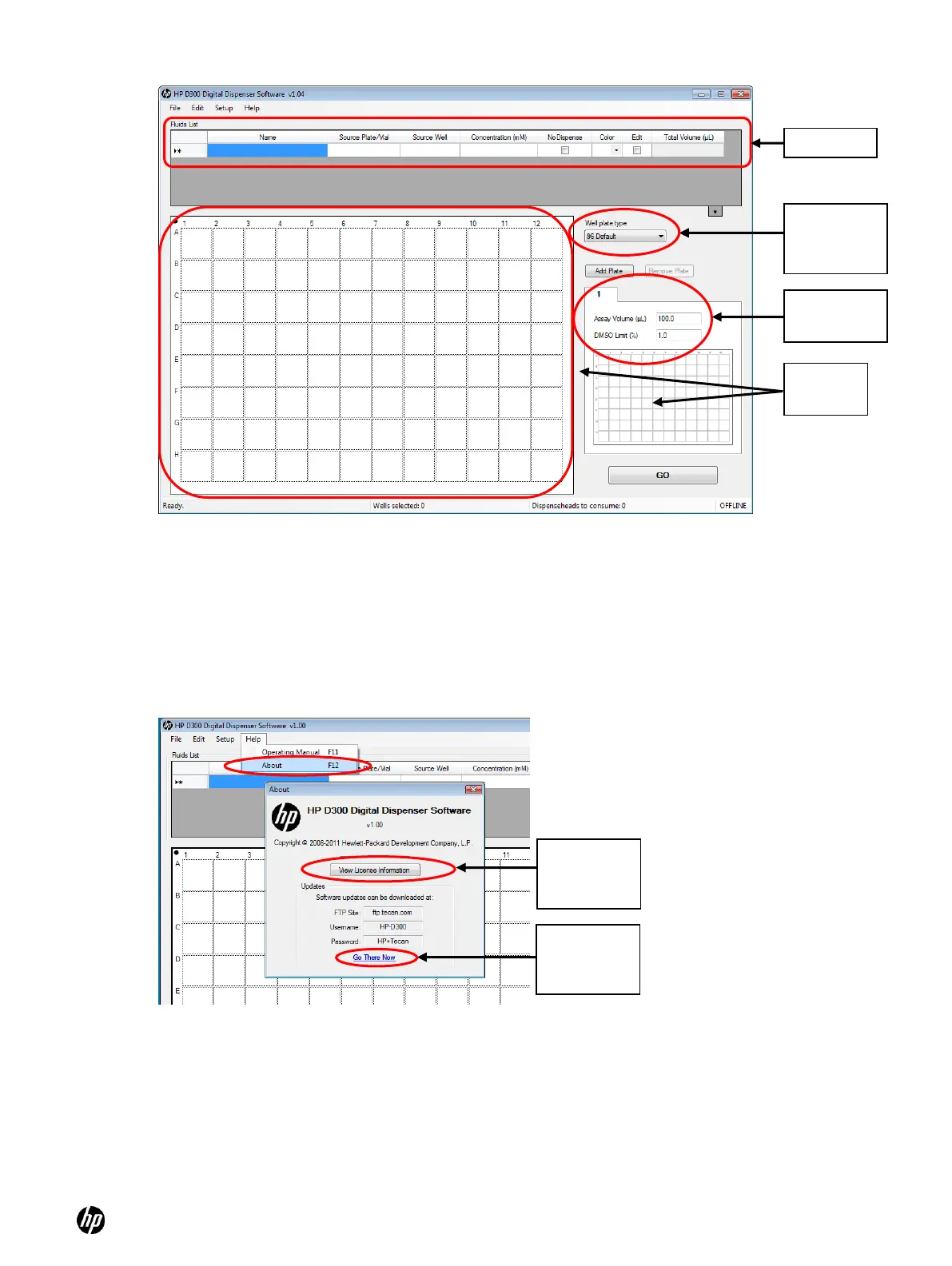
Figure 4-6 HP D300 Digital Dispenser main operating window
The application has a standard MS Windows
®
look and feel. Once you get started, you can work in
different areas of the main operating window by clicking in them, you can select cells by left-clicking,
control-clicking or shift-click combined with dragging, you can right-click to perform context sensitive
operations, or see information about wells that contain fluids by hovering over them in the well plate.
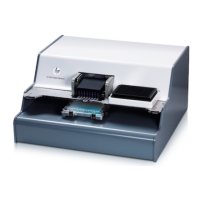
1. Note that this Operating Manual is accessible two different ways, either by opening the pdf file
in the C:\Program Files\HP-D300 directory, or by clicking on Help/Operating Manual from the
main operating window as shown in Figure 4-7.
Figure 4-7 Help menu and Help/About Window
2. Note that the About window also provides access to the License information and to the Tecan
FTP site that always contains the latest version of the software. Click on Go There Now to
directly access the FTP site from the D300 Digital Dispenser software.
3. Select either 96 or 384 from the Well Plate drop-down list box.
Software
license
information
Look for
software
updates
Well plate
drop-down
list box


 To Next Page