3.2.3 Front Vehicle Go
Once your vehicle's location is determined by GPS and the Front Vehicle
Go function is enabled, this feature starts to detect the motion of cars in
front of you after your car remains motionless for 20 seconds. It
produces voice and screen message alerts when the movement of the
car in front of you changes its images in the camera.
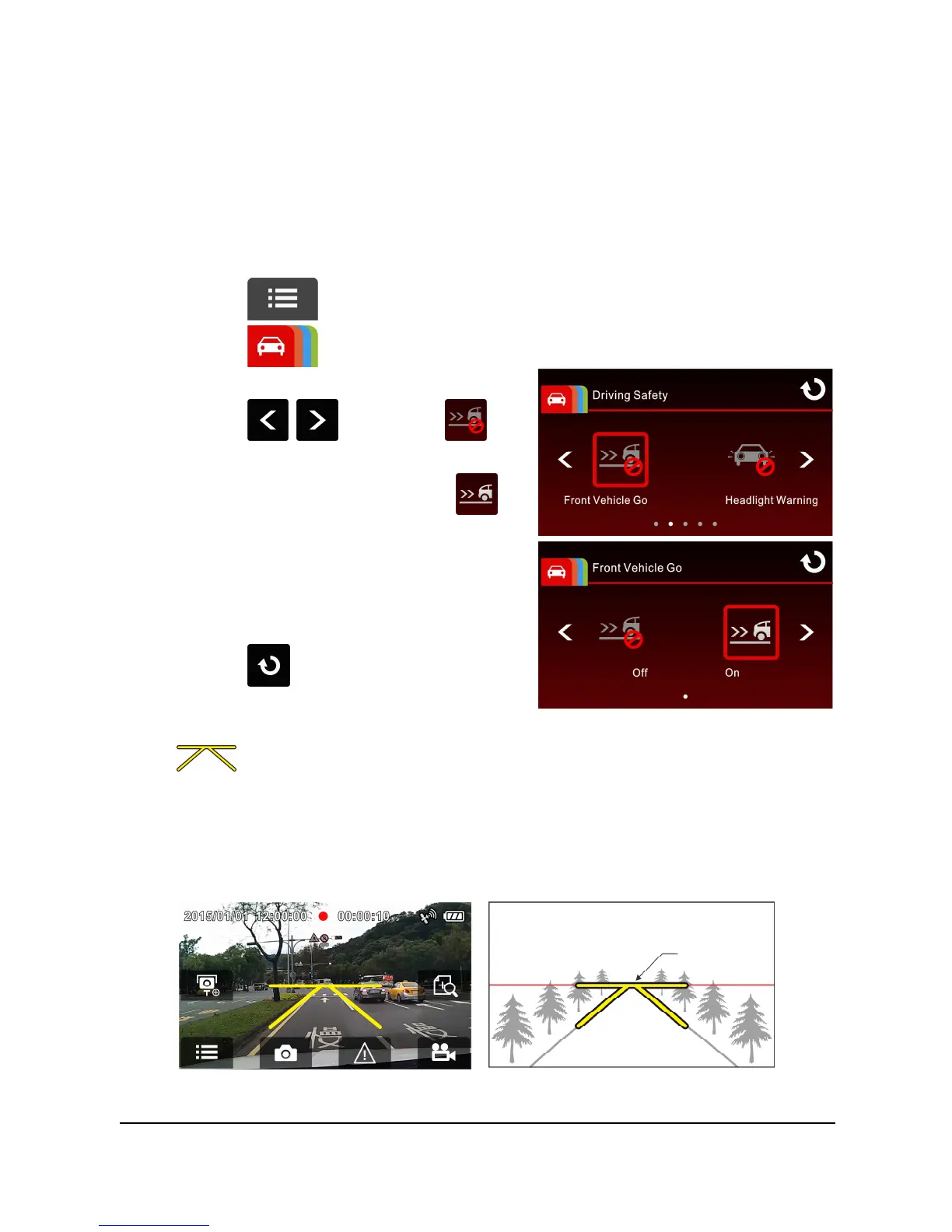
To set the front vehicle go, do the following:
1. Touch to enter Main Menu.
2. Touch to switchover to
Driving Safety Main Menu.
3. Touch / to select
for entering Front Vehicle Go
function menu, then touch
again to enable the function (on).
4. Touch to return to record
screen.
5. After enabling Front Vehicle Go, the screen will display align icon
, please adjust the camcorder so that the horizontal line and
the eye level are overlapped and the slash lines are centered in the
driving lane. Make sure that align icon will not be obscured (e.g.
hood) during installation, it may cause misjudgment if the endpoint
is obscured.


 To Next Page