LED Description
Programmable button LED or line button
LED when the programmable button or line
button is set as the Do Not Disturb (DND)
button
When the phone is in DND state, the LED is
steady red.
Programmable button LED or line button
LED when the programmable button or line
button is set as the Pickup or Group Pickup
button
When the pickup account has an incoming
call, the LED blinks red every second.
3.2 Screen
3.2.1 Home Screen
The phone supports two display modes for its home screen: Classic and Simple, and you can
switch between these two modes. For details about how to switch the display mode, see 5.2.6
Theme.
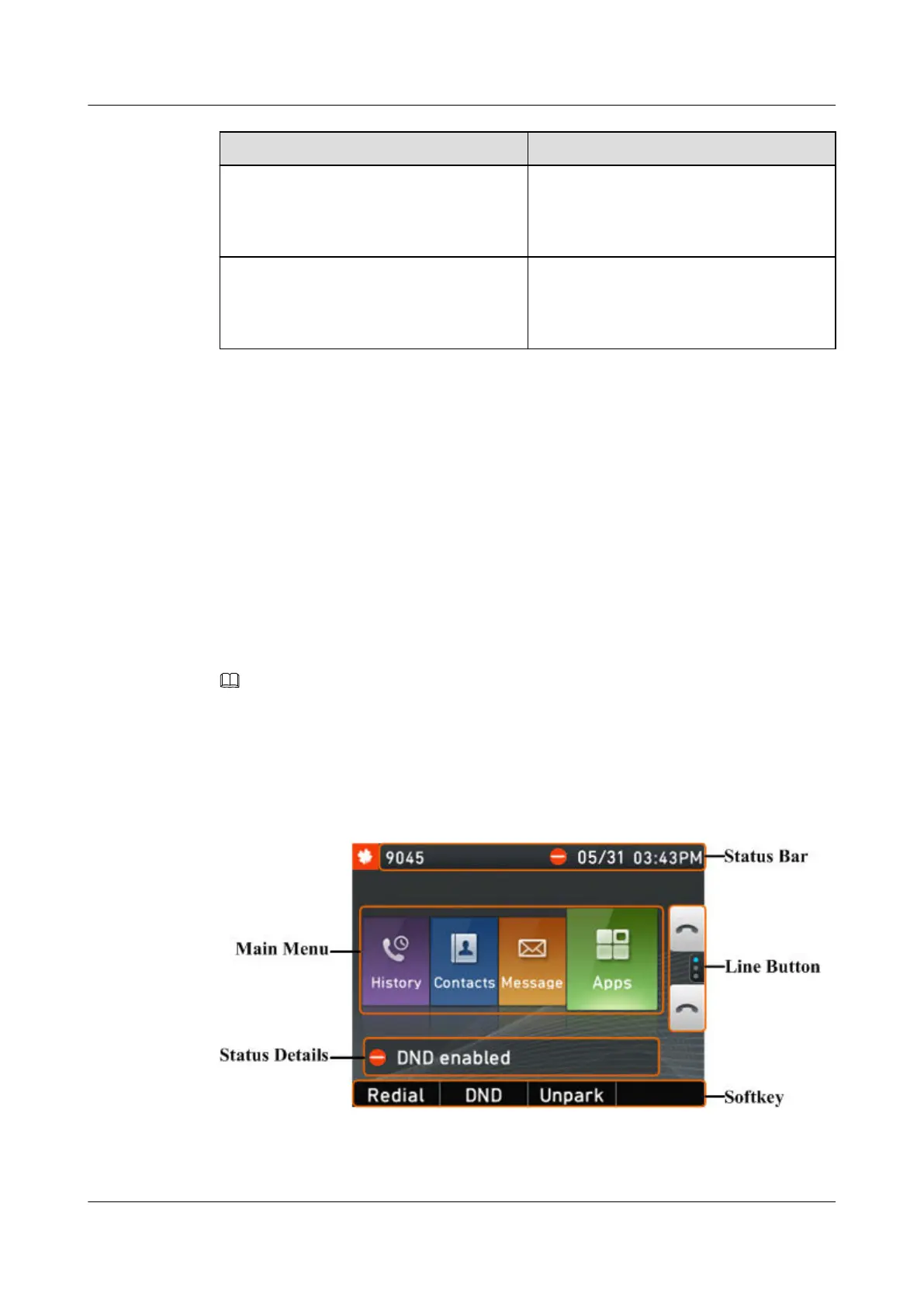
l Classic: The main menu is displayed on the home screen. You can use the navigation
buttons to access the corresponding screen.
l Simple: The phone hides the main menu and completely displays the wallpaper on the
home screen. You can press the Apps softkey to access the Apps screen.
NOTE
l In Simple mode, you can press the Contact button, Call History button, Message button, or Apps
softkey to access the Contacts, History, Message, or Apps screen.
l By default, the Classic mode is used.
The following figures show the home screens in different modes.
Figure 3-3 eSpace 7910 home screen in classic mode
eSpace 7910&7950 IP Phone
User Guide
3 IP Phone Overview
Issue 03 (2017-06-30) Huawei Proprietary and Confidential
Copyright © Huawei Technologies Co., Ltd.
10



 To Next Page