22
Schedules – Days of the Week
1. Select Times: [CHANGE]. Then press the ENTER key.
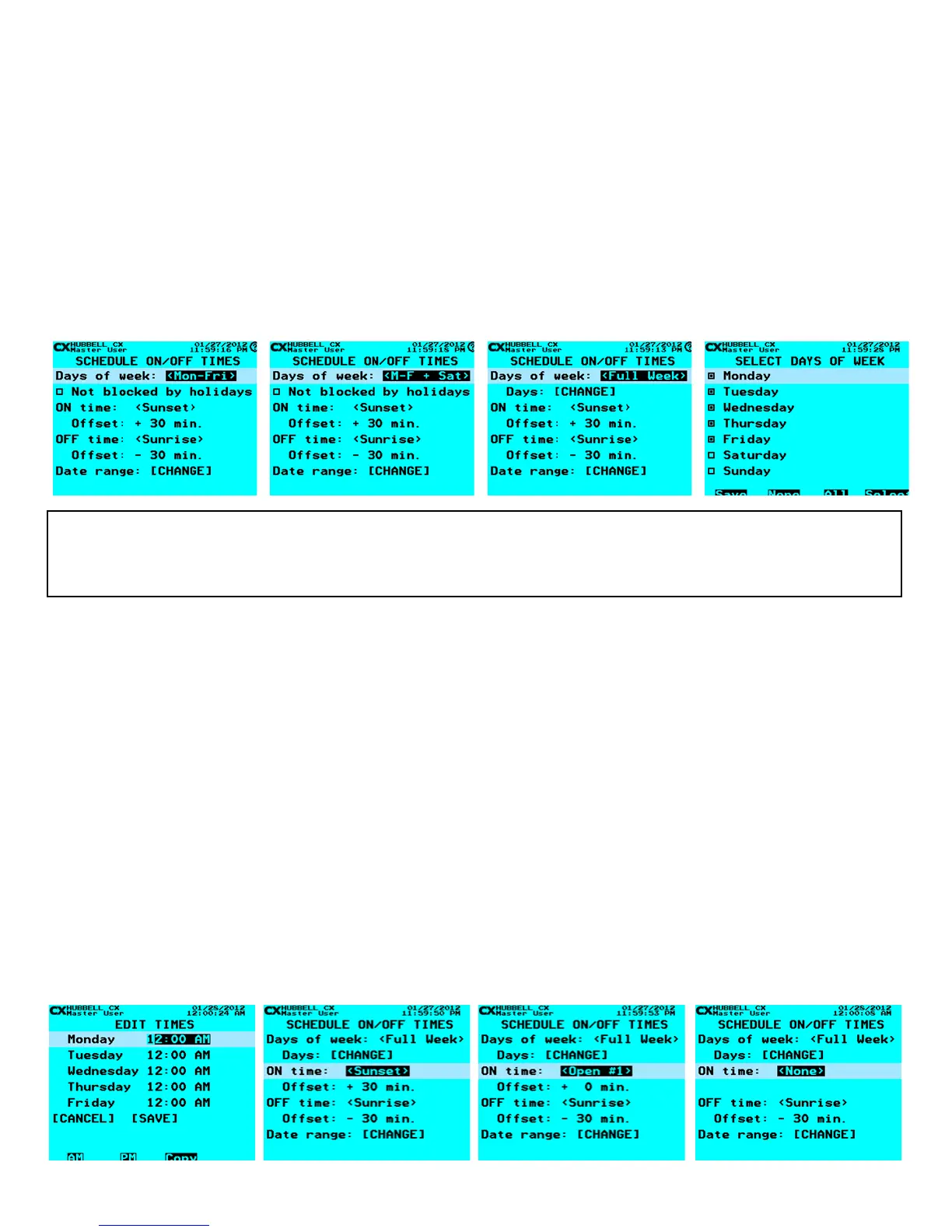
2. In the SCHEDULE ON/OFF TIMES screen, use the right and left arrow keys to change Days of week. There are three Days of
week selections; <Mon-Fri>, <M-F + Sat> and <Full Week>
a. <Mon-Fri> - This selection allows for a single entry ON and OFF Times that will repeat every week on Monday through
Friday
b. <M-F + Sat> - This selection allows for a single entry ON and OFF Times that will repeat every week on Monday through
Friday and Saturday
c. <Full Week> - This selection allows for the entry of ON and OFF Times that are individual for any day or all days of the
week. Times may be different on each day. An entry selection of <None> on a day will have no action on that day.
When in the <Full Week> selection, scroll down to Days: [CHANGE] to select or deselect days to include in the schedule. When
complete use the F1 key to Save changes.
CX Programming TIP:
Mon-Fri Schedules allow for a single entry of ON and OFF times for weekdays, M-F + Sat adds Saturday to the single entry list (Same ON/OFF
for all 6 days). To create a schedule with a different ON/OFF time for Saturday, Use a Mon-Fri schedule for the weekdays in combination with a
separate Full Week schedule using ON/OFF times input only on Saturdays.
Schedules – ON Only, OFF Only or ON/OFF Actions
After completion of the Days of week selections, while in the SCHEDULE ON/OFF TIMES screen, set the ON and OFF times. ON
and OFF events can be programmed using Clock Times, Astro-Clock Sunrise or Sunset calculated times, or Open/Close Times.
Schedules may be programmed as ON only, OFF only or ON/OFF in a single schedule.
1. To program Schedule On/Off times, while still in the SCHEDULE ON/OFF TIMES screen, use the up/down arrow keys to
scroll to the ON time: or OFF time: line. Use the right and left arrow keys to select <Clock>, <Sunrise>, <Sunset>, <Open
#1, #2, #3, or #4>, <Close #1, #2, #3, or #4>, or <None>. The following is the function of each selection:
d. <Clock> - Action will occur at a specic Clock Time. Scroll down to [CHANGE], and then press ENTER. Use the numeric
keys to enter hours/minutes, F1 – am or F2 – pm. Scroll down to [SAVE] and press ENTER to save your changes.
e. <Sunrise>, <Sunset> - Action will occur at sunrise/sunset based on the time calculated Astro-clock time. Scroll down
to Offset: -___min. Use the Function Keys and the numeric keys to set the offset time in minutes. (-) is before and (+) is after
Sunrise/Sunset.
f. <Open #1, #2, #3, or #4>, Close #1, #2, #3, or #4> - Action will occur based on programmed Open/Close Time
schedules. Scroll down to Offset: -___min. Use the Function Keys and the numeric keys to set the offset time in minutes. (-)
is before and (+) is after Open/Close Time.
g. <None> - Select <None> to eliminate ON or OFF action to create an ON Only or OFF Only schedule.
2. When nished, scroll down to highlight [SAVE], and then press ENTER to save your changes.



 To Next Page