24
Holiday Dates – Select, Name and Edit Holiday Dates
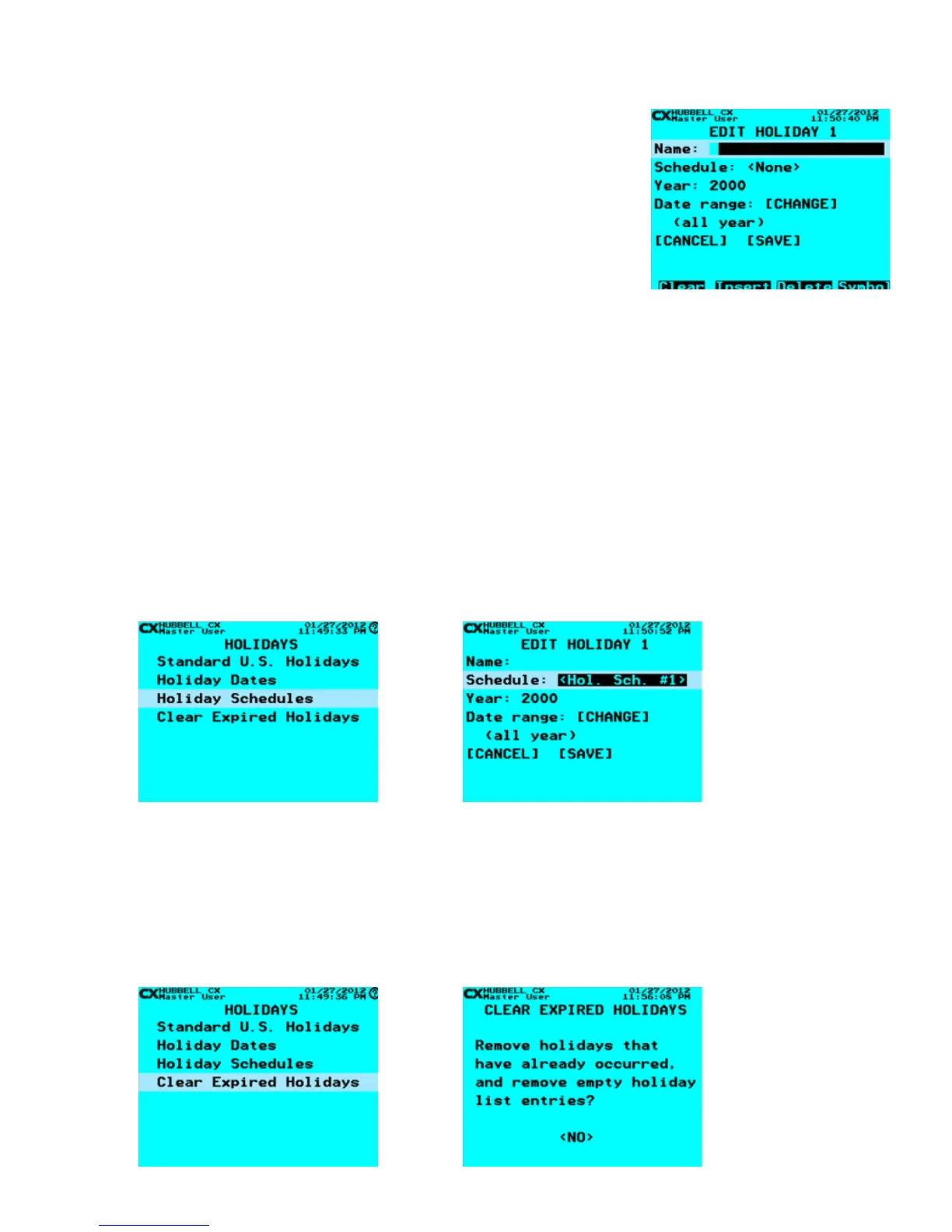
1. From the Holidays Menu, select Holiday Dates. Then press the ENTER key.
1. Select Holiday – Scroll to Holiday to program. Select any of the 99 Holiday Dates
Press the ENTER key or the F1 key to create a Holiday.
1. Name Holiday – Use the Function keys and the alphanumeric keypad to edit
the Holiday name. Refer to “Function Keys” section at the beginning of the
Programming Section of this manual.
1. Scroll down to Year: 2000. Use the numeric keypad to enter the last two digits for
the year that the holiday date will occur.
1. Scroll down to Date Range: [CHANGE]. Then press the ENTER key.
1. Scroll down to Date 01/01. Use the numeric keypad to enter the Month as two digits
rst and then the Day as two digits second. When nished, scroll down to highlight
[SAVE], and then press ENTER to save your changes.
Holiday Schedules
The Holiday Schedule function allows for a Holiday specic schedule to be run on any Holiday Date. Holiday Schedules
programming is the same as normal Schedules in function and capability. Refer to “Schedules” section for details about
programming the schedule actions.
1. From the Main Menu, select Holidays. Then press the ENTER key.
1. Select Holiday Schedules. Then press the ENTER key. Scroll to any of four Holiday Schedules and press the ENTER
key or the Function keys as indicated at the bottom of the display.
1. Refer to the “Schedules Section to program the Holiday Schedule.
1. To apply a Holiday Schedule to a Holiday Date, From Holidays Menu, select Holiday Dates. Then press the ENTER key.
1. Scroll to the desired Holiday to program, press the ENTER key or the F3 key to edit the Holiday.
1. Scroll down to Schedule: Use the right/left arrow keys to select the desired Holiday Schedule.
1. When nished, scroll down to highlight [SAVE], and then press ENTER to save your changes.
Clear Expired Holidays
The CX panel allows for the easy removal of programmed Holiday Dates that have occurred in the past with the “Clear Expired
Holidays” function.
1. From the Main Menu, select Holidays. Then press the ENTER key.
1. Select Holiday Schedules. Then press the ENTER key. Scroll to any of four Holiday Schedules and press the ENTER
key or the Function keys as indicated at the bottom of the display.



 To Next Page