23
Schedules – Blocked/Unblocked on Holidays, Date Range and Priorities
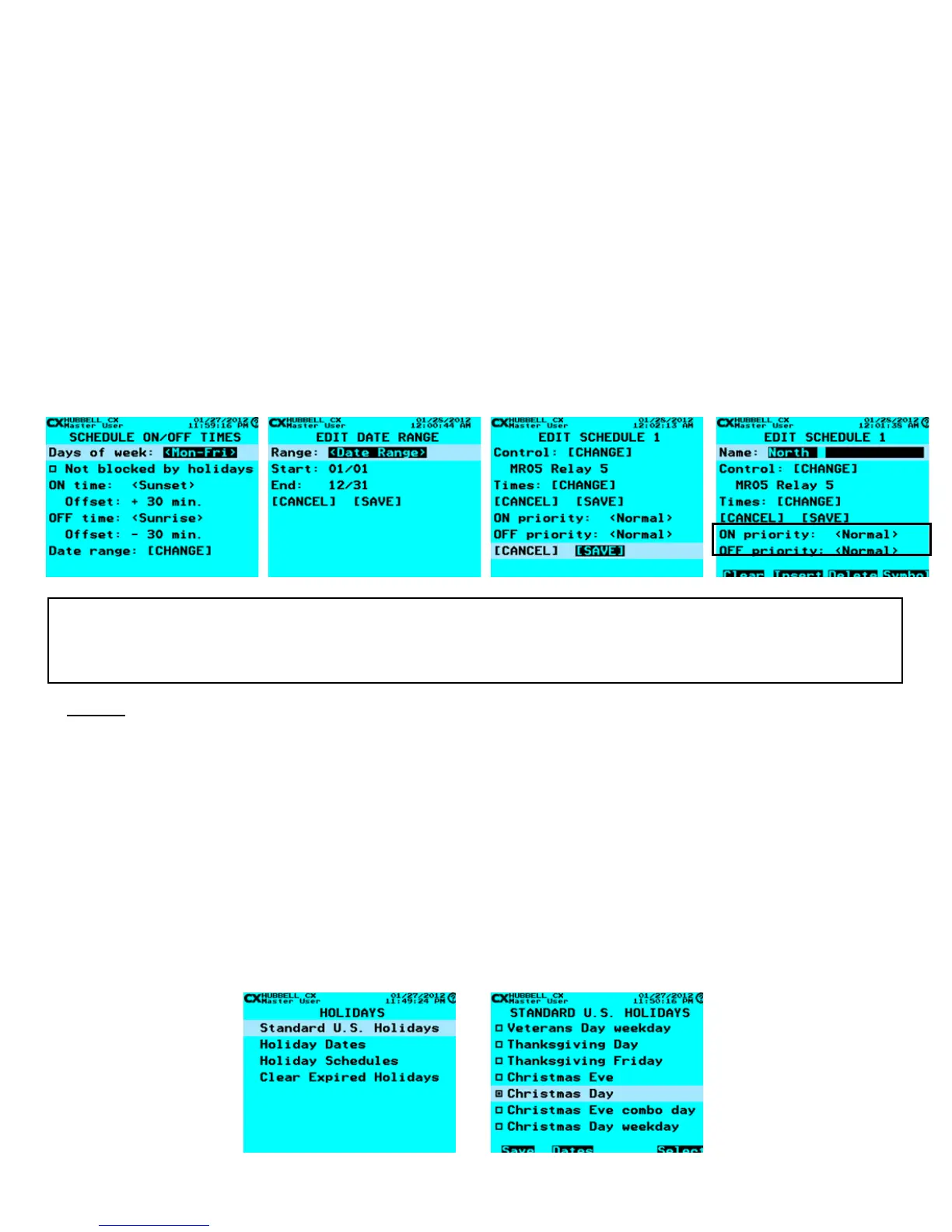
After completion of the Schedule ON/OFF actions, while in the SCHEDULE ON/OFF TIMES screen, set the “blocked holidays
function, date range and priorities. Schedules may be set to be blocked by programmed Holiday dates. Refer to “Holidays” section
for programming instructions for Holiday dates.
• To Block Schedule on Holidays - scroll down to and highlight the Not Blocked by holidays / Blocked by Holidays line. Use
the F4 function key to enable or disable your selection. Enabling this function will block the schedule from executing on all
programmed Holiday Dates.
• To Set a Date Range for a Schedule - scroll down to and highlight Date Range: [CHANGE] line. Press the ENTER key.
Scroll right/left from <All Year> to <Date Range>. Scroll down to the Start and End elds and enter the desired dates.
Note that the system default <All Year> allows schedules to execute in all 52 weeks in a calendar year.
• When nished, scroll down to highlight [SAVE], and then press ENTER to save your changes.
• In the SCHEDULE ON/OFF TIMES screen scroll down to highlight [SAVE], and then press ENTER to save your changes.
• Apply Priorities to a Schedule - In the EDIT SCHEDULE screen, scroll down to the ON Priority: or OFF priority: line.
Right/Left scroll through the priority choices to the desired selection. When nished, scroll down to highlight [SAVE], and
then press ENTER to save your changes. Priorities can only be applied to ON/OFF Schedules. If there is nothing else is
controlling what the Schedule is controlling then don’t change these values.
WARNING: Be sure to review the Priorities Section before changing any default <Normal> Priorities! Changes to Priorities if not properly
implemented can effect expected system operation resulting in Relays/Groups getting stuck in the ON or OFF state or creating situations where
devices do not initiate actions as expected.
Holidays
The CX Panel Holidays programming allows for the blocking of schedules on designated holiday dates. Additionally, the CX Holiday
Schedules function allows for any of four Holiday Schedules to be run on selected Holiday Dates. The following programming
functions are available in the Holidays Menu:
Standard U.S. Holidays
The CX panel is pre-populated with Standard U.S. Holidays that can be selected to occur year-over-year.
1. From the Main Menu, select Holidays. Then press the ENTER key.
2. Select Standard U.S. Holidays. Then press the ENTER key. Scroll to each desired standard holiday and press the ENTER key
or the F4 key to select/deselect.
3. Press the F2 key to see a list of the actual recurring dates for the highlighted Holiday
4. When nished, press the F1 key save your changes



 To Next Page