15
Rev 1.0 9/21
Tracking Settings
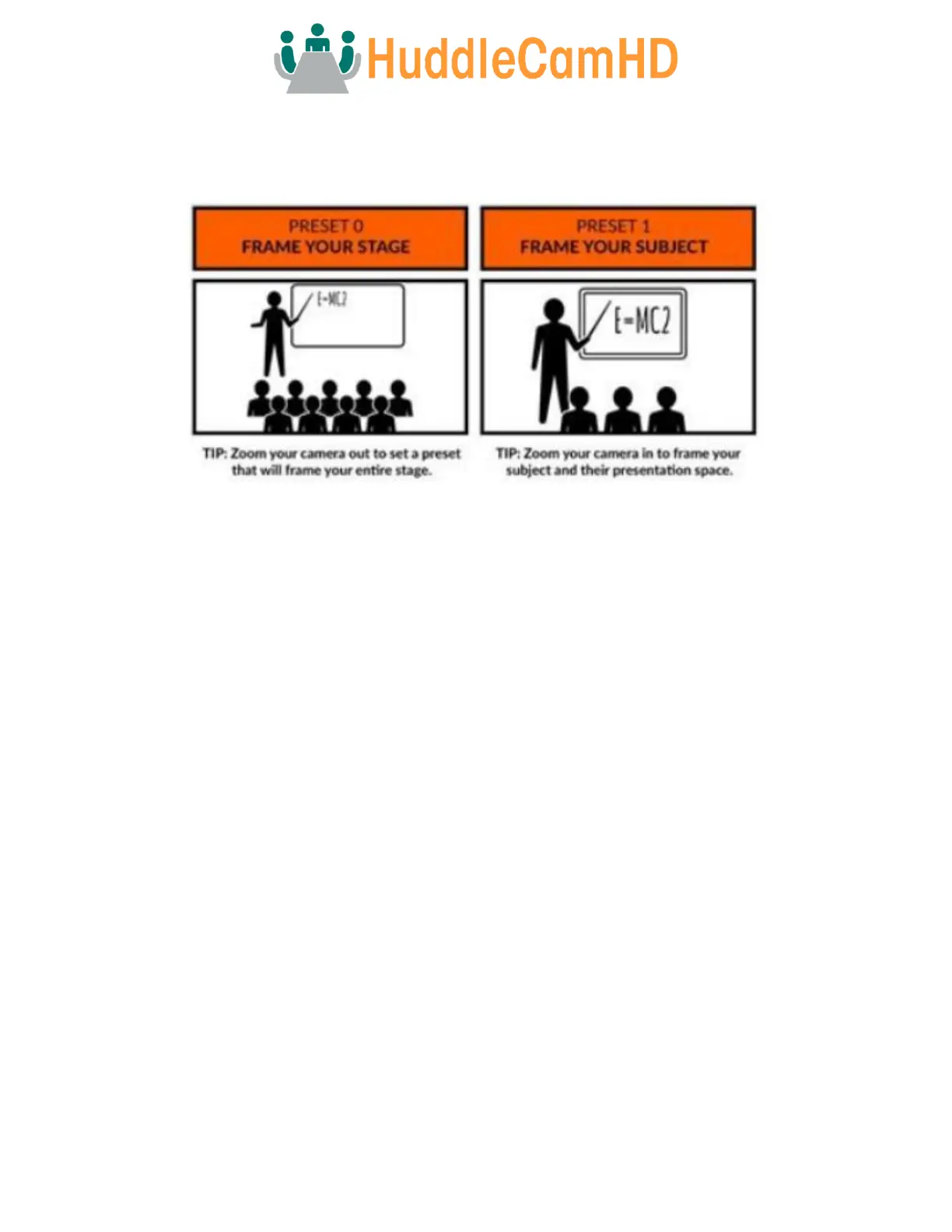
The SimplTrack Lite is truly plug and play tracking camera that does not require much set up before use. The camera only
requires the Preset 0 & Preset 1 positions set, and the Face Height positioned properly.
Preset Zones
Preset Zones allow the camera to temporarily halt tracking once the subject enters a defined area. Once they enter that area, the
camera will call a preset to frame the subject in that Preset Zone. This allows the subject to move around the stage and be
framed when they enter the Preset Zone. Once the subject leaves that Preset Zone, the camera resumes tracking the subject
normally.
There are 4 Preset Zones: 84-87 for Zones 1-4. You must set up Preset 0 as the Stage and Preset 1 as the subject. The subject
must be in the view during the setup for the focus to be correct.
Each Preset Zone has a specific preset number associated with it:
• Preset Zone 1 = preset 84
• Preset Zone 2 = preset 85
• Preset Zone 3 = preset 86
• Preset Zone 4 = preset 87
To set up a Preset Zone:
1. Open the tracking software and select the Main View tab.
2. Have the subject move to the desired Preset Zone location.
3. Position the camera view in the location you'd like the corresponding Preset Zone to move to.
4. "Set" the corresponding preset number (84 ~ 87) using the Presets section of the Main View tab.
a. You can double check that the presets are in the desired location by "Calling" the corresponding preset
number.
5. Enable tracking and allow the subject to enter the Preset Zone.



 To Next Page