10
Rev 1.0 9/21
Connecting the Camera
To connect the camera to the Tracking Software, you will first need to make sure it is on the same network range as your PC.
Once confirmed, choose your method of connection below. If your camera is not on the same network range as your PC, follow
the instructions in the Assigning an IP Address section below.
Network Search – The Tracking Software is able to search your network for any HuddleView, SimplTrack2, or SimplTrack Lite
cameras. Simply click the “Start Search” button from the Online Devices section to begin the search. Once a camera is discovered,
you may click “+ Add to Client” to add it to the Device Management section.
Manually Adding – Alternatively, you can manually add a camera to the Device Management section. To do this, click the “+ Add
Device” button from the Device Management section. From here, select “Add by IP” or “Add by Import” to determine the
connection method.
Add by IP – To add a camera by its IP address, you will need to know the camera’s IP address & port number. If the
camera has authorization enabled, you will also need the connection username and password (“admin” by default).
Add by Import – To add a camera by import, you will need to have an import file already on hand. To produce this
import file, click the “+ Add Device” button, then click “Add by Import”. From here, click the “Export Model” button to
produce an import.csv file, that can be used by the Tracking Software.
Configuring the Camera
To configure a camera, you will need to connect it to the Device Management section using the methods above. From there,
select the camera you wish to configure, then select “Remote Configuration”.
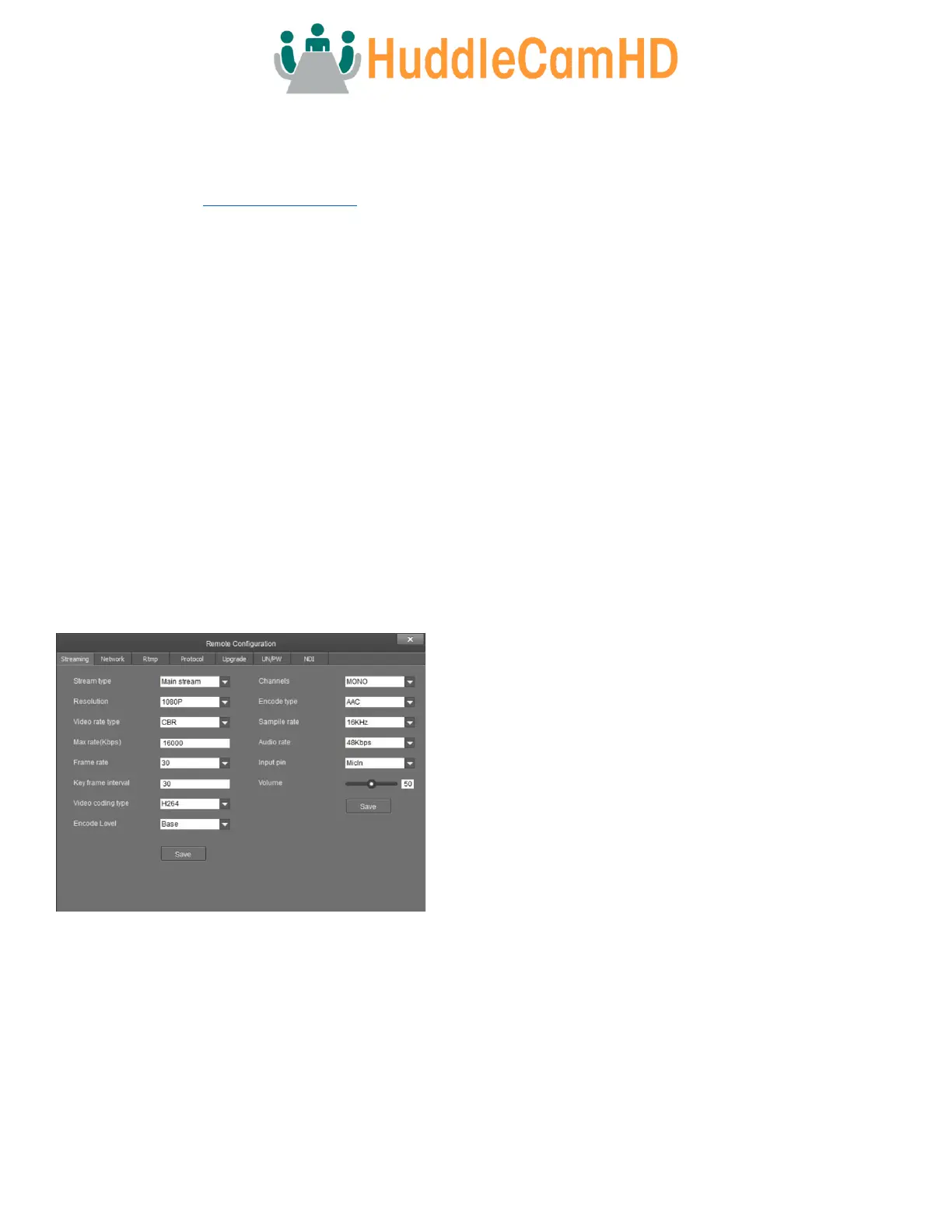
Streaming – The Streaming tab allows you to adjust the camera’s Real Time Streaming Protocol settings.
• Stream Type – RTSP stream dropdown selector.
o Options include: Main Stream, Sub Stream, Stream 3, &
Stream 4
• Resolution – RTSP resolution.
o Main Stream resolutions: 1080p, 720p, 704x480(D1), &
320x240(QVGA)
o Sub Stream resolutions: 720p, 704x480(D1), &
320x240(QVGA)
o Stream 3 resolutions: 720p, 704x480(D1), &
320x240(QVGA)
o Stream 4 resolutions: 704x480(D1) & 320x240(QVGA)
• Video Rate Type – Adjust the video rate.
o Options include: CBR & VBR
• Max Rate (Kbps) – Adjust the RTSP stream’s maximum bit rate.
o Options include: 1 ~ 16383
• Frame Rate – Adjust the RTSP stream’s frames per second.
o Main, Stream 3, & Stream 4 options include: fullfps, 1, 2, 4, 6, 8, 10, 12, 15, 16, 18, 20, 22, 25, 30, 50, & 60
o Sub Stream options include: fullfps, 1, 2, 4, 6, 8, 10, 12, 15, 16, 18, 20, 22, 25, & 30
• Key Frame Interval – Adjust the RTSP stream’s I-Key Frame Interval
o Options include: 1 ~ 120 (we recommend setting this value to double the stream’s frame rate)
• Video Coding Type – Adjust the Video Coding type.
o Options include: H.264 & MJPEG
• Encode Level – Adjust the level at which the video is encoded.
o Options include: Base, Main, & High



 To Next Page