37
Rev 1.0 9/21
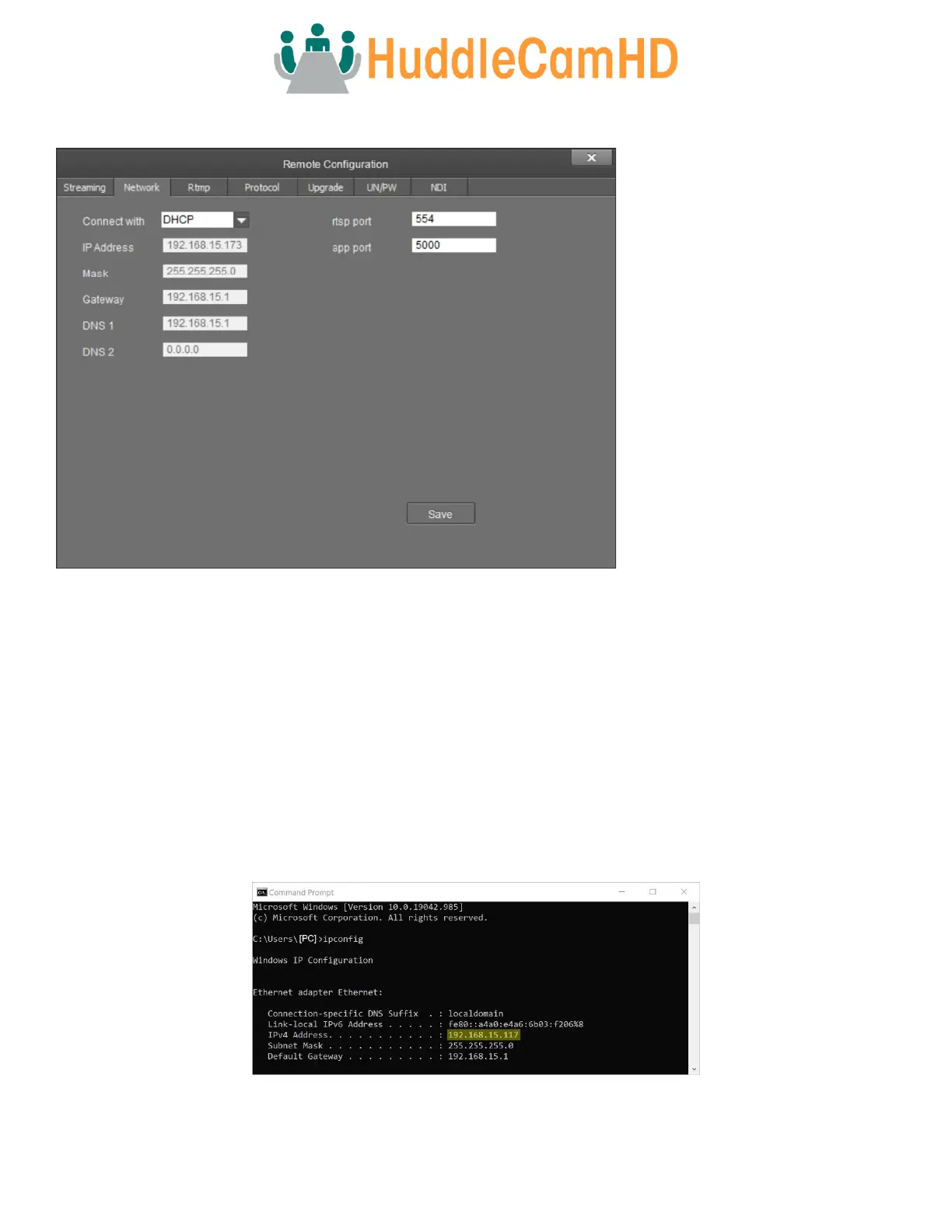
Remote Configuration > Network Interface
The Remote Configuration tab allows you to modify the settings of a camera that is already connected to the software. Once you
change the IP address of a camera through this method, you will need to re-add the camera to the Tracking Software.
Discovering your Network Info
To discover your IP address range/scheme, Subnet Mask, Gateway, & First DNS, follow the instructions below for Windows or
Mac OS. You may need to talk with your IT department to obtain this information.
Windows
1. Open the Start menu and type “CMD” into the search bar.
2. Once the Command Prompt is open, type in “ipconfig” and press the Enter key.
3. Scroll down to the section titled “Ethernet adapter Ethernet” or “Ethernet adapter Wireless Network Connection”.
4. Locate the “IPv4 Address” in that section. This is your computers local IP address.
5. In the example above, the PC’s local address is “192.168.15.117”, making the network range “192.168.15”.



 To Next Page