– 10 –
SETTING A FAVOURITE
All shades come from the factory with a default
Favourite position set at 50% open. If you prefer
a different shade position, you can create a
custom Favourite.
q
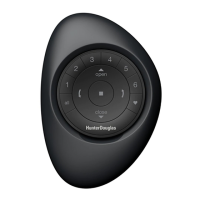
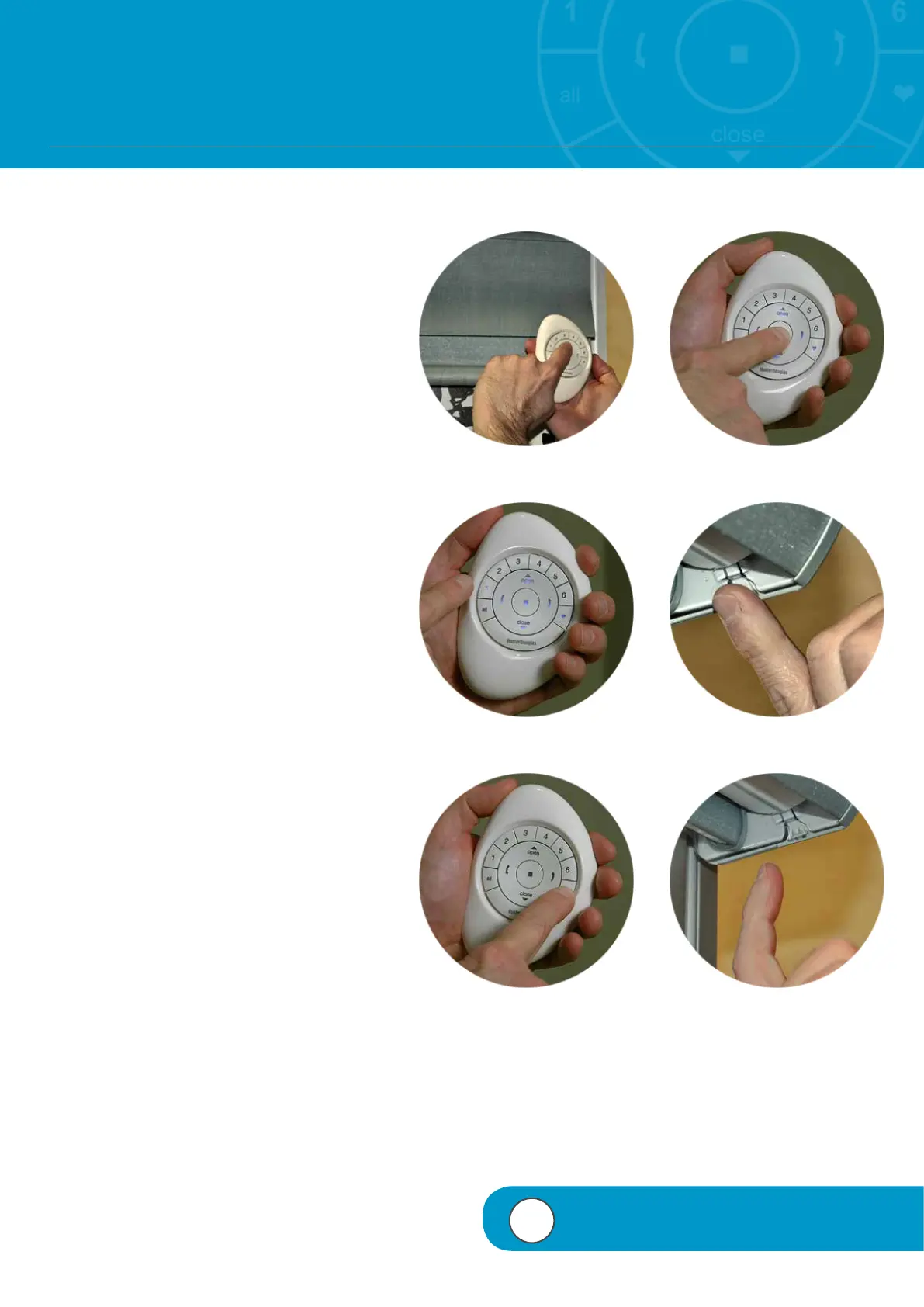
Use the PowerView™ Pebble
®
Remote
to move all shades to a desired Favourite
position.
w
PRESS and HOLD (Stop) until indicator
lights blink.
e
RELEASE (Stop).
NOTE: Steps 4-6 must be completed within
5 seconds.
r
PRESS and HOLD the manual control
button on the headrail.
t
Then PRESS and RELEASE (Favourite)
on the remote.
The shade will jog to indicate the position
has been set as a Favourite.
y
RELEASE the manual control button.
NOTE: To position additional shades, repeat
steps 4-6 for each shade.
u
PRESS and HOLD (Stop) until the
indicator lights stop blinking.
q
e
w
r
yt
4
VIDEO INSTRUCTION

 To Next Page
 Loading...