16 iDirect Satellite Router Installation and Commissioning Guide
iDX Release 3.3
Local Area Connection
5. Select Use the following IP address. Type an IP address that is inside the range specified
by the Satellite Router’s IP address and subnet mask. See Figure 6.
6. Click in the Subnet mask
data entry field. The Windows 7 default value will appear
automatically. If the Satellite Router subnet mask is known to be different, type in the
correct values.
7. Type the Satellite Router IP address in the Default Gateway
field.
8. For a local connection, DNS server addresses are not required. Leave the fields blank.
9. Click OK to save the
changes.
The local connection is now configured to connect to the Sa
tellite Router using iSite.
To confirm connectivity:
1. Confirm that power is applied to
the Satellite Router.
2. Connect a crossover Ethernet cable
between the LAN port of the local PC and the LAN
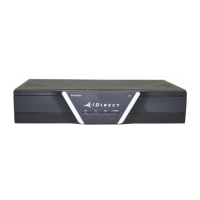
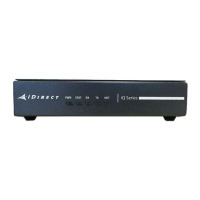
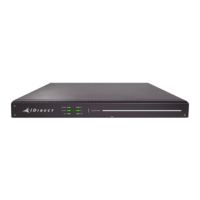
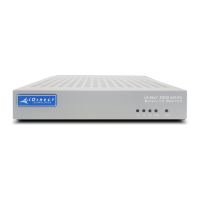
port of the Satellite Router specified in Ta b l e 1 ,
3. Open the
command prompt on the local PC.
4. Ping the Satellite Router by entering
the following command:
ping <ip address>
5. Verify that packets are returned without error.
The local
PC is now configured to use iSite for commu
nication over the LAN port. Continue to
“Loading Packages with iSite” on page21.
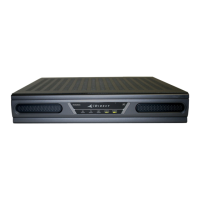
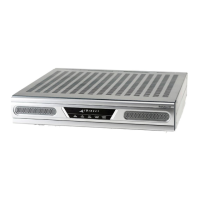
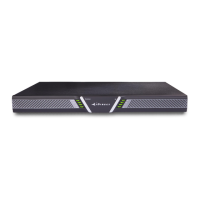
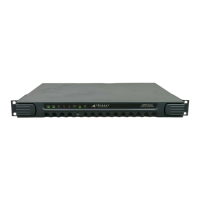
Table 1. LAN Ports for Ethernet Cable Connections
Satellite Router
Model Type
LAN Port Label
Evolution e8350 LAN B
Evolution X3, X5 LAN A
Evolution X1 LAN
Evolution X7 LAN 1



 To Next Page