ID TECH Kiosk V User Manual
Page | 20
9.1. Updating Kiosk V Firmware
ID TECH strongly recommends updating firmware via the Universal SDK. Consult the Universal SDK
Guide for your desired platform (included in the ZIP file downloaded from the Kiosk V product page)
for integration details.
Firmware downloads must be done via a USB-C to USB-A cable or a USB OTG cable for
mobile Android devices; Kiosk V readers do not support firmware over Bluetooth.
9.1.1. Universal SDK Demo App
The Universal SDK comes with a rich, fully featured demo app that allows users to run the Kiosk V in
USB mode. Visit the Knowledge Base and go to the Kiosk V product page to download the Universal
SDK Demo app as a standalone executable, separate from the SDK; the full SDK is not required to use
the demo. Be sure to check out the
Universal Demo QuickStart Guide for more detailed instructions
about using the Universal SDK Demo app.
9.2. Using the Demo Application
Follow the steps below to run the Universal SDK Demo app on Windows:
1. Plug the Kiosk V into the host device with a USB-to-micro-USB cable (not included).
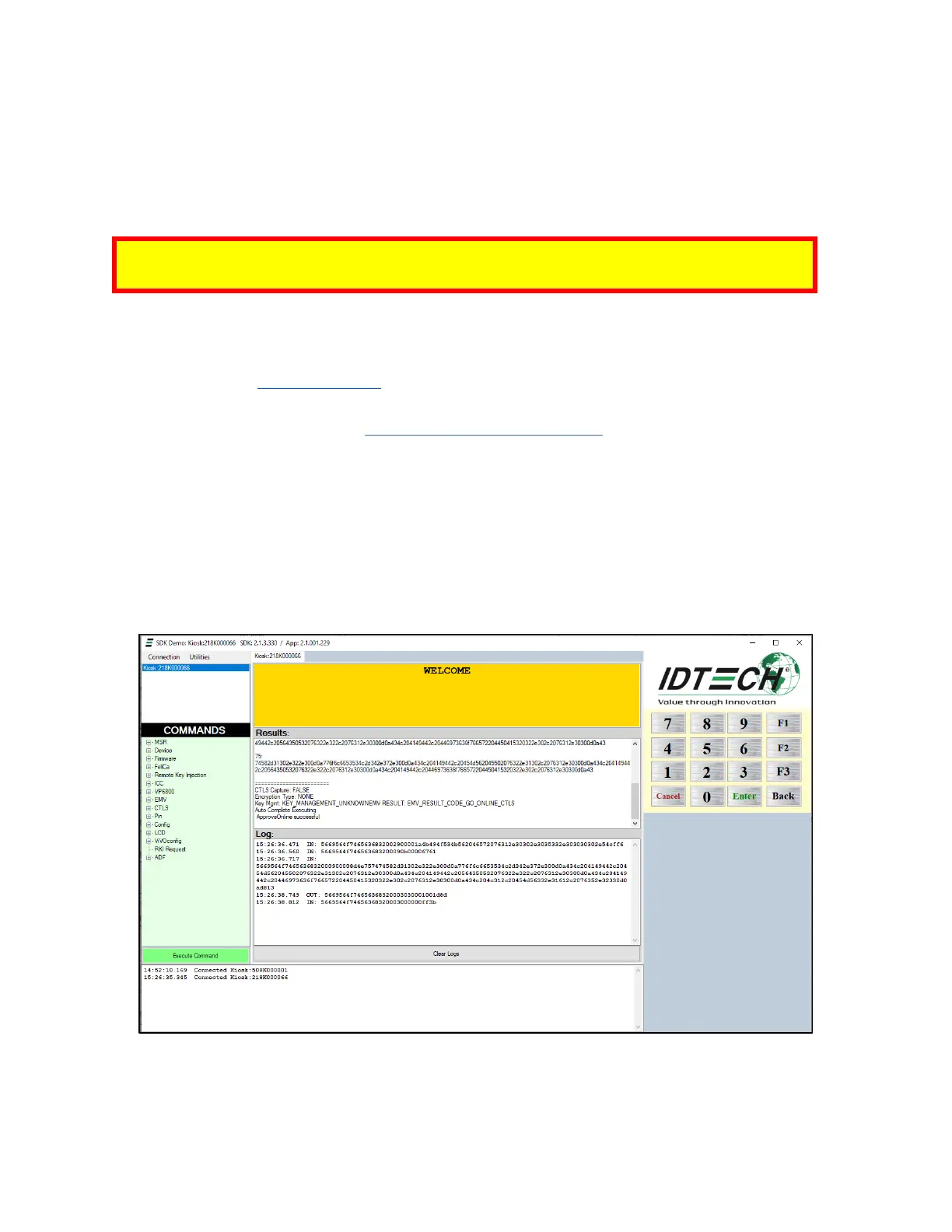
2. Double-click the UniversalSDKDemo.exe file and allow a few seconds for the main window to
appear (see illustration below).



 To Next Page