40 Image Vault
®
PRO Command
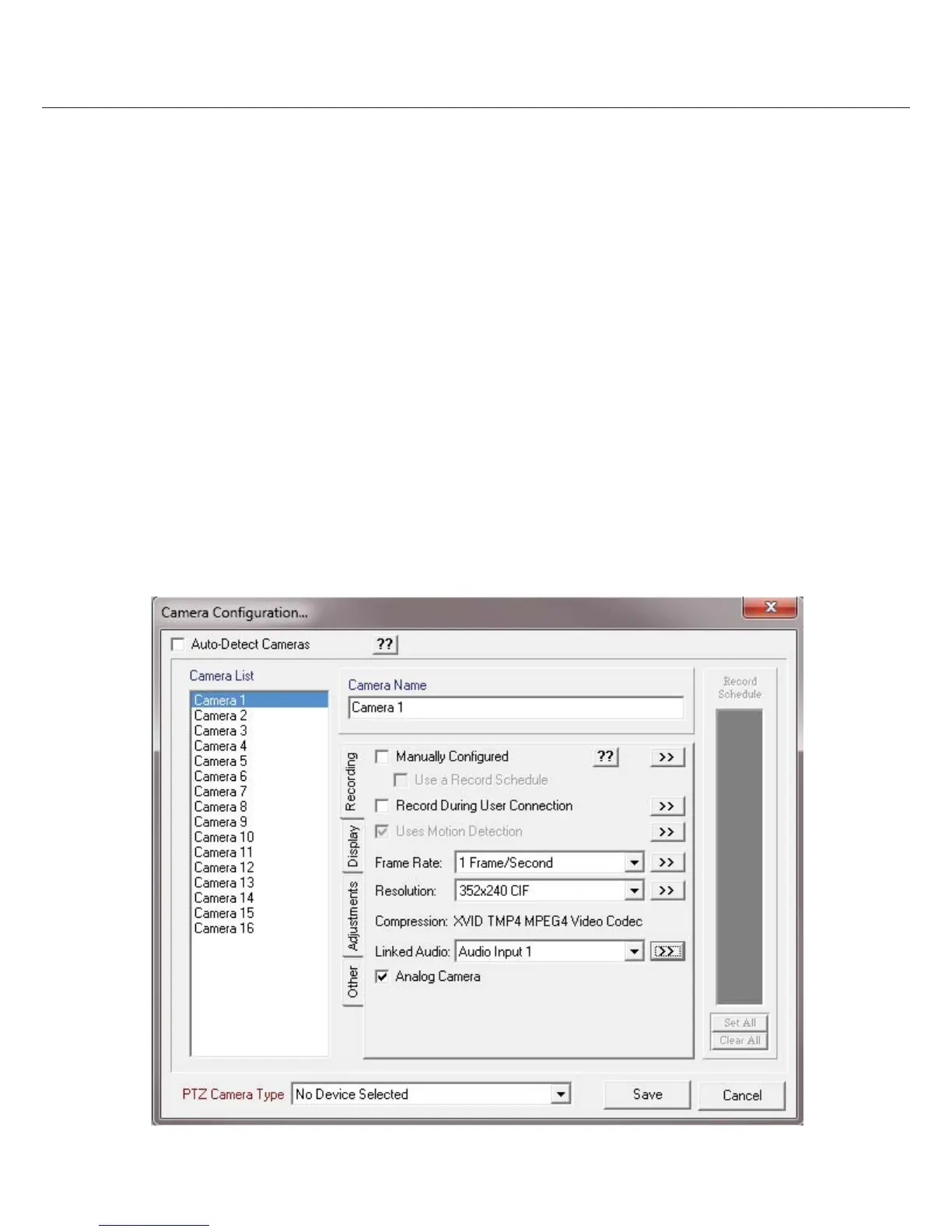
Frame Rate: Set (by camera) how fast the DVR captures images. Use the lowest acceptable Frame Rate for normal operation to
maximize total storage time on your DVR. If the total Frame Rate you setup is higher than the DVR actually supports, the DVR will cap-
ture as fast as it can and divide the capture rate proportionally among its cameras. Capture hardware and resolution a ect maximum
actual frame rate.
Capture Resolution: Set (by camera) the Capture Resolution of each camera. Using high resolutions will dramatically increase
image le size and may reduce the maximum capture rate.
Analog or IP Camera: Enable (by camera) “Analog Camera” all inputs except those being used by IP cameras. When con guring an
IP camera you will also be able to select the camera model, IP address, H.264 or MJPEG compression, and password.
PTZ Type: If applicable, select the brand of PTZ camera you are using to ensure your DVR uses the correct protocol to send PTZ
preset commands.
Linked Audio Inputs: Select a camera from the “Camera List” then select the Audio input you wish to link with the selected camera.
Hidden Cameras: To make cameras hidden click the “Display” tab. Use the “Don’t Display on NTSC/PAL Monitor” to hide the selected
camera from the public view monitor (PVM) output. Use the “Don’t Display on VGA Monitor” to hide selected camera from the Live
Monitor Mode display on the attached VGA monitor.
Adjustments: Click on the “Adjustments” tab to adjust Brightness, Contrast, Saturation and Hue for each camera you wish to change.
Quality Factor: Click on the “Other” tab to adjust individual cameras Quality Factor.


 To Next Page