50 Image Vault
®
PRO Command
8.3 System Clock
Choose “Synchronize Time” from the Edit Params submenu of the Status menu to set the time on the DVR. Locally you may double-
click the Time or Date eld to edit the time. Remotely you may force the DVR to synchronize with your PC time.
8.4 Clearing Logs
The system audit and error logs may be cleared. This should only be done at the time of installation to clear errors generated during
the normal course of installation and initial con guration.
8.5 Record Monitor Setup
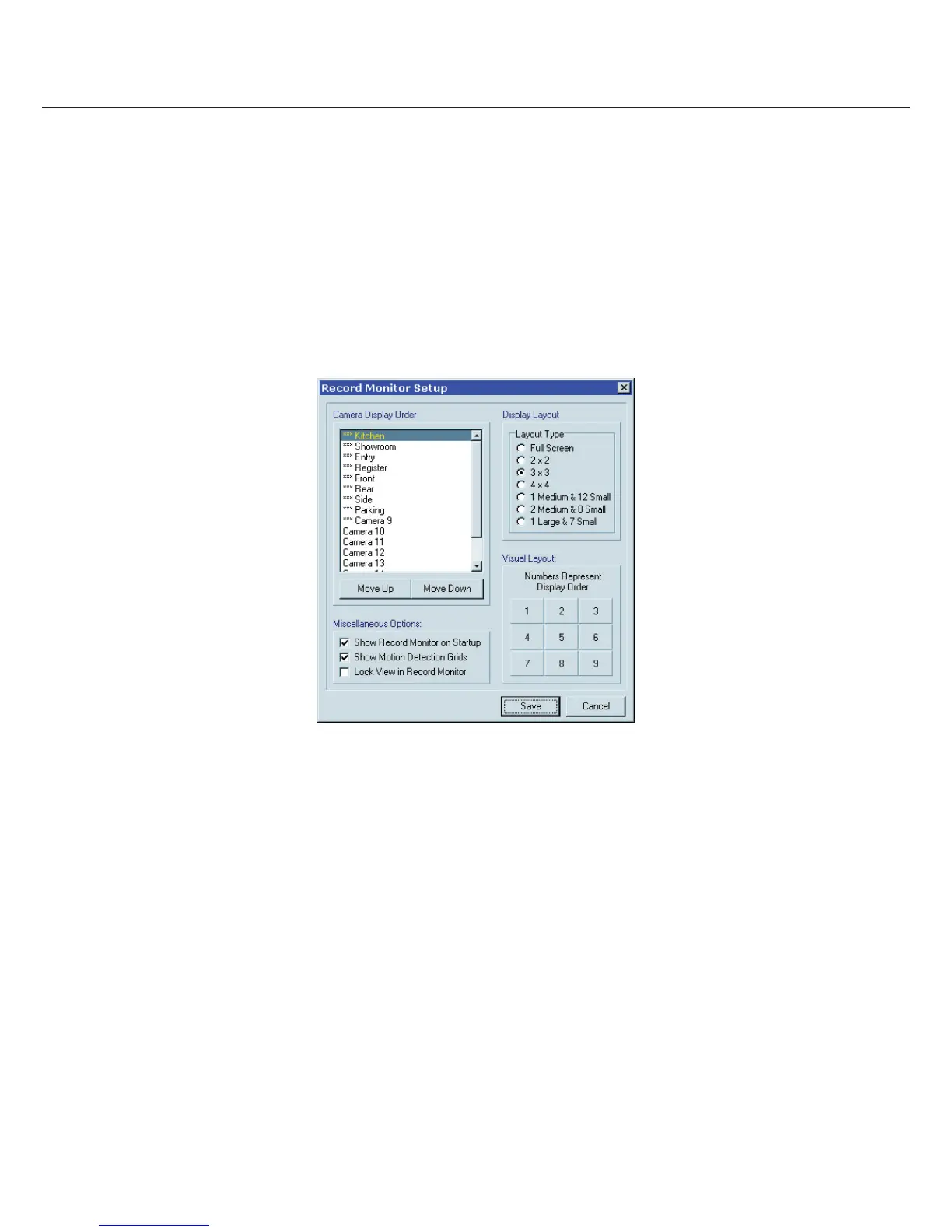
Select “Recorder Monitor Setup” from the Status menu to specify how the Live Monitor Mode will appear and behave. Set the number
of cameras displayed (layout), their order, lock this down to prevent changes, determine whether the DVR will boot-up in Live Monitor
Mode or Live Status Mode, enable or disable motion grids in
Live Monitor Mode.
8.6 Save and Load Con guration Settings
You may want to save your con guration settings for a variety of reasons. For example, you may want to save a reference con guration
in the event that someone tampers with or inadvertently alters your con guration. You may also have multiple locations with similar
con gurations. When the rst system is set up and you are satis ed with it, you may copy the con guration from that DVR then load it
onto others. While there will be some adjustments required at each location, starting with the basic programming complete can save
time. Another reason is security, saving known passwords on removable media and protect yourself from a lost or changed password.
Con guration settings may be saved to a CD, DVD, or USB device on the DVR or to a le on a remote PC (Save Con guration Settings
under Status menu). Settings saved to removable media may be loaded by inserting the media and rebooting the DVR. The settings
are loaded automatically as the DVR boots up. Settings saved to a remote PC may be loaded at any time by the remote user (Load
Con guration Settings under Status menu).
8.7 Software Updates
From time to time Image Vault may release an update for your DVR. Updates may include a revision to the program, any support le
or even operating system les. Updates are available from the website (www.image-vault.com). Updates may be emailed to you at no
charge. If you request the update via CD, Image Vault may charge a nominal shipping fee. Always check the website or Image Vault
Technical Service to verify compatibility before installing any updates.


 To Next Page