13
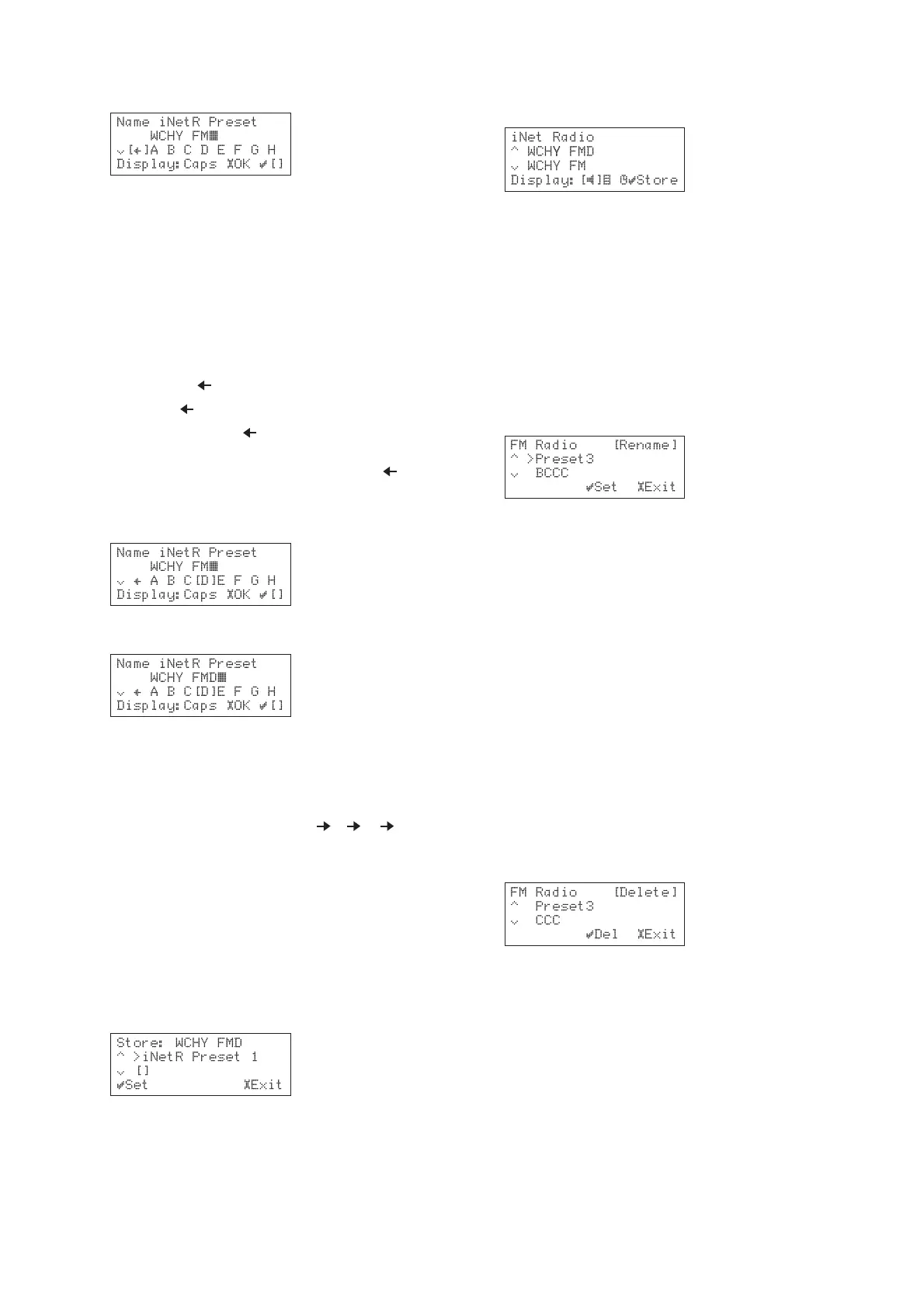
You are prompted to enter and edit the preset name:
With Internet radio and FM using RDS the preset name is
set to the station name, and you can press the £
SETUPSETUP
SETUPSETUP
SETUP
key to use this as the preset name.
With AM radio, the preset name is initially blank and you
need to enter a name as described below.
To edit the preset name
• Press the
DISPLAY DISPLAY
DISPLAY DISPLAY
DISPLAY key to select which type of
characters to enter.
Each time you press the
DISPLAY DISPLAY
DISPLAY DISPLAY
DISPLAY key, the character type
cycles as follows:
Capital lettersCapital letters
Capital lettersCapital letters
Capital letters: ABCDEFGHIJKLMNOPQRSTUVWXYZ
Lower caseLower case
Lower caseLower case
Lower case: abcdefghijklmnopqrstuvwxyz
Numbers and symbolsNumbers and symbols
Numbers and symbolsNumbers and symbols
Numbers and symbols: 1234567890 !”$%&’()*+,-./
:;<=>?@[]^_’{|}
NoteNote
NoteNote
Note: Pressing the »
SELECTSELECT
SELECTSELECT
SELECT key after selecting on the
display deletes the last character.
• Select the next character using the {, }, a, and
v keys:
• Press the »
SELECTSELECT
SELECTSELECT
SELECT key to enter the selected
character:
To enter characters using the remote control
You can also use the alphanumeric keys on your remote
control to enter characters.
Each time you press a numeric key on the remote control,
the key cycles through a number of assigned letters as
shown in the following example: A B C A….
You can press the numeric key
11
11
1 on the remote control
to enter a symbol.
When using the remote control press the
CAPS CAPS
CAPS CAPS
CAPS key to
switch the character type.
To save the preset
When you have finished entering the preset name:
• Press the £
SETUPSETUP
SETUPSETUP
SETUP key to save the preset.
The next available preset number is displayed, or Preset 1
if all the preset numbers are already in use:
• Press the a or v key to display your desired
preset number.
• Press the »
SELECTSELECT
SELECTSELECT
SELECT key to save the preset.
The preset name will be shown on the third line of the
display:
Alternatively you can cancel the operation of saving a
preset at any time by pressing the *
Stop Stop
Stop Stop
Stop key.
To rename a preset
• Press the £
SETUPSETUP
SETUPSETUP
SETUP key to display the Setup
menus.
• Use the a and v keys to highlight
iNet RadioiNet Radio
iNet RadioiNet Radio
iNet Radio, F
MM
MM
M
RadioRadio
RadioRadio
Radio, or
AM RadioAM Radio
AM RadioAM Radio
AM Radio as appropriate, and press the
»
SELECTSELECT
SELECTSELECT
SELECT key.
• Use the a and v keys to highlight
Rename PresetRename Preset
Rename PresetRename Preset
Rename Preset
and press the »
SELECTSELECT
SELECTSELECT
SELECT key.
• Use the a and v keys to select the preset you
want to edit:
For each character you want to edit:
• Use the ” / ¯ and ˘/ ’ keys to select the
character to be replaced.
• Use the { and } keys to select the new character.
• Press the »
SELECTSELECT
SELECTSELECT
SELECT key to enter the new
character.
After you have finished editing the name:
• Press the £
SETUP SETUP
SETUP SETUP
SETUP key.
To delete a preset
• Press the £
SETUPSETUP
SETUPSETUP
SETUP key to display the Setup
menus.
• Use the a and v keys to highlight
iNet RadioiNet Radio
iNet RadioiNet Radio
iNet Radio, F
MM
MM
M
RadioRadio
RadioRadio
Radio, or
AM RadioAM Radio
AM RadioAM Radio
AM Radio as appropriate, and press the
»
SELECTSELECT
SELECTSELECT
SELECT key.
• Use the a and v keys to highlight
Delete PresetDelete Preset
Delete PresetDelete Preset
Delete Preset
and press the »
SELECTSELECT
SELECTSELECT
SELECT key
..
..
.
• Use the a and v keys to select the preset you
want to delete:
• Press the »
SELECT SELECT
SELECT SELECT
SELECT key.
The preset will be deleted.
• Press the £
SETUPSETUP
SETUPSETUP
SETUP key to return to the normal
display.


 To Next Page