6-3 POWER ON
When the printer is connected to a computer on which the Printer Control Software or your RIP software is installed,
it is ready to power on. But before that, please check the grounding and power supply of the printer again to make
sure it is safe and the environment is qualified.
1. Turn on the computer connecting to the printer. The computer needs to be installed with Printer Control
Software and RIP software
2. After the computer is ready, press the Power ON button (the blue button at the front right side of the printer).
Please see the image in section 5-2 Using LCD Control Panel
.
3. Start the Printer Control Software.
4. The printer will start to initialize, PWC, carriage, and platen will move toward the origin position and stop there.
Please see the section 2-4 Motion Control
for the initialization workflow.
Note: Every time after you send printing job order from either PCS or RIP software, you need to press the Print
button (the blue button at the front left side of the printer) to start printing. Please see the image in section 5-2
Using LCD Control Panel.
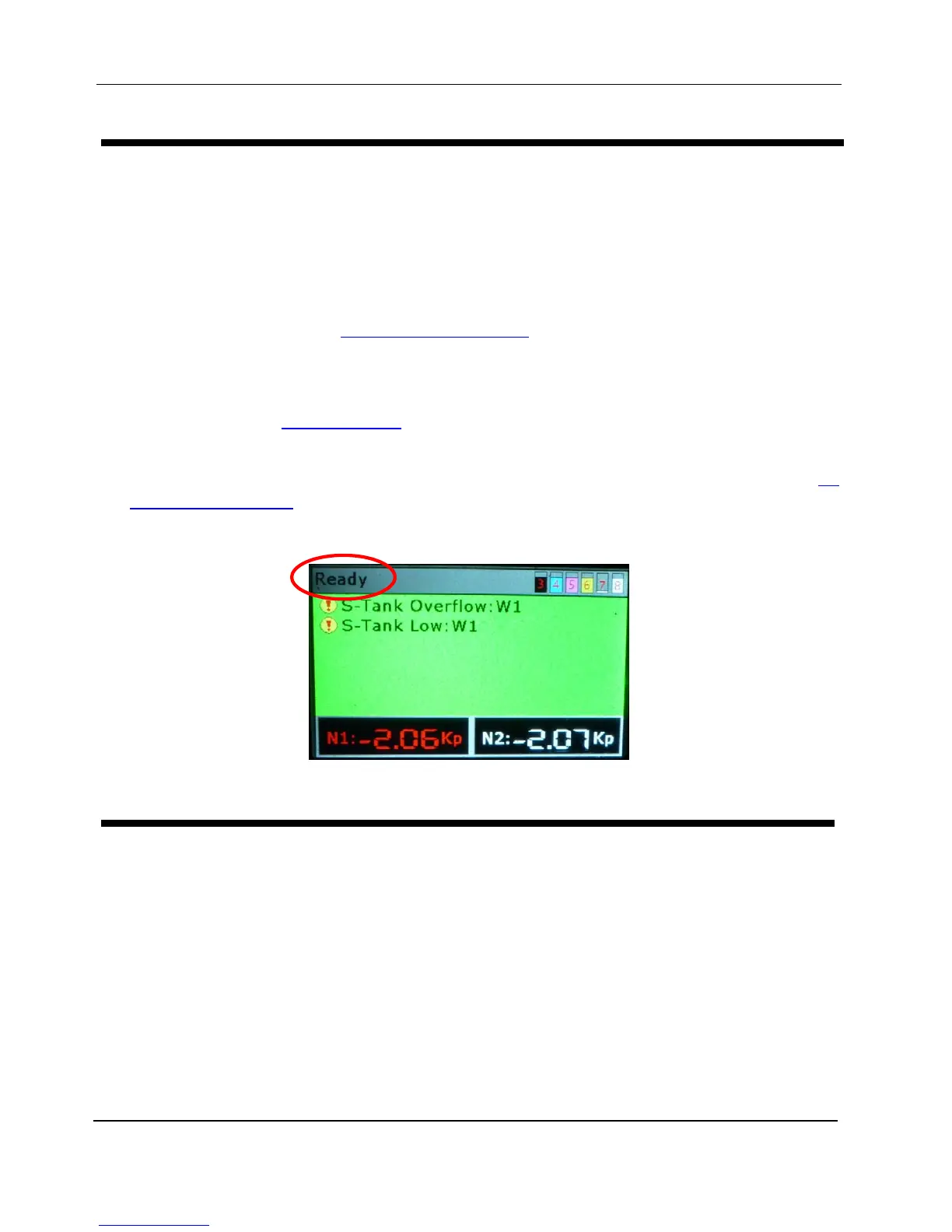
Once the printer has done initialization, the LCD panel will display “Ready”.
6-4 CHECK MOTION CONTROL
Before installing print heads, we need to check printer’s motion control so as to prevent any accident.
Please press the arrow buttons on the LCD control panel or those on PCS to move carriage and platen to check if
they are well controlled.
- Press the left and right arrow buttons to check if carriage moves accordingly; release the buttons to check if
carriage stops moving right away.
- Press the up and down arrow buttons to check if printing gantry moves back and forth accordingly; release the
buttons to check if printing gantry stops moving right away.
- Select up and down options on LCD control panel or on PCS to check if printing platen goes up and down
accordingly; release the buttons to check if platen stops moving right away.


 To Next Page